Thursday, September 29, 2011

[MeeGo Harmattan] VLC media player for Nokia N9 is here !

Here you can find a full and free version of the VLC media player for Nokia N9 (and Nokia N950).

Work in progress

VLC for N9 is a work-in-progress project.
There are some major known pending issues, in particular:
  • The user interface is currently optimized for desktop computers. It is extremely tedious to use with a small touchscreen.
  • Hardware-accelerated video decoding is not supported (however, color space conversion and scaling are hardware-accelerated). So there may be performance issues especially with high-res videos.
  • Screen blanking is not preempted. It is hoped that this will be resolved in the coming days.
If you want to help, please contact:

Facts

Which devices does this run on?
 
This should run on all Nokia N9 devices. However this was only tested on an unlocked device.
Nokia N950 devices are also supported.
How do I install this on my device?
 
Download here the libvlc5 and vlc-player packages to your device, and install them with this command:
dpkg -i libvlc5_*.deb vlc-player_*.deb
If you do not know how to proceed with that, you should probably not be using prereleases software, sorry. Help is needed to complete this project.
 
How do I start the software?
 
Once installed succesfully, there should be a VLC traffic cone icon in the application launcher. Alternatively, advanced users can also start VLC from the command line as on desktop computers.
Is this the real VLC media player?
 
Yes. This is the same VLC software as you would run on your computer. Almost all of the features found in the desktop VLC, particularly in the Linux desktop version of VLC, are included.
Which version VLC is this?
 
This is based on VLC version 1.2.0 pre-releases, pending the official release of VLC 1.2.0.
Where can I get the source code?
 
All of the code for VLC on Nokia N9 has been included in the official VLC media player project at VideoLAN already. Nevertheless, you can follow the source link to the left.
 
Via : http://www.irunvlc.me/

Wednesday, September 14, 2011

[MeeGo-Harmattan] Sophie Cam : share your photos with various quality effects

Sophie Cam is a brilliant way to share your photos with various quality effects such as Roid, Housten, Dirty Cam and many others through a sleek and user friendly interface. Share you great moments via Facebook and Flickr! More sharing services will be added soon!


[MeeGo-Harmattan] WRC Live !

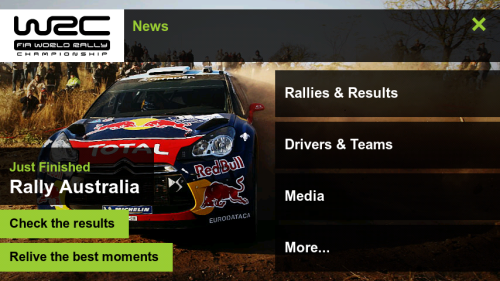
WRC Live give Nokia N9 and N950 users the ability to follow the rally live on a map as it happens, this is a first on any platform for WRC.


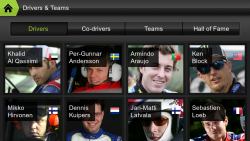
The app is in cooperation with Nokia and you can really tell, this is a very slick app indeed with many options from viewing the teams, rankings, driver profiles and of course the live events themselves.


The app is free and available now in the Ovi Store from you N9 and N950

Tuesday, September 13, 2011

[MeeGo-Harmattan] Mediadownloader : client for Google Image, Youtube and BlipTv !

Mediadownloader is a simple and fast client for Google Image, Youtube and BlipTv.
 You can search images and videos, view them in a grid view, then in a slide view.
 Images can be zoomed and rotated, both images and videos can be downloaded
 or set as wallpaper (single frame for videos). Images are cached, this means that
 if you want to download or rewatch an image, it is retrieved from the cache instead
 the net saving bandwidth.

 In the main window:

 * Choose Google Image, Youtube or BlipTv icon to search in
 * Scrolling the grid at the end will add more items
 * Tapping on a thumbnail will give more info about the source (hiding again within 4 secs).
 * Double tapping will show it on a scrollable list view


 In list view mode:
 While viewing images:


 * tap to get more infos
 * pinch to zoom, rotate and pan the image

 While viewing videos:

 * the video starts paused with controls available
 * press "i" to get more infos
 * while playing, tap to get controls back

 For both (videos and images)

 * long tap to get the menu to choose to save or set what you are seeing as wallpaper
 * slide to view the next or previous item
 * double tap to get back to grid view

Watch the original thread for questions or suggestions ^^

[MeeGo-Harmattan] GroundWork the poor man's airplay

GroundWork lets you broadcast your screen over a wifi network.

1- You need a little desktop script to make it work

 2- Start the desktop script by typing : python GroundworkvX.py
 - Enter the IP Address of your phone

 3- Start GroundWork and hit the settings button.
 - Enter the IP Address of your Desktop computer where the desktop script is running.
 - Hit the save button

 4- Press the start switch then wait ~10 seconds and your mobile screen will start playing on your monitor.

 5- Your phone's screen will appear on your Desktop press the switch again to kill the session.

 Find the source files here:
http://projects.developer.nokia.com/...ser/groundwork

Watch the original thread if you have questions or suggestions :)

[MeeGo-Harmattan] QuickBarControl : Quicklaunch customization !

Quickbar control by the creator of cutetunes enables you to customize quicklaunch bar and  select the position you wish for it to be.


Monday, September 12, 2011

[Did You Know?] N9 FAQ N°8 !

 Hello friends and folks, it's monday, a great day to continue our N9 FAQ series here's some additional informations and impressions about the beast from Michal Jerz and conversation.nokia !

RAM Memory

According to free and top commands in X-Terminal, with a freshly booted system on the N950 about 550 MB of operating memory (RAM) is taken (and thus about 470 MB RAM is free) and 256 MB of swap isn't used at all. On the N9 there can be a little bit more free memory as on the N950 some RAM is used by resident developer tools.

After running some apps free RAM drops to about 350-300 MB, but swap remains unused (some 600 kB or so is like nothing). Only on really heavy use with many applications and/or multiple web browser windows open free RAM drops to some 100-200 MB and some swap usage starts, but even then there's much more free memory and much less swap usage than on a clean N900...

RSS on the Nokia N9

If you like your newspaper delivered to your door in the mornings, the chances are you’ll also like the RSS experience on a phone. It’s a similar way of receiving news. Rather than logging onto a website to read a story, you subscribe to a particular site using their RSS feed – if they have one – and their latest news will be displayed on your phone through the built-in RSS reader. It also works in the background downloading stories that you can read offline, such as on an underground train, for example.

On the Nokia N9, you first need to find the Feeds icon – it’s bright orange – within the menu screen and select it.

The best place to start from here is by pressing the Plus symbol in the menu bar at the bottom. From here, you’ll need to enter an address to an RSS feed – if you know it. You will usually find these on the site you’re trying to subscribe to, so make sure to have that handy first. We’ve added a couple to the list as an example for you, as you can see in the screenshot below.


Another nice feature of the Nokia N9 is that you can have these feeds updated in your notifications screen, just like your Facebook and Twitter notifications do.


Email on the Nokia N9

As stated on Symbian Anna review, Nowadays, email is a big part of everybody’s life. It’s the main way I communicate to my work colleagues who are scattered across the land in the UK, or even overseas. That means it’s important to have a really good email client on your mobile phone, especially one that handles attachments well. Let’s find out how the Nokia N9 handles emails and in particular, the attachments.

I’ve set up this Nokia N9 prototype up with two accounts. One is a Gmail account and the other is an Ovi Mail account. Setting them up is quite straight forward. You select the email host you’re using from the list provided and if it’s not on that list, just click Other to enter your email address and password and that’s it, the client does the rest for you. Once your account or accounts are set up on your phone, you’ll see these listed in the email section.


Upon receiving an email with an attachment, you’ll see these listed at the top of the email, just under the sender details.

Email attachments

We’ve created a couple of documents for this test, a simple written piece of text in Word format and a list using Excel. As you can see, when you press on the attachments in the original email, it opens the Attachments screen. It’s here you can interact with them. Selecting one will open it to full screen where you’ll be given the option to view the document in more detail and then save it – if you wish. Otherwise, pressing the done button will return you to the attachment screen.


Here are the attachments once we’ve selected them from the email attachments page:


If you chose to save these documents, you can find them again in the documents folder in the main menu.

Meeting invites

Another important feature people need on their mobile phones is the ability to accept meeting requests and add them to their phone’s calendar. On the Nokia N9 as on Symbian Anna and above, once you receive a meeting request via email, you can initially view the meeting details in the original email. By clicking the invite.ics attachment at the top of the email you’ll be able to perform the usual options, such as respond to the invite using the Accept, Tentative, Decline buttons and add it to your calendar. It’s these features that mean you never need miss an appointment again.


Notes on the Nokia N9

I use notes quite a lot. It’s a quick and easy way for me to remember simple things I’d usually forget in a busy day. Things like “Bring home some milk”, or “Phone the bank”. Here’s how notes works.
In the menu screen, find the little yellow icon with the words Notes underneath it and press it. That’ll take you to the notes screen – which should currently be empty – where you’ll see a plus symbol at the bottom and where some text in the middle, reading Add your first note.


Once you’ve pressed the plus symbol, the screen will split into two parts. A white text field at the top and the keyboard below. There’s even a handy date and time stamp on the top so you know exactly when this note was created. Using the onscreen keyboard, you type out your memo, just like we’ve done on in our screenshot. You’ll be happy to know this you’re also able to write in landscape mode, if you prefer.


Once you’ve typed out your note, you can interact with that text. Pressing on the text itself will open up a small menu where you can use features such as underline, bold or italic. If you want to copy and paste, you can do that, too. Run your finger over the chosen words, and they will highlight to blue. A small pop up bubble will appear with the words cut and copy. Select your preferred option.


One other icon in that pop-up bubble is the options icon. This is where you can change the font, the font size and even the font colour.


Note to self complete, hit the orange save button at the top of the page and your text is saved, ready for you to check later when you need that reminder.

Sunday, September 11, 2011

Battery Patch For Non KP Users

This Patch as stated here will Improve The Battery Life Of Your N900 Using Dbus-scripts (Non-kp) Means non-kernel-power, For People Who Have Troubles With OverClocking

It Will Not Increase The Continues Usage Time, But It Will Increase The Standby Time About 3x.

Speed Patch !

As stated here, The CFS (completely fair scheduler) in our phone's kernel manages the allocation of resources (cpu/mem) between tasks.

It was designed to cope with server-class machines such as web servers and databases, giving all tasks equal access to resources. This means if a server is really busy, then all tasks on the machine slow down equally.

Desktop/mobile class machines shouldn't work the same way as servers though. They have a human user who expects the machine to respond and give feedback within a certain time. If a machine is slow to respond, the user loses some sense of control over the machine.

This patch addresses the problem by taking note of what the user is doing right now, and using that information to accelerate the current task, and decelerate other tasks on the system. The user won't notice the background stuff going slower, they will just see their app working fast.

The patch does this by creating multiple classes of task
-------------------------------------------
/dev/cgroup/cpu/tasks
/dev/cgroup/cpu/desktop/tasks
/dev/cgroup/cpu/applications/tasks
/dev/cgroup/cpu/applications/standby/tasks
/dev/cgroup/cpu/applications/launcher/tasks
-------------------------------------------

If you look at the contents of these files, you'll see the process IDs of all the tasks in each class. CPU and memory are shared out to these classes using the files "cpu.shares", and "memory_limit_in_bytes". When lots of tasks are demanding CPU/memory at once, the resources are handed out to tasks depending on their share.

This is why your phone feels nicer when you have this patch - the kernel automatically classifies tasks and devotes more of cpu/mem to the "application" and "desktop" class tasks, and much less to other classes like "standby".

Friday, September 9, 2011

[MeeGo-Harmattan] seamlessly smooth browsing & latest technologies with Nokia Browser !

If you're more hunger to know about web browser here's some basic additional informations from browser.nokia.com !


Just a swipe away

You don't always have both hands free when you're using your phone. That's why Nokia Browser supports gestures that are easy to use with one hand, or even one finger. Swipe to reveal previously opened windows, tap to save favourites to the Applications menu, or long-tap to open a new window or share links and images with friends.


Pinch to zoom and tap to fit


Use these familiar gestures to adjust the size of content, making it easier to read. Push two fingers apart to enlarge content just as you like, or double-tap an area to automatically expand it to fit the width of the screen.

Comfortable, efficient typing


With Nokia Browser's virtual, split-screen QWERTY keyboard, you can type comfortably, without ever leaving the page, or loosing sight of the content. The keyboard is also customized to suit your chosen language, providing easy access to common accents and diacritical characters.

Stay safe


Nokia Browser includes all the security features you'd expect. Manage popups, delete cookies, clear your browser history, and set next generation permissions such as location sharing. Nokia Browser also flags secure sites with an easy to recognise icon so you're always in control.

Make your location count


Knowing your location can be useful when you're on the go. Nokia Browser includes new geolocation technologies, enabling sites to request your location so they can provide faster and more relevant content. Using this feature is optional and sites must always ask your permission before detecting this information. If you say yes, the site won't ask again, but you can always change your mind. Tap the URL bar's location icon at any time to delete the location sharing preferences for that site.

Type less. Surf more


Search for content or enter URLs in a snap using the always available, search integrated address field. As you type, our predictive technology will provide a list of popular sites, matching bookmarks, recently input keywords and visited URLs; enabling you to type less, and load your content even faster.

All the latest technologies


Nokia Browser for MeeGo is powered by the latest web standards and technologies including HTML5, CSS3 and the new, state of the art WebKit2 engine. These technologies enable developers to build web sites and applications that load fast, perform beautifully, and look their very best on a variety of mobile devices — including yours.

See what HTML5 can do. Try the demo application pictured here on your HTML5 compatible mobile or desktop browser.

Fast access to your top sites


The Top Sites page keeps track of your most frequently visited web sites and gathers them in one spot so they're easy to access. Sites are ordered by popularity, so your favourites are always on top.

Download with confidence


Download files such as PDFs and spreadsheets just like on the desktop. Downloading take place in the background, so you're not interrupted. Downloaded files can be saved to the Documents area, so they're easy to find, manage, and share.

Automatic updates


Nokia Browser is always growing and automatically lets you know when a new, improved version is available. Updates are downloaded straight to your phone so you so you can have instant access to all the new features.