Showing posts with label FAQ. Show all posts

Sunday, January 8, 2012

[MeeGo Harmattan] [How to] retrieve the forgotten security code?!

Didn't you activate trusted person settings? And now you've a headache to remember the security code you've set up ! You can retrieve the forgotten security code using Nemesis Software Suite.

How?

- Download and install NSS

- Connect the N9 in "Sync and connect" mode (you may need to wait for the driver to install)

- Run Nemesis Service Suite (NSS)

- Click on "Scan for new devices" (top right hand button)

- Click on "Phone info" button

- Click on "Scan" button.

- Switch to the "Permanent Memory" tab.

- Click on "Read" button and let the program read memory contents. When it finishes, in the last line in the status window it will inform you about the location of the log file containing memory contents.

- Go to that location and open the file, e.g. with Windows Notepad.

- Find [308]

- Scroll down a little bit until you see a line starting with 5= followed by a numerical string, e.g. 5=31323334350000000000

- When you remove the "3" digits on ODD locations in that string, you'll get the security code. E.g :

31323334350000000000 = 12345 i.e. your forgotten security code (of course this is just the example showing the unchanged factory code).

Friday, December 30, 2011

[MeeGo Harmattan] [How to] Transfer SMS and IM conversations from the N900 to the N9 !

Having a headache in migrating the SMS and IM conversations?

Do you remember The basic tool that import sms conversation from the N900 to the N9? Ok, now, there is an enhanced script to import all Conversations to N9.

All you have to do is to :

1- Download the *.deb file and install it (by clicking on it)
2- Copy the database (located at /home/user/.rtcom-eventlogger/el-v1.db) from the N900 to the N9
3- Open the terminal and run the following command:

n900-comhist-import /path/to/el-v1.db

And wait for the magic to happen !

If you want only import SMS messages, use this version instead ;)

Read this before !

Tuesday, December 27, 2011

[MeeGo Harmattan] [How to] Sync your N9 with ovi suite !

Simple ! Ovi Suite 3.0.0.290 will recognise and sync with the N9. It works.

You can then upgrade to the current Ovi Suite and it will continue to work – but only if you have created the sync under the 3.0.0.290 version.

Steps:

- When you are installing 3.0.0.290, turn off internet connections otherwise Ovi Suite will automatically upgrade before installing

- Once installed, turn off auto-update software (for now) and plug your handset in. It will be recognised, install drivers, and say it is ready

- Confirm your sync settings, and press sync.

- You can then go back online and agree to update your Ovi Suite to the current release.

If you have questions, drop them in the comments section below ! Enjoy !

Original topic ;)

Saturday, December 24, 2011

[MeeGo Harmattan] [How to] Bring back your dead N9 to life !

If you bricked your N9 as i did the past week, and want it back to life from the dead Nokia Logo then you can use the following method for restoring system after some dangerous experiments with applications.

My guide is based on ubuntu live cd (the best and safest method yet) as i have Win 7 64bits and i just can't run properly the tools needed to flash the N9 (if you want steps to do it on windows OS, be sure to look into maemotalk forums)...so :

In few steps :

1- Get (not really necessary) the latest ubuntu build (i did it with ubuntu 9 and it worked just fine), Once you've finished downloading your file, you'll need to create a CD or USB drive (the advantage of running a live cd is that you won't need to install anything on your PC) and then run it (see step 3 from this page).

2- Get the maemo flasher released for Harmattan (in my case i did choose the flasher_3.12.1_i386.deb version of it as i'll use ubuntu live cd) and install it !

3- Get the firmware image for your device, I used NaviFirm from http://www.symbian-toys.com/navifirm.aspx to get the appropriate firmware for my N9 (you can search your Firmware with the help of the product code of your N9 which you can find on the back of the micro SIM holder) you're not forced to download all files but ones checked by default, the most important file is the Mcu LEGACY one (something like : DFL61_HARMATTAN_2X.2011.44-2_PR_LEGACY_XXX.bin)

Ps : It'll be convenient to rename it to something easy like your name for example : saad.bin

You want to do a warm-flash ( I have not tried a cold-flash, so do that at your own risk ) of your device.

There are detailed instructions at the maemo wiki, http://wiki.maemo.org/Flasher but you won't probably need them as only what's left to you to do is to place files you've just downloaded to Desktop.

5- Place downloaded files to desktop.

6- Run Xterm, then type :

cd Desktop

Then sudo flasher -F FIRMWAREIMAGE.bin -f -R

Where  FIRMWAREIMAGE.bin is the name you gave to your firmware image... in my case the command will be :

sudo flasher -F saad.bin -f -R

Plug your N9 (it must be switched off already) and wait the magic till your device reboot ;)

It worked fine, but still, do at your own risk !

Additional type : Do a hard reset after that as you could have some old nasty files staying on the system ;)

If you have questions drop them in comments section :)

[MeeGo Harmattan] [How to] Get rid of the "click" sound of the N9 camera !?

Hey folks,

If you, like me need to take some silent shots, removal of the snd_camera_shutter.wav file from /usr/share/sounds/ui-tones works perfectly.

NB : Don't forget to restart your N9.

Saturday, December 17, 2011

[MeeGo Harmattan] [How to] Enable zoom in video recording On your N9 !

In 4 steps you'll be able to zoom during video recording with your lovely N9, I also tested it, it works fine :


 Enable developer mode (Settings> Security> Developer Mode) if not already done.  

1- Download the file camera.conf

2- Open Terminal and enable root acces :

devel-su

password : rootme

3- Copy the downloaded file in the etc directory:

 cp /home/user/MyDocs/camera.conf /etc/camera.conf

4- Restart the device.

It 'can zoom both with the top bar like the pictures, both with the volume buttons.

To remove this tweak just delete the file by repeating the procedure from step 2 to step 5 and just type this command:

 rm /etc/camera.conf


Via : nokia.hdblog

Sunday, December 11, 2011

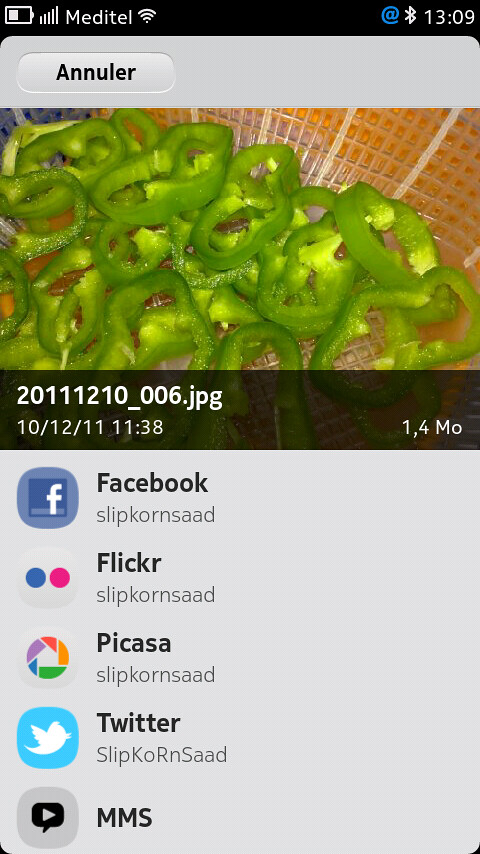
[MeeGo Harmattan] [How to] Share Pictures & Videos to Twitter From N9 Default Gallery Panel !

A simple hack (Found by ukhamitov it seems) which enables twitpic from N9 (N950) gallery !

So you can share your pictures directly from default Harmattan gallery panel manager (just like facebook, picassa etc) :

Make sure you have nano installed (Goto Settings->Security-Developer Mode-> Click Install button near utilities)


1- Open Terminal and enable root acces :
devel-su
password : rootme
2- Then type nano /usr/share/accounts/services/twitter-share.service


- The content of the twitter-share.service file will be displayed :

3- Scroll (with the help of the arrows keys) till you find something like below :

<!– <mime>image/*</mime> –>


<!– <mime>video/*</mime> –>


4- Remove comments from this code (with the help of the arrows keys) and press ctrl on the on-screen keyboard and press X and then press Y and click enter to save the modified file !

Tadaaaaa !

Ps : you can also configure max number of files to share etc.


[MeeGo Harmattan] [How to] Get MSN, ICQ, Jabber, AOL and Yahoo! In 1 or 4 steps in your N9 !

Hey hey ! What about getting all IM's : MSN, ICQ, Yahoo, AIM, IRC, Gadu-Gadu, QQ, Jabber, AOL, QIP, Vkontakte, etc on our lovely N9 (like on the N900)?

Well it's here finally !


1) Download these three files straight on the device :

LibPurple

Telepathy-Haze

IM-Providers-Additional

2 Open terminal, and gain root access using devel-su with rootme as password (unless changed).


3 Enter cd /home/user/MyDocs/Downloads


4 Then (in respective order) dpkg -i libpurple0_*.deb


(5) Then dpkg -i telepathy-haze_*.deb


(6) Then dpkg -i im-providers-additional-0.4.deb

Update :

2) You can use the Transfers view that pop-ups and single click (in respective order, otherwise installation will fail) to install (Yes, it works now) but if you're in ease with previous steps with xterm, just use it ;)

What then? Simply Restart the device you should have the various IM providers in the Accounts app.

Upgrading from a previous version :

- Download file number #3
- Use filemanager or transfer-view on your phone to find the .deb file
- click on the file, it will be upgraded automatically

If you wish to deinstall these later, simply go to  :

Programs -> Manage Programs -> im-providers-additional and select Deinstall.

You can follow this topic, this one and mainly this one for more informations and detailed guide ;)

Sunday, November 20, 2011

[Did You Know?] N9 includes Lower Power Consumption feature on screensaver?

Yes, Low power consumption meaning N9 turns screen off when it is covered, for example in a bag or your pocket ;)


Sunday, November 6, 2011

[MeeGo Harmattan] [How to] Explore, Edit, Replace System Files And So On

Well, it's not much different from what you did with your N900, but here's how :


  1. You need an SSH client on your computer as on the earlier tutorial. A free SSH client WinSCP is one of the popular softwares for Windows. WinSCP provides both the Remote Terminal access to the N9 as well as the File Transfer GUI. You can download WinSCP from here.
  2. Turn on the “Developer Mode” in your Nokia N9 by going through - “Settings > Security > Developer mode” - and turn on the “Developer mode”. You don't have to install other items in Developer Mode and just leave the interface. After turning the Developer mode on you should see two new icons on your home screen “Terminal” and “SDK Connection”.
  3. Open “SDK Connection” on home screen and tap “WLAN” to see what’s the IP address, N9 has been assigned on the network. Note this IP address. You don’t need to note any thing else in SDK Connection other than the IP address.
  4. On your Computer, run WinSCP. Give the IP address of N9 in “Host name”. User name is “root” and Password is “rootme”
  5. That’s it. Click Login to initiate the SSH connection with Nokia N9. – Accept any private key notifications on first time connection.

If the step 4 didn't work, do the following :

- On N9 open terminal and run:

Code:
devel-su (password is rootme)
passwd user (and enter some password)
Then on WinSCP ssh in as 'user' (Instead of "root") using the password you just set (instead of "rootme").

Sunday, October 2, 2011

[Did You Know?] N9 FAQ N°9 !

Hello friends and folks, it's time to continue our N9 FAQ series here's some additional informations and impressions about the beast via nokiamobileblog and nokia_fan !

If you are done with the keyboard and need to hide it to have more screen space, just slide it down and it will disappear


You can save some battery in your Nokia N9 by just activating the “Power Saver Mode.” Let’s say you are traveling and you know you won’t be able to charge your N9 anytime soon, just activate the power saving in Settings, set it to “On” or Automatic depending on your needs. You can also change the time when the Power Saving Mode kicks in by sliding the blue bar.


Lets say you need to take a picture really quick, or call someone, or lookup something. All you have to do is double-tap the screen and slide the unlock wallpaper halfway through and hold. You will see that four icons will appear, you can change these in settings if you want.


N9 has an Android-style slide down bar. However, don’t try to slide it down, it’s not quite a slide down bar. All you have to do is tap it and it will slide down by itself. You can manage your Internet connection and online status as well as your volume and notification volume.


 Software updates show up on lockscreen N950 and surely the N9 !


Monday, September 12, 2011

[Did You Know?] N9 FAQ N°8 !

 Hello friends and folks, it's monday, a great day to continue our N9 FAQ series here's some additional informations and impressions about the beast from Michal Jerz and conversation.nokia !

RAM Memory

According to free and top commands in X-Terminal, with a freshly booted system on the N950 about 550 MB of operating memory (RAM) is taken (and thus about 470 MB RAM is free) and 256 MB of swap isn't used at all. On the N9 there can be a little bit more free memory as on the N950 some RAM is used by resident developer tools.

After running some apps free RAM drops to about 350-300 MB, but swap remains unused (some 600 kB or so is like nothing). Only on really heavy use with many applications and/or multiple web browser windows open free RAM drops to some 100-200 MB and some swap usage starts, but even then there's much more free memory and much less swap usage than on a clean N900...

RSS on the Nokia N9

If you like your newspaper delivered to your door in the mornings, the chances are you’ll also like the RSS experience on a phone. It’s a similar way of receiving news. Rather than logging onto a website to read a story, you subscribe to a particular site using their RSS feed – if they have one – and their latest news will be displayed on your phone through the built-in RSS reader. It also works in the background downloading stories that you can read offline, such as on an underground train, for example.

On the Nokia N9, you first need to find the Feeds icon – it’s bright orange – within the menu screen and select it.

The best place to start from here is by pressing the Plus symbol in the menu bar at the bottom. From here, you’ll need to enter an address to an RSS feed – if you know it. You will usually find these on the site you’re trying to subscribe to, so make sure to have that handy first. We’ve added a couple to the list as an example for you, as you can see in the screenshot below.


Another nice feature of the Nokia N9 is that you can have these feeds updated in your notifications screen, just like your Facebook and Twitter notifications do.


Email on the Nokia N9

As stated on Symbian Anna review, Nowadays, email is a big part of everybody’s life. It’s the main way I communicate to my work colleagues who are scattered across the land in the UK, or even overseas. That means it’s important to have a really good email client on your mobile phone, especially one that handles attachments well. Let’s find out how the Nokia N9 handles emails and in particular, the attachments.

I’ve set up this Nokia N9 prototype up with two accounts. One is a Gmail account and the other is an Ovi Mail account. Setting them up is quite straight forward. You select the email host you’re using from the list provided and if it’s not on that list, just click Other to enter your email address and password and that’s it, the client does the rest for you. Once your account or accounts are set up on your phone, you’ll see these listed in the email section.


Upon receiving an email with an attachment, you’ll see these listed at the top of the email, just under the sender details.

Email attachments

We’ve created a couple of documents for this test, a simple written piece of text in Word format and a list using Excel. As you can see, when you press on the attachments in the original email, it opens the Attachments screen. It’s here you can interact with them. Selecting one will open it to full screen where you’ll be given the option to view the document in more detail and then save it – if you wish. Otherwise, pressing the done button will return you to the attachment screen.


Here are the attachments once we’ve selected them from the email attachments page:


If you chose to save these documents, you can find them again in the documents folder in the main menu.

Meeting invites

Another important feature people need on their mobile phones is the ability to accept meeting requests and add them to their phone’s calendar. On the Nokia N9 as on Symbian Anna and above, once you receive a meeting request via email, you can initially view the meeting details in the original email. By clicking the invite.ics attachment at the top of the email you’ll be able to perform the usual options, such as respond to the invite using the Accept, Tentative, Decline buttons and add it to your calendar. It’s these features that mean you never need miss an appointment again.


Notes on the Nokia N9

I use notes quite a lot. It’s a quick and easy way for me to remember simple things I’d usually forget in a busy day. Things like “Bring home some milk”, or “Phone the bank”. Here’s how notes works.
In the menu screen, find the little yellow icon with the words Notes underneath it and press it. That’ll take you to the notes screen – which should currently be empty – where you’ll see a plus symbol at the bottom and where some text in the middle, reading Add your first note.


Once you’ve pressed the plus symbol, the screen will split into two parts. A white text field at the top and the keyboard below. There’s even a handy date and time stamp on the top so you know exactly when this note was created. Using the onscreen keyboard, you type out your memo, just like we’ve done on in our screenshot. You’ll be happy to know this you’re also able to write in landscape mode, if you prefer.


Once you’ve typed out your note, you can interact with that text. Pressing on the text itself will open up a small menu where you can use features such as underline, bold or italic. If you want to copy and paste, you can do that, too. Run your finger over the chosen words, and they will highlight to blue. A small pop up bubble will appear with the words cut and copy. Select your preferred option.


One other icon in that pop-up bubble is the options icon. This is where you can change the font, the font size and even the font colour.


Note to self complete, hit the orange save button at the top of the page and your text is saved, ready for you to check later when you need that reminder.

Friday, September 9, 2011

[MeeGo-Harmattan] seamlessly smooth browsing & latest technologies with Nokia Browser !

If you're more hunger to know about web browser here's some basic additional informations from browser.nokia.com !


Just a swipe away

You don't always have both hands free when you're using your phone. That's why Nokia Browser supports gestures that are easy to use with one hand, or even one finger. Swipe to reveal previously opened windows, tap to save favourites to the Applications menu, or long-tap to open a new window or share links and images with friends.


Pinch to zoom and tap to fit


Use these familiar gestures to adjust the size of content, making it easier to read. Push two fingers apart to enlarge content just as you like, or double-tap an area to automatically expand it to fit the width of the screen.

Comfortable, efficient typing


With Nokia Browser's virtual, split-screen QWERTY keyboard, you can type comfortably, without ever leaving the page, or loosing sight of the content. The keyboard is also customized to suit your chosen language, providing easy access to common accents and diacritical characters.

Stay safe


Nokia Browser includes all the security features you'd expect. Manage popups, delete cookies, clear your browser history, and set next generation permissions such as location sharing. Nokia Browser also flags secure sites with an easy to recognise icon so you're always in control.

Make your location count


Knowing your location can be useful when you're on the go. Nokia Browser includes new geolocation technologies, enabling sites to request your location so they can provide faster and more relevant content. Using this feature is optional and sites must always ask your permission before detecting this information. If you say yes, the site won't ask again, but you can always change your mind. Tap the URL bar's location icon at any time to delete the location sharing preferences for that site.

Type less. Surf more


Search for content or enter URLs in a snap using the always available, search integrated address field. As you type, our predictive technology will provide a list of popular sites, matching bookmarks, recently input keywords and visited URLs; enabling you to type less, and load your content even faster.

All the latest technologies


Nokia Browser for MeeGo is powered by the latest web standards and technologies including HTML5, CSS3 and the new, state of the art WebKit2 engine. These technologies enable developers to build web sites and applications that load fast, perform beautifully, and look their very best on a variety of mobile devices — including yours.

See what HTML5 can do. Try the demo application pictured here on your HTML5 compatible mobile or desktop browser.

Fast access to your top sites


The Top Sites page keeps track of your most frequently visited web sites and gathers them in one spot so they're easy to access. Sites are ordered by popularity, so your favourites are always on top.

Download with confidence


Download files such as PDFs and spreadsheets just like on the desktop. Downloading take place in the background, so you're not interrupted. Downloaded files can be saved to the Documents area, so they're easy to find, manage, and share.

Automatic updates


Nokia Browser is always growing and automatically lets you know when a new, improved version is available. Updates are downloaded straight to your phone so you so you can have instant access to all the new features.

Monday, August 29, 2011

[Did You Know?] N9 FAQ N°7 !

 Hello friends and folks, it's monday, a great day to continue our N9 FAQ series here's some additional informations and impressions about the beast from Michal Jerz

- Multitasking 

As I wrote in the "Performance" part, N9/N950's resources make them EXCEPTIONALLY good performers. 1 GB of RAM plays the most important role here. You can run LOTS of applications simultaneously, switch between them anytime, they continue normally running in the background like on the N900, and - due to the amount of operating memory - I couldn't see any noticeable impact on performance or UI smoothness even with multiple applications running. So yes, Harmattan devices remain as good (or better) 'multitaskers' as the N900.

The multitask screen (called task switcher on the N900, the one where you see thumbnails of all apps running) is always accessible "on the right side" of the current screen. So just swipe the current screen to the left and you get it. Like on the N900, it is enough to just tap on the thumbnail of app you want to switch to. Unlike on the N900, "X" symbols to close tasks aren't shown all the time - you need to tap and hold on an empty area of that screen to make them appear. Then you can close selected apps by tapping on their "X" buttons, or all apps at once using the "Close all" button shown at the bottom of the display.

One nice feature is that the multitask screen supports pinch-to-zoom. With a lot of apps running when their thumbnails don't fit on one screen and have to be scrolled, you can zoom out to reduce the size of the thumbnails and make them all fit. And vice versa - you can zoom in to make the thumbnails larger if e.g. small thumbnails are too tiny to identify which app is which, or if you want to see more details of what an app is currently doing (as I wrote, apps continue to normally run in the background rather than freeze, so contents of their displays may change even when they aren't in the foreground).

For a person who got used to being able to quickly close an app from that app itself on the N900, what's badly missing on the N950 at the moment is a "Close" button. On Harmattan, apps aren't supposed to have it.

Current builds of N9 firmware support a very nice feature to instantly close the current application - just "swipe it down" from the top of the display and it'll go away for good. Very nice and easy to use. Unfortunately, this feature isn't present in the current N950 software build, so at the moment the only way to close an app (that doesn't have own Quit/Exit button/menu item) is to use the multitask screen for that. Another way is to use Ctrl-Q keyboard shortcut, but that's only convenient if you have the keyboard open.

As I wrote earlier, another nice feature is the "Quick launch" function - swipe the current app a little bit (some 20%) up and hold it at this position about one second, and a bar with four icons (Phone, Web, Search, Camera) is shown at the bottom. These apps seem to be "hardcoded" at the moment and there seems to be no way to change them, so hopefully in final builds one will be able to choose the apps to appear there... Of course, without physical buttons for Phone and Camera most people will probably want Phone and Camera icons to remain there or else it'll always take getting to the app launcher (icon grid) to start them, but I guess that some people might like to change the two remaining ones...

- Calendar 

The Calendar app supports multiple calendars and color coding. One calendar can be set as "default", each calendar can be quickly activated or disabled (there is a switch to either show or hide its entries and reminders).

In general, functionality seems to be the same as N900's Calendar app.

- Contacts 

What I really like about the Contacts app are the following new (compared to N900) features:

- favourites: just tap the "Star" button in a contact's detailed view to make it favourite and it will always be shown on top of the Contacts list. This way you always get your favourite Contacts first, and then the remaining contacts sorted with the chosen method: alphabetically or by availability.

- automatic creation of thumbnails/avatars. If a contact doesn't have its photo/avatar, the Contacts app automatically shows an avatar for it consisting of that contacts initials (e.g. "AC" for Adam Cooper).

- quick scrolling. You can either slowly scroll the whole list of contacts, or (if you swipe over the grey bar on the right side showing the current letter) it will let you quickly scroll the initial letters. This way you can very quickly go to contacts starting from the chosen letter, e.g. "S" or "W". The whole alphabet can be scrolled through this way on one display, so it's really a very quick method of reaching ANY contact entry on the device.

- groups. The Contacts app supports Groups and lets you freely create as many of them as you wish. You can give groups custom names and avatars/images.

- individual ringtones. Finally, without having to use 3rd party apps for that, contacts can be given individual ringtones.

The only thing I'd like to change about Contacts is that the Search function (always shown at the top of screen) not only checks first name, last name, company etc. but also other fields, especially phone numbers.
 
- Bluetooth / Car / Voice control 

Hmmm.... is Nokia doing it again? There doesn't seem to be any PBAP or even IrMC support, at least in the current software build. So, shortly speaking, just like on the stock N900, while the N9/N950 correctly pairs with car kits and lets you receive calls, there is no easy way to make outgoing calls as contacts list cannot get synchronized with the car and so is unavailable. And there is no trace of voice recognition, even though some specifications say that it will be supported. So it looks the same as on the N900. Hopefully, it's just the current early software and these things will be supported in final release...

Thursday, August 25, 2011

[Did You Know?] N9 FAQ N°6 !

To continue our N9 FAQ series here's some additional informations about the beast most from the great Michal ;)

- sar.nokia.com is now live for the N9 : 1,16 W/kg ! N900 was only 0,8 W/kg !

- MMS is fully implemented by default this time

- Upcoming calendar events don't show in notification area. They appear there only AFTER the reminder time, e.g. if you missed the alarm or snoozed it

- Harmattan devices support Excel spreadsheets out-of-the-box. If you beam an .xls file to the N9/N950 or open an attachment, it automatically opens in the spreadsheet app. (not edit them) Office 2010 files are supported

- Browser use the web apps like google docs, or windows live document apps

- Power Save mode activation threshold (percentage of battery power left) can be configured in Settings.

- Email client is now more "mobile like" than "desktop like". it's more like the one on Android or iPhone. Nice looking, optimized for one hand/finger control, etc. It does support HTML, attachments, folders, favourite folders can be shown in the main view for easy access, as well as several most recent emails.

- Emails are forwarded normally as they are, not as attachments to a new email.

More to come, stay tuned ! 

Tuesday, August 23, 2011

[Did You Know?] N9 FAQ N°5 ! (Closer look at the Web Browser, Must read !)

To continue our N9 FAQ series here's some additional informations about the beast from WebKit reviewer ariya who has taken a closer look on the the WebKit2 powered Web Browser on the N950 (N9), here are some of his takes :

This Harmattan browser is based on WebKit2, a wrapper for WebKit code to have it in a split process model (this multiprocess approach was popularized by Google Chrome). There is a lot of confusion about WebKit2 in general, usually because people mistakenly think of it as a version number. To make it perfectly clear, WebKit2 is not the next-generation of WebKit. Its presence merely extends the possible use of WebKit outside the single-process containment. WebKit2 does not make any of the existing WebKit code obsolete any time soon.

So far, this Harmattan flavor of MeeGo 1.2 can claim itself as the first mobile platform to use this multiprocess WebKit. One of the obvious benefit is the fluid and smooth user experience when using the browser. As I explained in his backing store blog entry, decoupling the rendering process and the user interface process is the key to this success. Spend few hours playing with N950 browser and you’ll probably notice how fast it is!


- Performance is one thing, faithful rendering is another thing. Beside being fast, the browser does not show any problem rendering many popular web sites out there.

- Scrolling is easy, flicking is smooth, pinching works as expected. Even mobile Google Mail works reasonably well.

- Looking at the DOM access performance, a recent investigation with Dromaeo test suite (see the full chart) shows how close it is to the performance of iPhone 4.

- For the browser freak out there, the browser’s user agent is (this may or may not change for the final version, though):
Mozilla/5.0 (MeeGo; NokiaN950-00/00) AppleWebKit/534.13 (KHTML, like Gecko) NokiaBrowser/8.5.0 Mobile Safari/534.13
- User agent itself is pretty useless and does not tell much about the browser capabilities (see the post on the theory behind WebKit ports). If we use HTML5 Test to check various features of the browser engine, it shows that the browser is getting the score of 283 + 14 bonus points. This is better than other smartphones in the market: iPhone 4 (217 + 7), Android-based Nexus S (184 + 1), and BlackBerry Torch (266 + 3). Of course by the time iOS 5 and/or next Android smartphone OS are out, the numbers may look entirely different.


- Turning to Modernizr feature detection suite, we will get the report like this :


--> It is quite comprehensive, the browser can handle pretty much the common variants of modern web technologies (lacking only WebGL, IndexedDB, and some variants of input types). CSS3, SVG, and Canvas are well supported. Even CSS 3-D transform works well. Aria's favorite is blur shadow, something He has implemented ages ago. HTML5 media is also there


- About GPU acceleration, the use of hardware acceleration falls into three categories: primitive drawing, backing store, and layer compositing. It is safe to say that Harmattan browser does all of these three, beautifully even. the browser uses the new texture-mapping strategy to composite the layers. We can witness how the browser has no problem handling various CSS3 animations.


There are of course rough edges here and there. Since there is still some time until the software stack is finalized for the ultimate release (of Nokia N9), hopefully by then those annoyances will be fixed. With so much technology burst coming to this slab of magic device, it is a shame that N9(50) will be the last MeeGo phone from Nokia.

You can read other details or ask your questions on the original post ! Thanks Ariya !


*************** 


On a second take, this time from the great well respected Michal from My-Meego he stated :

I must say that I hate the built-in browser. Not because it's THAT bad, but because it is worse than N900's browser which I got very much used to and which I still consider the best web browser on any mobile device I've ever used.

First of all, it's WebKit based, and I really don't like how the webkit engine renders pages. It looks like the Symbian browser. The Mozilla-based microB browser on the N900 renders pages MUCH better and they look EXACTLY like on a desktop. The N9/N950 browser's output feels kind of "mobile". I'm not sure if I can properly explain it, but that's just how it feels. Somehow "cheaper".

Secondly, I miss Flash support very much. I do appreciate PHP5 support a lot, but not necessarily at the expense of no Flash... There is also something wrong with Javascript as even Google AdSense ads don't show up.

Thirdly, you are absolutely right, it is very spartan. Available options are limited to "Open new window" (thank you Nokia! Symbian WebKit browser lacks even that!), "Share this page", "Add to apps" and "Subscribe to feed". Hmmm, not too much, isn't it?

The "Add to Apps" function is very nice (it adds a bookmark to the apps list, the icon is a thumbnail of the page, name can be modified), but for me it should be an ADDITION to a traditional bookmark list, not a replacement. I like the idea of having the most important / most frequently visited web sites available directly from the apps list (i.e. what they now call home screen), but surely NOT ALL. I want to have a lot of bookmarks, including sites which I check very rarely, and I just can't imagine having all of them on the home screen, or having to manually type the URL if I don't want to store the bookmark on the apps list.

And there are no configurable options of any kind, literally not a single one. Or at least I can't find them. Oh, except for Settings / Applications / Web where one can choose the default search engine, allow/disallow popups and clear private data. Or maybe it's just a temporary state and some further options will be added before the N9 starts shipping.... the Web settings screen is now in 80% empty with the existing options placed at the bottom, so maybe it's a placeholder for some further settings being worked on as I write this...

Other than that, the browser is very fast and..... that's it.

Fortunately, Opera Mobile 11 is already available for Harmattan (unofficial build extracted from N900 MeeGo DE release, but fully working) and that's what I use for now...

there's something about WebKit browsers that I do not like. It's hard for me to actually say what it is, but when I look at a page rendered by the N900 microB browser and the same page on the N9/N950, the N900 wins hands down. It's just my personal opinion and other people's impressions may be completely different... As I said, there's nothing really wrong with it, it's fast, stable and (at least when it comes to page rendering quality) not worse than Android browser. Maybe I just got used to the N900 too much... It'll take a long time before I stop missing stylus support.

Don't hesitate to post your questions on the original topic ! 

Sunday, August 21, 2011

[Did You Know?] N9 FAQ N°4 !

To continue our N9 FAQ series here's some additional informations about the beast from variant (reliable) sources ;)

- As the latest Anna update for symbian, N9/N950 support Meeting Requests ! Just create a meeting appointment, add people from your contacts list and hit "send"

- You can set schedules for email download. This allows to e.g. keep the phone silent in the night. (You can do this for MfE accounts on N900)

- Headphoned's "pause playback on headphone removal" is integrated

- There is a setting to activate a swipe down gesture that will close the app directly. You start the swipe from the top of the display, move your finger down till the end (or so) and you see the window following your finger down, disappearing through the bottom of the display and being effectively closed, in short : You can  close an app directly without these being added to the multitasking-view

- Nokia "solved" repair/restore "isssue" as on N900 (only solvable with flash or a more userfriendly way)

--> Now on Settings -> Reset, we have :

* Restore settings
* Clear device

This should solve the worst cases of the average users. If someone is digging further and gets in trouble, flashing is available for Windows, Mac and Linux.

- Multitouch in browser is actually supported: https://secure.0x90.dk/~laknudse/multi_touch_test.html and multiple drag and drop http://quirksmode.org/m/tests/drag2.html in theory !

Stay in touch, a lot of informations and hints to come !

Wednesday, August 17, 2011

[Did You Know?] N9 FAQ N°3 !

To continue our N9 FAQ series here's some additional informations about the beast via sapiensbryan ;)

- “Import Contact” feature is compatible with Nokia, Android & Apple iOS devices and contacts can be imported easily via Bluetooth.

- Nokia Maps are separated into 2 parts :

1. Maps is optimized for walk & normal map navigation.

2. Drive is optimized for turn-by-turn in-car drive navigation.

--> Therefore, Maps is displaying in portrait mode while Drive will only be in landscape mode.

- When you click an embedded flash video on a website, a video player will pop up to play the video as recent Android and iOS devices.

- According to Nokia Malaysia, web browser in Nokia N9 will not support Flash in the future and it’s built for wide HTML5 support, which offers access to rich web application and fast video playback.

- Developer Mode is available in Settings of Nokia N9, which enables some advanced feature such as X-Terminal, etc.

Stay in touch, a lot of informations and hints to come !

Tuesday, August 16, 2011

[Did You Know?] N9 FAQ N°2 !

After the N9 FAQ N°1, it's time for a second part to have a view of what we missed !

How Nokia N9 built-in Webkit2 Browser performs on Html5/Acid3 vs Opera & Fennec? (via nokiablog.ch)

- Built-in Webkit2 Browser


Fennec


Opera


NFC in Nokia N9 Won’t Support Mobile Wallet or Payments

The N9 lacks support for either an embedded secure element or the Single Wire Protocol (SWP). According to NFC World, these elements are needed for use in secure NFC applications such as mobile wallet, ticketing and payments. Instead, Nokia is concentrating on the ‘connectivity’ aspect of NFC for file sharing, device pairing and tag reading. In fact the mobile wallet is 12 to 18 months away from being widely used. In the meantime, Nokia’s upcoming NFC applications seem cool and simple. For example, you’ll be able to stream music wirelessly by tapping your Nokia N9 on Nokia Play 360° speakers, or share photos, videos, contacts and more by tapping another NFC-enabled device.

The Nokia N9 comes with a selection of security features (Via conversations.nokia)


- Autolock feature, which is where you can have your Nokia N9 ask for a security code every time you awaken the phone from its sleep – or when trying to unlock the screen, anyway. If you want, you can have the phone ask for the security code every single time you do this, or after certain time intervals, such as: 5 minutes; 10 minutes; 30 minutes; or 60 minutes, if you so wish.

If somebody tries to unlock your phone and doesn’t know your security code, the phone will delete all your data that’s stored. This way you feel safe in knowing that should your phone be stolen, the thief will not be able to access email accounts, notes you may have saved or even have access to your online accounts like Facebook or Twitter. So your identity remains yours. You can change the Number of tries a person can have in the drop down list.

The best of the best : There is a Trusted person option in the settings too, so should you forget your security code you can have the code sent to that other person in the form of a text message, if the security code has been filled in incorrectly on the lock screen that the screen will be turned red and ask you to input the correct code or press the recover button. If you can’t remember the code at this point, press that button and your code will be sent to the trusted person !


Track & Protect (a preinstalled app) enables you to do some cool things. From the phone you’re able to activate or deactivate the app, or decided to have the SIM card swap option active, or not. This means that if your phone does go missing, should somebody try to remove your SIM card and insert theirs, the phone won’t work.


It’s from the Web service that you can do some cool tricks. Let’s say you’ve stored some important documents on your Nokia N9, the type that you wouldn’t want anybody looking at. You can wipe all the information from your phone remotely, by logging onto the Track&Trace website and pressing Wipe! and by pressing the Lock button you can do exactly that, lock the phone. But before you do either of these, you should press the Get location button. This will locate your phone and show you where it is using Ovi Maps !

The N9 is the first phone ever to feature something called non-destructive photo editing (Via conversations.nokia)

Which means that you can take a photo, crop it, resize it, change the contrast or any other function – all with the option of being to reverse these edits at any time.


More to come, stay tuned ;)