Sunday, January 31, 2010

Facebook Chat plugin for Pidgin

Facebook Chat plugin for Pidgin is a Facebook chat plugin for Pidgin and libpurple messengers. It connects to the new Facebook Chat IM service without the need for an API key.

Currently the plugin can log into the Facebook servers, grab the buddy list, send/receive messages, add/remove friends, receive notifications, search for Facebook friends and set your Facebook status.


Of course, it's integrated to your contact list like any other plugin !


You can download it from the Extras-devel repository !

Firefox 1.0 goes live !

The first final official release of Firefox for Maemo is live now, go to firefox.com/mobile to download it !

Note : that the flash is disabled in this release too !!

"The Adobe Flash plugin used on many sites degraded the performance of the browser to the point where it didn’t meet Mozilla’s standards."

Anyway, here's the PR :

Firefox for mobile is packed with your favorite features, including:
  • Awesome Bar – Go to your favorite sites in just a couple of keystrokes with intelligent and personalized searching
  • Weave Sync – Sync your Firefox tabs, history, bookmarks and passwords between your desktop and mobile device for a seamless browsing experience
  • Add-ons – Customize your Firefox by adding small pieces of functionality, like games and news readers, that help make the mobile Web browser your own
  • Location-Aware Browsing – Get maps and information relevant to your location
  • Tabbed browsing – View open tabs as thumbnails to easily identify and select the Web page you’d like to go to next
  • Safe Browsing – Get an Instant Web Site ID and easily access and edit security settings
  • Available in more than 30 languages and counting
Firefox is the first mobile Web browser to support add-ons. With add-ons, you can customize your Firefox by adding features that help make your browser your own. Add-ons like AdBlock Plus, URL Fixer, TwitterBar, language translators, and geo guides become especially handy when you’re out and about on your mobile device. You can both discover and install add-ons directly from your Nokia N900. There are currently more than 40 Firefox add-ons available for mobile and the number is growing every day.
We strongly recommend that you install the YouTube Enabler add-on from within the Add-ons Manager.  Tap on the install button, restart Firefox, and you’re all set to watch YouTube videos.
Just as Firefox does for the desktop, Firefox for mobile provides a platform for developers to create rich applications. Developers can use the latest Web technologies like HTML5, CSS and JavaScript to improve, modify and customize the browser. Visit the Develop for mobile page to learn more.
Firefox is currently supported on Nokia’s Maemo5 platform and is available for download on the Nokia N900. Users can download and learn more by visiting Firefox.com/mobile. Visit the FAQ for more information.

ActionManager : select an action to a (system) trigger !

The ActionManager lets a user select an action to a (system) trigger. Eg.: A trigger like headphone plugin/pullout or battery fully charged to an action like MediaPlayer Pause/Play, selecting a (system) profile.

Imagine, by using the GPS, a trigger can be defined when your (N900) is near a specific GPS location. An action to respond on the trigger can be playin a sound : I'm using the train to go back home, but I'm very sleepy. When I fall a sleep by accident, I want to wake up just before I arrive on my destination. The wakeup signal can be playing a sound, or other... ! Something like that (not implemented yet, just an example)

Currently it does pause the mediaplayer when disconnecting the headphone and start playing again when connected like (in one way) headphoned somehow. And there's no UI at the moment for the current release ;)

Extended Call Log, Finally, almost !

Self explanatory, as i mentioned on my N900's Contacts and Phone review,  phone app lacks a detailed call log especially when the same person calls, ECL also can arrange call log in dialed, received, missed calls, took a few kbs on rootfs not a biggie, worth loading ;)


You can download it on extras-devel repository !

File Transfers : Send files to your instant messaging contacts !

File Transfers is a user interface that allows you to send files to your instant messaging contacts


You can download it from Extras-devel repository !

Firefox for Maemo v.1.0 RC3 released !

Firefox for Maemo has got another update, check out what’s new :

Improvements to Performance and Productivity
For our third release candidate of Firefox for Maemo, we put a lot of emphasis on improving overall performance: Web pages load significantly faster than RC2. Panning is more responsive and zooming in on Web pages is much faster. The Awesome Bar will now pop up much faster when you tap on it.
Plugins Disabled to Improve User Experience
Support for plugins has been disabled. On most Web pages that use the Adobe Flash plugin, the performance of the plugin didn't meet our standards, and the interactivity and performance of the entire Web page was negatively impacted, especially on pages with multiple instances of the plugin. Advanced users can enable plugins for experimentation and testing purposes only. We are working on ways for the user to have control of which sites to enable plugins for, as some sites, like YouTube, do work quite well. That capability will most likely be packaged as a browser add-on.
Firefox is currently supported on Nokia’s Maemo platform, available for download on the Nokia N900. Initially available in more than 30 languages, download and learn more by visiting Firefox.com/mobile.
You'll see many of your favorite features for the desktop Firefox, now optimized for an exceptional mobile experience:
Easy Navigation to Web Content
  • Awesome Bar: The Smart Location Bar, or "Awesome Bar" is even more awesome on a mobile device. The Awesome Bar gets you to your Web destination with minimal typing, by intelligently searching the names, URLs and tags of the sites you visit, and takes into account how often and recently you visit them. With Weave Sync, the Awesome Bar will also search the Web history from Firefox on your PC
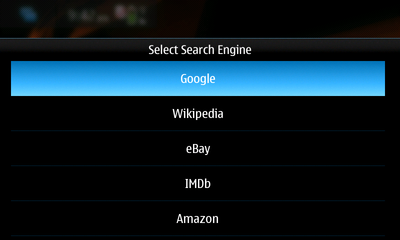
  • Easy access to many search engines: Type your search term right in the Awesome Bar to search Google. Or send your search to another search engine (Wikipedia, Amazon.com, Twitter) with one touch. Customize with the search engines of your choice.
Touch Interface Optimization
  • Touch-enabled UI: Greatly improved panning and scrolling performance bug 539062
  • View without obstructions: The browser controls and Awesome Bar get stowed away when you reach                  your website so you can use the whole screen to view the site. Start to pan up or to the sides and your controls and Awesome Bar reappear
  • Quick zoom: Double tap on the screen to zoom in, double tap to zoom back out
  • One-touch bookmarking: Bookmark a Web site in one touch, along with the ability to tag it with a memorable term
  • Tabbed browsing: Thumbnails of your open tabs easily identify your open pages.
Performance
  • Modified Content Sink preference has significantly decreased page load time bug 538655
  • Use of a new, less animated page load throbber decreased page load time by another 10-15% bug 539495
  • Double-tap to zoom is much faster bug 537660
  • Greatly improved panning and scrolling performance bug 539062
Seamless Synchronization
  • Weave Sync: Create a Weave Sync account on your desktop and install the Weave Sync add-on on your mobile to synchronize your Firefox tabs, passwords, history and bookmarks between your desktop and mobile
  • Less typing: Access Firefox for mobile’s Awesome Bar and visit any site you’ve ever been to, regardless of which computer you visited it on, with just a couple keystrokes
  • Don't start from scratch: Weave Sync brings along your saved passwords from your desktop, removing barriers to your favorite sites
  • Get up and go: Take your Firefox with you wherever you go. Surf the Web on your PC, get up and go,                  and have everything waiting for you on your phone -- even your open tabs.
A Personalized Experience
  • Add-ons: Firefox is the first mobile Web browser to support add-ons. You can view recommended add-ons in the Add-ons Manager and install them directly from your mobile device
  • Location-Aware Browsing: Be a local wherever you are. Get maps and info relevant to your location. Its all optional– Firefox doesn’t share your location without your permission– and is done with the utmost respect for your privacy.
Private and Secure
  • Instant Web site ID ("Larry"): Tap on a site favicon for an instant identity overview
  • Password manager: Typing passwords on your phone is hard, so why do it more than you have to? Choose to remember site passwords and forget ever having to endure long and difficult typing
  • Popup blocker: Banish pop-ups from your surfing experience once and for all
  • Clear private data: As an extra security measure, you can clear all your private data via your Preferences
  • Customized security settings: Customize settings for passwords, cookies, loading images and installing add-ons for a fully empowered mobile browsing experience
  • Automated Update: Install upgrades directly to your device when you receive an automatic notification, or wait until you’re ready.
Productivity
  • The Awesome Bar will now pop up much faster when you tap on it bug 536368
  • Preferences pane: Go to your Preferences in one touch. From here, manage your plugins and security settings, as well as access your Downloads Manager and Add-ons Manager
  • Download manager: Download files seamlessly and securely. The manager shows your download progress and lets you search your files by name or the Web address where the download came from
  • Spell checker: Catch typos and misspellings in form fields.

TuneWiki SMP : Brings media player, youtube, shoutcast and lyrics !

Have you ever wondered "what is she singing?", or just wanted to read the lyrics of your favorite artist? Then TuneWiki Social Music Player is the app for you. TuneWiki combines a global community of music lovers with the most advanced music player in the world, allowing you to view lyrics in 'karaoke' style, see what others play around you, understand the lyrics in languages other than your own and check who else plays the music you play - around the corner or around the globe.


You may already have the TuneWiki widget that shows you the lyrics from songs you have loaded and play on your device, but this new application also lets you play Internet radio and watch music videos with lyrics.


Awesome !

You can download it now from the Ovi Store.

TouchSearch 2.1-2 Now Available !

TouchSearch has got a major upgrade for those using 1.3-2. Many things were changed, most notably the look and feel of the widget. Gone is the (admittedly, ugly!) black box background and in is a very sleek semi-transparent background that is more consistent with the look of the built-in desktop widgets :


Also new in this version is the Configure Search Engines interface. This is available from the Widget Options and allows you to create, edit, delete and sort your search engines. Beware though, that the Add Search Engine option is still a bit untested and you may run into a few hiccups while trying to add search engines.


Here is the full changelog for those wondering :

- User can now Add, Edit, Delete and Sort search engines
-  Widget now features a background with rounded corners and user-selectable opacity
- New integrated help system
- Added WebMD to search engines list
- Numerous bug-fixes and optimizations.

Simple FMTX desktop widget : FM-Transmitter enabler/disabler widget

Simple FMTX is a simple FM-Transmitter enabler/disabler desktop widget to enable or disable FM-Transmitter.


You can also change frequency and enable "boost" function (In case of transmitter power drain's level).

Screenshots Preview of Joikuspot

You can see already some screenshots of the upcoming Nokia N900's Joikuspot release !

Check it out :


Via : facebook

Mussorgsky 0.4 : Metadata editor !

Mussorgsky is a tool to set the basic metadata in the audio files so the music collection management can be done completely on the maemo device, without the help of a desktop computer.

In fremantle/maemo5 we have tracker to retrieve the information of the music files and make the life of Music Player developers easier. It is really cute to browser your music “by artist”  but in my case (and i guess i am not the only one) the metadata of my music files is far from perfect and unified (songs without title, without album, misspellings in artists names, no album art at all and so on). There are a lot of programs out there to fix this problem (e.g easytag) but they all require a PC, and i want to edit this stuff directly on the tablet !
Some features that should help you to have a even more beautiful Album view in your N900 media player:

- By default mussorgsky uses “artist + album” to search online for the album art. Now it is possible to choose manually the search string to find better results:


- Added the alternative to unset the album art, reverting it to the default icon
- The list of songs can be filtered, switching between “all songs” or “songs with incomplete metadata”
- Albums with special characters in their name (like ‘&’) are now handled correctly.

And few UI improvements here and there:

- The buttons in the main screen have now shadows with rounded corners when clicked
- The play, next, back buttons in the edit view come from the mediaplayer theme
- When a song has no metadata at all, it is listed using its filename

It is already available in extras-devel, hope you enjoy it. And finally, thanks to Eric, Aapo and Claudio for their very valuable comments and help!

Via : dz015

Salling Media Sync 1.1.5 version supports Nokia N900 !

Salling Software AB on Wednesday updated its application for syncing media from iTunes and compatible photo applications to mobile devices. The new version is compatible with Adobe Photoshop Elements 8 (Windows version only) and some of the hottest new phones, including Google Nexus One, Motorola DEXT, T-Mobile Motorola CLIQ, and Nokia N900. A full list of supported devices is available at http://www.salling.com/mediasync/compatibledevices/

Salling Media Sync couldn't be easier to use. Once the phone is connected to a USB port, the users simply select the playlists, podcasts and photo albums they want on the device. Salling Media Sync not only uploads the music tracks and podcast episodes, but also replicates each actual playlist on the device and—on devices that support it—transfers play count metadata for each item to the device, reinforcing the sense of having a piece of iTunes in your pocket.

Salling Media Sync 1.1.5 is available now through Salling Software's web site (http://www.salling.com) at no cost for basic use.

At a price of $22/€15 per user license, the application intelligently updates your phone, resulting in faster syncs. Windows and Mac licenses are sold separately, and the bundle can be bought at a 25% discount.

Salling Media Sync for Windows is compatible with Windows XP SP2 (with Windows Media Player 11) or better, iTunes 7.6.x - 9.0.2 (for music and podcasts), and Adobe Photoshop Album SE 3.2 or Adobe Photoshop Elements 6.x - 8.x (for photos).

Salling Media Sync for Mac is compatible with Mac OS X 10.4.11 or better, iTunes 7.6.x - 9.0.2 (for music and podcasts), and iPhoto '08 - '09 or Aperture 2.x (for photos).

Please see http://www.salling.com/MediaSync/ for details.

Subtitles Support

Subtitles Support is External subtitles support for Media Player subtitles in stand-alone SRT files next to video files.

Subtitles font and encoding can be changed via "Settings: Subtitles" control panel applet.


Available at extras-devel repository

Via : my-maemo

Sleeper : pause the music player after 15 or 30 minutes !

Sleeper is a simple sleep widget to pause the music player after 15 or 30 minutes. Good for falling asleep while listening to music on the N900.


Available on Extras-testing repository !

SimpleNoteWidget : a simple note desktop widget !

SimpleNoteWidget is a desktop widget for taking simple notes (press the lower side of the widget for edit the note)


Available at Extras-devel repository

KOffice Viewer 2.1 released !

KOffice is an integrated office suite built on the KDE platform


The OASIS OpenDocument Format (ODF) is the ISO standard for office document interchange and KOffice uses ODF as its native format and thus delivers interoperability with other Office packages such as OpenOffice and Microsoft Office.

Enjoy it !

Battery widget !

A simple desktop widget that shows current battery level


Available in extras repository

Via : my-maemo

Call recorder widget !

A simple widget to record the current phone conversation (AAC, 1 MB/min). Please be aware of local laws guiding the recording of telephone conversations!

Can also be used as a normal voice recorder.

Press ‘REC’ to start recording, make your call or record anything else using the in-built mic, press ‘REC’ again to stop.

Recordings are saved to MyDocs and can be played back through e.g. the File Manager.

Roadmap/ToDo (might get done someday):

- Make it look better
- Allow recording of bluetooth conversations
- Add option to choose saving location
- Add beeping option

Wishlist (no idea if possible or interest in doing it)

- Autostart
- Include contact info / phone number in filename

It is available for test and comment in extras-devel ;)

glogarchive : to archive SMS/IM messages and calling-history

With glogarchive you can archive SMS/IM messages and call log and store it in a separate database. The archive is grouped by phone numbers or by event types (call in/out, SMS message in/out, IM message in/out, etc). There is also a counter for each event type.


Via : My-Maemo

[How to] Change the boot splash video !

I don't know if you're in touch, but as other Maemo's hacks, it is possible to edit hildon-welcome screen, in case you don't know ho to do it :

1- Copy (with the help of this tutorial) the video to /usr/share/hildon-welcome/media
2- Go to /etc/hildon-welcome.d/ and edit the default.conf file or create a similar one (the videos will play by the alphabetic order of the .conf files)

In case you don't want to do the Step 2, simply rename your video file into Hands-v32-h264.avi and overwrite the original one in Step 1 ;)

Some examples here and here.

[How to] Browse the whole file system with the web browser !

The built-in web browser can also be used as a simple "file manager" letting you browse the entire file system and view contents of files.

Simply type file:/// in the browser's address bar.

Seen @ : my-maemo

[How to] Change battery and signal icons !

Heres a signal and battery mod, interesting to match the default "blue" theme (Don't be ashamed, You can share your layouts too) !

Signal images go in /usr/share/icons/hicolor/scalable/hildon
Battery1 images go in /usr/share/icons/hicolor/scalable/hildon


Battery2 images go in /usr/share/icons/hicolor/48x48/hildon/


You can access these paths as showed here ;)

Ps : icon pack includes original icons also.

Seen over symbianscientist

Android (Donut) boots on the n900 !

Good news. Android (Donut) boots on the n900 using bootmenu (using the maemo kernel with the android drivers patched in !)


[How to] Control your N900 From Your Computer and Vice Versa With VNC !

In computing, Virtual Network Computing (VNC) is a graphical desktop sharing system that uses the RFB protocol to remotely control another computer. It transmits the keyboard and mouse events from one computer to another, relaying the graphical screen updates back in the other direction, over a network.


For that, if you want to view and control your pc/laptop from the N900, all you have to do is to :

1 - Get a vnc-server (the program on the machine that shares its screen. The server passively allows the client to take control of it.) like tightvnc (I'm using TightVNC Server. It works great!) or realvnc, install it on your laptop, set up a password, and add the tablet to the list of allowed hosts (plenty of documentation for that available on the net). 

2 - Then you fire up vncviewer (VNC client (or viewer) is the program that watches, controls, and interacts with the server. The client controls the server.) on the N900 (it's in extras-testing repository) and connect to :0 (For eg. 192.168.1.4:0) where

192.168.1.4 describes you laptop/pc ip address.

- ":0" describes the screen you want to connect to, under unix it's not uncommon to have several X Servers running, which would be adressed by :1, :2 and so on, but under windows there's usually only one, hence ":0".

You'll get a touchscreen user interface of your desktop, so you just click / drag etc on the screen...

For the other way round (controlling / viewing your N900's desktop from your laptop), it's basically the same :

- You just fire up x11vnc on the N900 (the default setting is without password, and to close after one session, so you have to start x11vnc every time you want to connect, unless you set it up to start automatically, but then you also want a password, and it gets a bit more involved). Then use vncviewer (tightvnc viewer for example works great for that) on your laptop to connect to :0 (you might have to add the IP address of your N900 followed by :0 by right clicking on tighvnc icon and select add client) et voilà!

[How to] Silent Camera Hack

Like on Ubuntu (or other Linux distribution), If you look in usr/share/sounds  you'll be able to access all system's sound and customize them !

You will need root access (Download rootsh from app manager) and WinSCP (download winscp and connect to the phone via ftp through a wireless connection) to see system files and replace sounds in usr/share/sounds :

- camera_snd_title_1 (camera shutter sound)
- camera_snd_title_2 (video recording sound)
- camera_snd_title_3 (the focus sound)

All you have to do is to replace them with any working wav sound file  (Example)

For a silent camera, just rename or delete these files!

Via : talk.maemo

[How to] Explore, Edit, Replace System Files And So On...

With the help of the following steps, you'll be able to explore and tweak all system files and do some intersting hacking, like the one showed yesterday especially, to be able to access /usr/ directory :

1- You must be connected to a wireless LAN with your N900
2- Go to the application manager of N900, search for ssh server (and client, but this is optional) and install it
3- ssh on installation will ask you for a password (choose one)
4- Go to the application manager of N900, search for home ip (a widget on the desktop that always displays the n900 ip) and install it *
5- Go to your main PC and download a free ssh client with a graphic interface (it's much easier to use for a newbie) like winscp.
6- open winscp and login to the N900's as following :

Host name : N900's ip address that you get from home ip
Username : root
Password : your password (chosen in step 2)


6- You're done ! You have now the access to the /usr/ directory and you can explore and edit whatever you want (stay tuned for the upcoming "how to")

* You can replace the above step 3 with :

- In your N900 launch xterminal and type : sudo gainroot
- in x terminal type then: ifconfig
- ifconfig will show you r ip address

Stay tuned for some nice tweaks ;)

[How To] Disable Auto Updates Check

You may want to disable the automatic software updates checks that occur upon internet connection, in order to consume less bandwidth when using 2G/3G connections.

You can do so by editing the gconf file found in /var/lib/gconf/apps/hildon/update-notifier and changing the check interval from 1440 (24 hours) to a much larger value. The value must not exceed 4,294,967,295.

Via : wiki.maemo.org

[How To] Install maps without using Map Loader

I was thinking that connecting N900 to mass-storage mode and use the latest Nokia Map Loader 3.0.28.0 will allow me to install my maps without a headache, but i was wrong, it simply does not work...the Map Loader just keeps blinking that it's waiting for a phone (on both windows xp and 7) ! You know, it says the maps application is not open when connected through PC Suite mode and keeps blinking when it's connected through mass storage mode...so i started looking for some work around to this "bug" (?) till i remember an old way to do it, like on the first Nokia's map (ovi maps) releases...

Just to know, Nokia Map Loader downloads the maps as a zip file from http://static.s2g.gate5.de/maploaderzip/0.0.7h/[NUMBER].zip to a temp folder, and then unzips the content to the memory card. [NUMBER] is an ID, each country has its own.

After running Ovi Maps on the N900 once before you add any maps or voices (This will create the required folder structure on your memory card), all you have to do is to :

1. Download the map of your country from the link on the page
2. Unzip the map file, which contained subfolders called 0 to 9 and a to f
3. Connect the n900 in mass storage mode.
4. Open the folder Cities\diskcache (You may need to tell your computer to show hidden files and folders)
5. Copy/paste the downloaded files (the unzipped map files to the above folder on the n900)
6. Windows will pop up a message saying these folders exist. Just select replace with the new items.
7. Disconnect the phone, opened up Ovi Maps and the maps will be there.

I'm not sure we'll have the latest maps releases with this workaround, you have to use a tool like Fiddler to track HTTP update traffic...

Anyway, if you have some questions, feel free to leave them on comments ;)

[How To] : Get Applications For The N900?

Following my full coverage of the N900, i'll briefly talk about the application department ;)

The thing you'll love about the Maemo platform is the fact that you can add repositories, in a simplified way, that means that you can add a storage location from which software packages may be retrieved and installed, even though the N900 supports installing software directly from a file (downloaded with the WWW browser, received via Bluetooth, copied from the PC, etc.), you will quickly realize that getting and installing software via the Application Manager is a much better and more convenient way, not just to install the software but also to be automatically notified about any updated versions, additional files or plug-ins ;)

All you need to do is to add details of a repository to the Application Manager and it will check the repository and list all applications contained in it. You can add as many repositories as you can only find and the App Manager will monitor all of them and list all software they contain !

There are three different community driven repositories :

Extras


Extras is the primary repository for Maemo applications where most community software can be found. You can browse the applications available in Extras at Maemo Downloads.
The Extras repository is pre-configured in the N900 but is disabled by default. In order to enable it you can simply download an application from Maemo Downloads.


To enable Extras repository, just open this link on your tablet.

Or you can enable it by hand:
  • Go into the Application manager.
  • Tap the menu -> Tools -> Application catalog...
  • Double-tap maemo Extras.
  • Uncheck Disabled.


About Extras

Extras is split into two areas:
  • free applications are Open Source have been through the Maemo Extras vetting process
  • non-free applications are usually closed, binary only and their quality and security must be taken on trust


Extras-testing


The software hosted in extras-testing might not be ready for end users! Please don't play with it unless you really know what you are doing.

Extras testing is a repository that holds applications waiting to be tested. It is a place where power users can download the latest developer releases, test them out and evaluate them. User backups and predisposition to re-flash your device in case of trouble is assumed.

Extras-devel


The software hosted in extras-devel is most likely not ready for end users! So, don't play with it unless you really know what you are doing.

Developers upload the newest version of their software to Extras-devel. Developers upload the newest version of their software to extras-devel. From there the packages go Extras-testing and finally Extras through an automatic and human Quality Assurance process. This is a repository for developers and regular contributors of specific software projects. If you want to play with extras-devel software you need to be prepared to feel some pain sooner or later ;)

That said, here's an example to how to enable some repositories (Extras-devel as an example) :


Application manager --> Application catalogs --> New
Catalog name: Maemo Extras-devel
Web address: http://repository.maemo.org/extras-devel
Distribution: fremantle
Components: free non-free


Maemo Extras-Testing repository : 

URL: http://repository.maemo.org/extras-testing/
Distribution: fremantle
Components: free non-free

Maemo Extras-Devel repository : 

URL: http://repository.maemo.org/extras-devel/
Distribution: fremantle
Components: free non-free

Mozilla repository : 

URL: ftp://ftp.mozilla.org/pub/mozilla.org/mobile
Distribution: chinook
Components: release 
My-Maemo repository :

Name: My-Maemo.com
URL: http://my-maemo.com/repository/
Distribution: fremantle
Components: user
 

Where you'll find software that's not available via any other repository. This includes apps posted by people as standalone files on the web, as well as apps written for previous Tablets but compatible with the N900.

Sometimes, some repositories might be broken, don't worry if you got an update fail notification ;)

Source : maemo and my-maemo