Friday, April 30, 2010

Firefox 1.1 beta for Nokia N900 goes live !

As already highlighted, Firefox 1.1 beta is built on the same browser engine as Firefox 3.6 for desktop computers with extensive under the hood work to optimize for mobile. For the 1.1 release, they have tried to improve the browsing experience. As a result, polishing the user interface and improving UI responsiveness and performance is at the heart of this beta release. Secure, powerful and customizable, Firefox 1.1 beta for the Nokia N900 is packed with your favorite features and great improvements. Highlights include:

- Use volume rocker to zoom in and out on the Nokia N900
- Download, First Run and Start page redesign to help you find and use your favorite Firefox features
- Add-ons now auto update and view full add-on gallery from the Add-ons Manager
- Portrait mode support on the Nokia N900
- Form assistant improvements, including autocomplete
- Context Menu with Open in New Tab and Save Image
- Manage site preferences (clearing passwords and others)
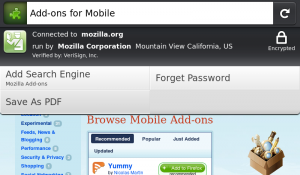
- Site Menu improvements and additions including Save to PDF, Forget Password and Add Search Engine
- Web content theme update

Download Firefox 1.1 beta for the Nokia N900 by visiting Firefox.com/m/beta.

Known Issues
Important: for Ovi Store customers

If you installed Firefox 1.0 from the Ovi Store, you will not be able to upgrade to Firefox 1.1 Beta 1 (either from the N900 Application Manager or by downloading the software from Mozilla). We are working to solve this for future releases so that anyone can participate in our Beta programs. Don't worry, though, if you got Firefox 1.0 from either the Ovi store or directly from Mozilla, you will be updated to Firefox 1.1 (final) when it is released.

Stretched images can show black lines and dots near to bottom and side of content bug 468496
Youtube Enabler is not compatible with Firefox 1.1 beta 1 bug 559908
Vertical white line on tab thumbnails when on About:home bug 556046
Text is hard to read due to light gray background color on buttons with new web content theme bug 556650
Scrolling to bottom of a long Web page cannot be reached using the keyboard bug 547307
Switching from portrait to landscape mode while page is zoomed always displays tab sidebar bug 559868

Via : www.mozilla.com

Thursday, April 29, 2010

[How To] Tweak the default web browser's address bar search !

it is possible to make the default web browser's address bar search use more than just google, a la Opera or (I'm told) Firefox.

What to do:

Download this file to your N900, prefereably to the Documents folder.

In XTerminal enter the command

Code:
mv MyDocs/.documents/search.txt search.htm
(NB If you saved to a folder other than Documents from the webbrowser MyDocs/.documents will need to be changed to the requisite path)

In the web browser go to the page about:config

Read the "Here be dragons" warning and promise to be careful.

Find the setting keyword.URL by typing key into the filter box at the top of the page. Select the line keyboard.URL by tapping it and press enter.

Put
Code:
file:///home/user/search.htm?
in the dialogue box that appears and tap Done.

Now when you type a search into the address bar you can choose the following search engines by prefixing them with the letters lited below:

go - regular Google search (not mobile!)

wiki - wikipedia

map - Google Maps UK

ebay - eBay UK

php - PHP manual

mysql - MySQL manual

acronym - acronymfinder.com

urban - urbandictionary.com

(eg ebay n900 in the address bar will seach ebay.co.uk for an N900, wheras wiki n900 will search wikpedia)

You can add to or edit the choice of engines by editing search.htm - I would advise using pygtkeditor, which I think any serious modder should have installed unless they like vim or emacs. I, for instance, have edited the line
Code:
urls['go']='http://www.google.com/search?q=%s';
to read
Code:
urls['g']='http://www.google.co.uk/search?q=%s';
which means that instead of typing
Code:
go foo
into the address bar to get a search for foo from the full-fat google.com I type
Code:
g foo
to search google.co.uk.

A further change I have made is to add the lines
Code:
urls['tt']='http://traintimes.org.uk/%s';
into the search engine list block of code and
Code:

redirUrl = redirUrl.replace(/%2F/g,"\/");
before the line
Code:
document.location.replace(redirUrl);
This allows you to replicate the bookmarkable search function for UK train journeys on the excellent traintimes.org.uk by typing, for instance

Code:
tt hitchin/york/1000/tomorrow
to search for tomorrow's departures from Hitchin to York at around 1000.

The second line of code needs to be added as else between the script and the browser / is replaced with %2F which confuses the website. For more on how to use this look at the traintimes.org.uk frontpage; you can click the iCal links from its search results to get the times entered into your n900 calendar.

Hat-tips to evad for coming up with the idea and Viqsi for the device-side rather than online evolution of the idea in this thread.

Via : talk.maemo.org

Monday, April 26, 2010

Zhaan works on the N900! A UPnP Control Point based on GUPnP

Zhaan is a UPnP Control Point based on GUPnP bindings and GObject Introspection and PyGI

Features: +Browse MediaServers for Content +Play Content on a MediaRenderer with a Playlist +Change Volume on a Renderer +Pause/Play/Stop on a Renderer +Next/Previous on a Renderer +Show Renderer Status (Playing, paused etc.) +Show currently rendered media item information (artis, album, title etc.) +Seeking within media


Via : zachgoldberg

Wednesday, April 21, 2010

Handwriting recognition on the N900

It's a port of CellWriter (http://risujin.org/cellwriter/).


To enable it on your n900, run:

gconftool-2 --type string /apps/osso/inputmethod/default-plugins/finger -s him_cellwriter

To go back to the default virtual keyboard:

gconftool-2 --type string /apps/osso/inputmethod/default-plugins/finger -s hildon_western_fkb

Via : garage.maemo.org

Sunday, April 18, 2010

ProfilesX : Extended Profiles Manager

Extended Ringtone Profiles is a control-panel and status-panel to add and manage additional ringtone profiles.

Available at Extras-devel repository

Thursday, April 15, 2010

Xarchiver : Manipulate 7z, arj, bzip2, gzip, rar, tar, zip, and RPM files !

Xarchiver is a Desktop Environment independent GTK+ 2 frontend for manipulating 7z, arj, bzip2, gzip, rar, tar, zip, and RPM files. It allows you to create archives and add, extract, and delete files from them. Password protected archives in the arj, 7z, rar, and zip formats are supported.

This is only a front-end. If you want to support a specific archive format, please install the appropiate packages: It is recommended to install the following packages:

gnutar - support for .tar archives gnuzip - support for .gz, .tar.gz .tgz archives zip or zip3 - support for creating .zip archives unzip - support for unpacking .zip archives unrar - support for unpacking .rar archives arj - support for .arj archives lha - support for .lha and .lzh archives p7zip - support for .7z archives

Wednesday, April 14, 2010

CpufreqUI : graphical application for frequency scaling !

CpufreqUI is a graphical application for frequency scaling !


Available at Extras-devel repository !

Sunday, April 11, 2010

[REVIEW] Nokia Bluetooth Headset BH-905 : Part 1

When I heard about the Nokia BH-905 “high performance” Bluetooth headphones with active noise reduction, my cynical side immediately kicked in. I mean, what could be so “high performance” about Bluetooth headsets?

 The kind folks from Nokia and WOMWorld met my cynicism head-on and sent a pair of their Nokia BH-905 to test things out
:


So let’s see… Nokia states this about their headphones : 

- Bluetooth 2.1 + EDR, 
- Headset Profile (HSP) 1.2, 
- Hands-Free Profile (HFP) 1.1, 
- A2DP 1.2
- 3.5mm Nokia AV (3.5mm standard jack) connectivity
- Frequency Response: 15Hz to 20kHz
- Advanced Wolfson Microelectronics myZone Ambient Noise Cancellation for up to 99% noise reduction
- 10 microphones – 8 for noise canceling, 2 for capturing speech in loud surroundings
- Talk Time: 24 Hours, 15 Hours with noise cancellation active
- Music Playback: 25 Hours, 16 Hours with noise cancellation active
- Standby Time: Up to 600 Hours

But hey, before going deep in technical details and performance let's see what we've got between our hands :

The box of the helmet is shaped rigid shell and oval, which is very original, and its opening is made by sliding the slide along the hull.

Package Contents

- Bluetooth Stereo Headphones Nokia BH-905
- Case Nokia CP-298
- Audio Cable Nokia CA-143U 3.5mm  (~1.2m)
- Audio Extension Cable AC-144U (~ 1.7m)
- Nokia AV Adapter AD-52 
- Nokia AV connector 2.5mm
- Nokia Audio Adapter AD-63 connector for standard 3.5 mm
- Nokia Adapter AD-71 while traveling in flight
- Nokia Adapter AD-70 connector with 6.3 mm (Home Stereo)
- Nokia Charger AC-5
- Guide


All connectors are gold-plated, guarantee of longevity and especially quality signal transmission !


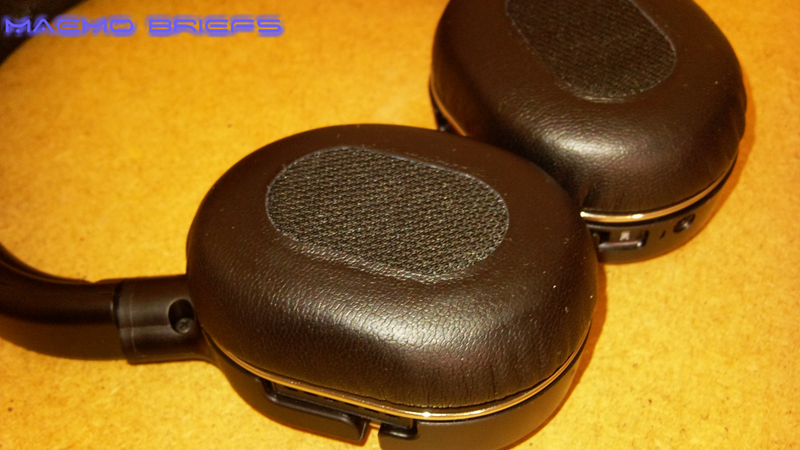
The upper and the cushions are upholstered in leather and a dense and fluffy foam. It is not possible to feel the metal frame in the range.


The Nokia BH-905 isn’t cheap. But it’s not built cheap. It doesn’t feel cheap. It doesn’t look cheap. And it doesn’t work cheaply either 


Media buttons on the right cone. Play/Pause, Rewind and Fast forward. Also Volume up/down. All the basics.

The Power button is a Multifunction key for answer/end, voice dial, and redial.


Also, the standard 2.5 mini-jack output is in bottom right corner before the little Notification LED.


In the left, we find the :

- ANC (Ambient Noise Cancellation) slide switch
- Rectangular LED (red when charging, or when the battery is empty, green when the ANC is on)
- The charger plug

As great as the BH-905 looks, it looks ridiculous when you wear it, and for those who have a big head, the Nokia BH-905 can expand several inches. 
Positioned on the head and ears, the Nokia BH-905 is very comfortable to wear. In practice, it does not overwrite the user's ears ^^


Made out of plastic the black plastic along with the silver metallic and plastic make a overall good appearance. Due to the soft ear pads it feels really comfortable and good.  Furthermore you can adjust the headset so that it fits perfect to your head-size. When siting, walking or lying it headset sits good. However, when making fast movements it falls of your head easily.


Last but not least, the presence of a cable connection and many adapters clearly show that this helmet is very versatile and can be used with numerous devices


Side by side with the BH-503


What's Hot

- Pairing and switching the BH-905 on or off, is accompanied with an Audio Beep so that you know what’s going on, while wearing them.
- The retail package comes with every sort of Adapter you’d want

- Very comfortable to wear
- High build quality

What's Not 

- The sides are slightly curved and give an impression of "big head"
- It may falls of your head easily when moving fast

Friday, April 9, 2010

[How to] install Google Chromium on the N900 !

Google Chromium Browser (Chrome) has been unofficially Ported to the N900, it is a port of Chromium from the 32-bit Debian package

1- Download libxss-1.1.3.deb and chromium-5.0.369.2.deb

2- Install .deb files with X Terminal, for memo :

sudo gainroot


cd “wherever you downloaded the packages into”


dpkg -i libxss-1.1.3.deb


dpkg -i chromium-5.0.369.2.deb

3- Enjoy !


Via : meegoportal

Retroconv : import and read SMS from other phones !

Retro Conversations reads and displays old SMS, it can be used to import and read SMS from other phones.


Options like forward, find, filter and sort. An interface that mimics original Nokia Conversation look and feel and another one similar to SMS interface on previous nokia phones.

Thursday, April 8, 2010

Mobilehotspot : Joikuspot alternative !

Mobilehotspot enables to share your mobile internet connection via WiFi like joikuspot but FREE !

WARNING: This software requires custom kernel with NAT support (See http://talk.maemo.org/showthread.php?t=48075)

One can (and possibly will) be installed automatically but be aware that the custom kernel has much greater chance of messing up your device than the run-of-the-mill not-officially-supported software.

Provided as-is, no warranty etc. Use at your own risk.

[How To] Overclock your N900's Via The X Terminal?

Many of you have some issues with overclocking their N900 with flasher and its "Suitable USB Device not found" etc,

What about "flashing" the kernel through the X term? Yes you heard it right, all done from your N900, no need to your computer...There is a flasher on the device itself. It is called fiasco flasher, and takes the same parameters (fiasco-flasher -f -k zImage) ;)

Ok, let's do it in 3 steps !

1- Download one of the kernels below

700mhz

750mhz

800mhz

825mhz

900mhz

2- Place it on root of the mass memory, otherwise known as MyDocs.

3- Run X Term and become root, then type fiasco-image-update /home/user/MyDocs/zImagexxxmhz.fiasco and validate by hinting enter key.

* Replace the xxx with correct mhz number, e.g. if your flashing the 800mhz you need to type fiasco-image-update /home/user/MyDocs/zImage800mhz.fiasco

4- Done in less than 5sec, reboot.

Update : You can install "regular" Kernels (not the fiasco ones) with X-terminal by following :

0. Launch xterminal app then type sudo gainroot (need rootsh installed)

1. type


softupd -vv -s --local

(thats double v)

2. open new terminal

3. type

 
flasher --local -f -k kernel_zimage_file_with_path

4. you see the flashing (takes some time)

5. type "sync" to save changes

6. type "reboot" and enter to restart

If you want to return to the stock kernel then open X Terminal and become root, then use the following command apt-get --reinstall install kernel kernel-flasher and reboot.

Remember, if the "about page" say  unknown for the hardware and software, you'll just need to do some additional steps to bring it back so that you can still normally use automatic firmware updates in the future:

a) launch X Terminal
b) type sudo gainroot (you need the rootsh package installed)
c) type apt-get install --reinstall mp-fremantle-generic-pr
d) if asked for confirmation press Y and Enter
e) when done reboot the N900

That wasn't the case for me ;)

Ps : If it says package mp-fremantle-generic-p is not available try to make sure your unit isn't the 'generic' one. Indeed, in such case using 002 or 003 package instead of the generic one is needed (step c):

apt-get install –reinstall mp-fremantle-003-pr

- 003 is for Africa/Middle East
- 002 for USA.

Via : talk.maemo.org

Wednesday, April 7, 2010

[How To] Use Automatic Firmware Updates With An Overclocked N900 !

Unless you're living under rocks, you know already How to overclock the N900 but as i stated that these modded Kernels will make the about page say unknown for the hardware and software, so personally, i'll wait for the PR1.2 before overclocking mine...

Forget about that !

You'll just need to do some additional steps to bring it back so that you can still normally use automatic firmware updates in the future:

- launch X Terminal
- type sudo gainroot (you need the rootsh package installed)
- type apt-get install --reinstall mp-fremantle-generic-pr
- if asked for confirmation press Y and Enter
- when done reboot the N900

Now the Settings/About window will show correct version information and firmware updates will work as usual !

Via : my-symbian

Firefox Mobile 1.1 – What’s Coming

Mark Finkle from Mozilla Corporation on the Mozilla Mobile team developing Fennec stated the following :

The Mobile Team has been hard at work on the 1.1 release of Firefox Mobile. This release will mainly be a Nokia Maemo release, but the current Android builds are based on the same front-end.

For the 1.1 release, we are focusing on some UI features we didn’t have time to put in the initial release. We are also using your feedback to help improve the browsing experience. You can see the list of planned features on the planning page. As you can see, we have completed much of the work and the beta release is quickly approaching.

Some of the bigger features that have already landed include :

- Form assistant improvements, including autocomplete
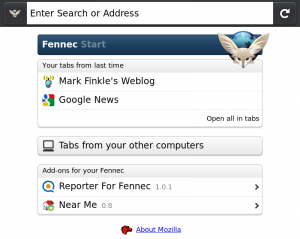
- Start page redesign
- Auto update add-ons
- Portrait support on N900
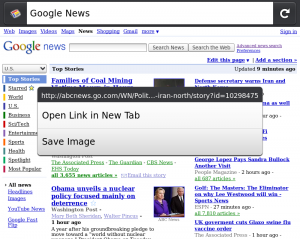
- Context Menu with Open in New Tab and Save Image
- Web content theme update
- Manage site preferences (clearing passwords and others)
- Clean up site menu
- Use volume keys to zoom on N900
- Save page to PDF

Screen shots of the some new features:

Form Assistant with Autocomplete:


Start Page:


Context Menu:


Page Menu:

Tuesday, April 6, 2010

[How To] Get access to your MicroSD card through Bluetooth !

The N900's OBEX FTP service ("File Transfer Server" bluetooth service in WinXP) by default only gives you access to six directories - the five main document directories ("Documents", "Audio clips", etc.) and MyDocs root (named "Data").

Turns out this is controlled via symlinks in /home/user/.obex-root/, making it ridiculously easy to customize (from a Linux user's standpoint, at least). The sole thing keeping it from being a total walk in the park for anybody and everybody is that the permissions default to being set with no write access for anybody (geek note: octal 550, owned by user.users), so they have to be adjusted first.

So! As an example, here's a novice user tutorial on how to get access to your MicroSD card through Bluetooth with this method:

1. Open an X terminal.
2. Type the following commands:


Code:
chmod 750 .obex-root
(This modifies permissions so that we can make this mod.)


Code:
ln -s /media/mmc1 .obex-root/Memory\ Card
(Create the symlink "symbolic link" which is a very useful files like shortcuts in windows)


Code:
chmod 550 .obex-root
(Change the permissions back to what they were before. Not strictly necessary...)

When this is done, the Bluetooth file transfer server will now show a "Memory Card" directory in addition to the usual "Audio Clips", "Video Clips", "Documents", et cetera. In there will be the contents of your memory card.

If you have the Nokia PC Suite installed, this also affects the directories shown in the Nokia Phone Browser - with both Bluetooth and USB connections. That last is particularly nice because it allows you to access filesystems with the "PC Suite mode" USB connection without them having to be unmounted first, as is necessary for "Storage device mode". (The latter is still useful because it's 1) universal to all computers, and 2) an actual filesystem which lets you, say, edit-in-place rather than copy back and forth.)

Finally, you can create symlinks to anywhere in the filesystem and it'll work. Browsing and read/write is done with "user" level privs - i.e. you can't symlink to /etc and thereafter edit config files this way, but you will have read-only access. Also, the service doesn't let you access dotfiles - if they're hidden to "ls", they're inaccessible via this system.

Also, be aware that this constitutes a potential security hole if you're incautious about your Bluetooth pairing habits - see http://talk.maemo.org/showthread.php?t=48044 for an example. (Pairing with devices you don't 100% trust is always a Bad Idea, no matter what. It's like giving out your password. Don't do it!)

Via : talk.maemo.org

Sunday, April 4, 2010

[How To] Overclock your N900's CPU over 600Mhz?

As posted yesterday, maemo (great) community have managed to set up CPU clock speed over 600Mhz, let's see how to do it in a few simplified steps :

1- Make sure your battery is fully charged !

2- Download one of those modded Kernels (choose the speed you want to use) :

125 - 900mhz kernel. (Tested to give best results in terms of speed for a normal usage situation).

125 - 825mhz kernel.

125 - 800mhz kernel.

125 - 750mhz kernel.

125 - 700mhz kernel. (Probably the safest to try if your only looking for a slight speed increase)

125 - 600mhz kernel.

125 - 930mhz , 500mhz DSP (stock 430mhz DSP)

Or download the full package over here !

3- Make sure you put the kernel file into the maemo flasher folder on your pc so the flasher can find the file, in windows it's usually at C:\Program Files\maemo\flasher-3.5

4- Set up your N900 to flashing mode :

+ Switch off the N900
+ Press and hold down the 'u' key
+ Connect a USB cable between the N900 and host PC while holding down the 'u' key
+ When the USB cable is connected, it powers the N900 and sets it to flashing mode
+ When the USB icon appears in the upper right-hand corner, the N900 is in flashing mode
+ Release the 'u' key
.
Ps : more about flashing procedure over here

5- Run maemo flasher as admin (Still on windows) then run the command :

flasher-3.5.exe -k zImage-900mhz -f -R

(Of course, note that you'll have to change the zimage-900mhz to whatever kernel your using ie zimage-800mhz or zimage-700mhz)

6- it should take approx 10 seconds max, you're done !


Please note you do this at your own risk and there are risks involved, please do research before flashing your kernel on your N900 and only do this if you are sure you know what you're doing , if you don't i advise not doing it at all. 

By using the custom overclocked kernels, you agree that you take full responsibility if there is any damage caused by the flash.

In most cases, the N900 will not die and should be at least able to be reflashed to the stock kernel if it is unstable overclocked.

These modded Kernels will make the about page say unknown for the hardware and software, so personally, i'll wait for the PR1.2 before overclocking mine :) 

Update :

You'll just need to do some additional steps to bring it back so that you can still normally use automatic firmware updates in the future:

- launch X Terminal
- type sudo gainroot (you need the rootsh package installed)
- type apt-get install --reinstall mp-fremantle-generic-pr
- if asked for confirmation press Y and Enter
- when done reboot the N900 

Scripts that increase your N900's user experience !

As you already know, Desktop Command Execution widget is one of the most useful widgets on your Maemo desktop. It can be used to show certain information (for example battery level in percentage) or as a button which can be used for example to disconnect active internet connection (you need to tap 3 times and also wait for menus to appear without this widget). Therefore it can replace many other applications/widgets/applets and you can also make something new.

Also, with the help of Alarmed or Fcron you can set a command to be executed at specific intervals (every minute, hourly, on specific weekdays, on last day of month etc...)

Here you'll find a collection of scripts that work in these applets :

http://wiki.maemo.org/Fcron#Scripts


http://wiki.maemo.org/Phone_control

http://wiki.maemo.org/Desktop_Command_Execution_Widget_scripts#Scripts

Saturday, April 3, 2010

The N900 Overclocked To 1GHz !

Of course it's not a jock !


N900-Overclocked-1GHz


You need to modify kernel sources and compile a custom kernel (you'll need the SDK and stuff) and then flash it to the device. It's gonna be tricky if you've never done it before...

Read more about it over : talk.maemo.org and wiki.maemo.org

Friday, April 2, 2010

Gwibber : The microblog App coming now for N900 !

Gwibber is an open source microblogging client for Linux. It brings the most popular social networking web services to your desktop and gives you the ability to control how you communicate.


The main features are:

- Allows you to interact with many different social networking services
- Provides a combined stream of all your messages
- Automatically shortens URLs as they are pasted
- Built-in search tool and support for saved searches
- Optional support for spell-checking as you type
- HTML theme system lets users customize Gwibber's look and feel

Via : mobilelivingroom.de

Thursday, April 1, 2010

Nokia BH-905 is here ! Ask your questions !

For those following my tweets, you might know that since last Saturday, i received Nokia BH-905 from WomWorldNokia to trial (Big Thanks to them as always) !


Nokia BH-905, which is one of a few stereo Bluetooth headsets i know to come with multi-microphone active noise canceling (8). This results in absolutely fantastic audio quality, and the call quality isn't too shabby, either

If you've any question or want to test a specific feature with a specific device, just let me know and drop your comments !

I'll test it with all my devices : N900, Omnia HD, N91 8GB, N81 8GB, N73ME, N82, N95 8GB, N86, 5530 !

Enjoy it !