Wednesday, June 30, 2010

Faster Application Manager : An alternative application/package management UI !

Faster Application Manager is an alternative application/package management UI that enables fast GUI front-end for apt-get.

Video of MeeGo handset UX !

Ladies and gentlemen, here's a video demo of an early build (Developer Preview) of MeeGo running on a handset (Aava) which is not feature complete.


What you've seen seems to be the default MeeGo UI, Eldar of Mobile-Review said that the Nokia N9 will have a different UI (probably based on harmattan?) ;)

Tuesday, June 29, 2010

Vuvuzela : Support your team with pride !

A simple Vuvuzela application with a start & a stop button. Possibility to change the background colour.

Monday, June 28, 2010

Pomodoro : time & task management application !

Pomodoro is a task management application based on The Pomodoro Technique ideology by Francesco Cirillo. The idea of the application is to help users organize their daily tasks and easily keep track work progress. The Pomodoro application has been written in C++/Qt and has been designed particularly for Maemo devices (e.g. Nokia N900).


Main Features:
- Adding and removing of tasks, a task list
- Internal and external interruptions record
- Visible and audible timer
- Short guide into usage
- Automatic daily archiving of completed tasks

If you want to test it, download the deb file over here and drop your feedback here !

Sunday, June 27, 2010

[How To] Improve Your MicroB Browser !

You won't require some additional softwares because we'll using firefox configs.

First go to the address bar in the browser window and type

about:config
Click on "ill be careful"


Network pipelining

This is a feature thats speeds up my browser on desktop.

Click on the textbox next to filter and type NpipN and press enter.

You should see the filtered options

To change any value, click on the value and press enter. If its a boolean value(true or false), it will change states between true and false. If the value is a text field, a new popup shows up asking you for a new value.

Change the values according to my screenshot below. The ones in bold are the values edited. As for the max requests, experiment from 4 to 30 and see which works. after your done, restart MicroB.


Address bar Google search.


By default, when you type anything in the address bar and press enter, it searches in google mobile which can be annoying. If u want it to search in google desktop, go back to about:config,

in the filter type, "keyword".

click on "keyword.url" and press enter. change the tect to

http://www.google.com/search?btnG=Google+Search&q=
If u want it to use "im feeling lucky" ie, when you search for anything it will dip theirs website from search results automatically,

change the same keyword.url to

http://www.google.com/search?btnI=I%27m+Feeling+Lucky&q=
Tracemonkey

Tracemonkey is the fastest javascript engine from mozilla. Usually its found in the sesktop versions and speeds up browsing. Remember that tracemonkey is not the fastest javascript engine as google has a faster one in chrome. no idea if it will have any improvements in your browsing or not but its sure worth a try. To enable tracemonkey, in the filter type "jit".

Find "javascript.options.jit.chrome" and "javascript.options.jit.content". Click on it and press enter. It should change its value to true.

For other hints, take a look over here and here !

Saturday, June 26, 2010

MyContacts - 75 contacts on your desktop, custom ring tones per group !

A new release of MyContacts now it is available on extras-devel.

There are two major new features on this version and because of that I decided to start a new thread.

1) Desktop applet. This is actually my original goal - the MyContacts application is a sub product of it. After installing the applet on your desktop you can have up to 75 contacts using one of the 4 desktops. Now you can call someone by just double clicking on the thumbnail seating right on your desktop - up to 75 of them. You can also access the other contact information with a simple click.

2) Ring Tone by contacts group. It is probably one of the hottest requests on this web site. I actually didn't do anything too original, just implemented the 9000's script using Qt with some minor tweaks. Probably the main difference is that now you have a user interface to assign contacts to your groups and can pick them from your contacts.


Some important notes:

- The ring tone by contact group is very experimental.
- Only wav files can be used as ring tones (I will write instructions on how to convert mp3 files on the device later on)
- You should not change the "main/default" ring tone using the control panel settings for the active profile while the application is running (application or desktop applet). Nothing too bad will happen but the application will stop processing calls (more about this on the web site)
- When you click on the MyContacts icon it will start the "application". In order to install the applet to your desktop go to the menu. When you try to close the application you will also be offered another opportunity to install it.

Sticky Notes : create sticky notes on your desktop !

Sticky Notes is a little application that lets you create as many notes on as many desktops in as many colors as you want!


- It has a sexy UI
- It is easy to use
- It saves your notes automatically
- It is finger-friendly
- It is also optified

FAQ

Q: Why is this stuff better than the existing notes widgets?
A: Because you may have as many notes as you want. There is no limitation about how many notes you can have. You can also set their colour to any colour you like.
Q: What do the buttons do?
A: The first (+) creates another note with same color. The second (•) lets you change the colour, and the third (×) deletes the note.
Easy, isn't it?
Q: Can I have [my favourite feature] implemented?
A: Sure! Just post your idea in a reply in this thread!
Q: Will it crash hildon-home?
A: No, it runs under its own separate process.
Q: How does it work?
A: It saves your text automatically, 3 seconds after you finished typing.
Q: Why does it always run in the background?
A: This is pretty much required for it to operate correctly, see detailed answer here.

Planned features

- Ability to resize the notes
- Ability to change font (size/color)
- Ability to move the widgets around (somehow) without entering edit mode.
- Basic text formatting (bold and such)

If you have some ideas, drop them here !

Light Meter : measure the incident light to determine the proper exposure !

Light Meter is an application that allows you to select your chosen aperture size, and gives you the appropriate shutter speed according to the light condition. just like a light meter used for photography (see here for more info)

Touching the LCD-style numbers you can set the exposure parameters. If you set the aperture value, speed will be calculated, and vice versa. The LCD-style numbers give you only values permitted by your camera/lens.


You can easily add your camera/lens parameters in the files camera.conf and lens.conf in /opt/lightmeter, then you can select them using the settings menu option.

In the package you'll find only the Nikon D80 and a 16-85 Nikkor lens in the .conf files.

To store the actual exposure you can use the three "memory" buttons. (More to read)

Friday, June 25, 2010

EvilAlarm : An alarm clock which cannot be turned off while asleep !

EvilAlarm is an alarm clock which cannot be turned off while asleep : Moving the phone will silence the alarm for a short time, but it will restart unless you get up and carry your phone around. The alarm will turn off after a (configurable) time span.

DrLaunch : Application launcher widget with portrait mode

DrLaunch is an application launcher widget for the home screen that supports portrait mode. Whenever the phone is rotated, icons are also rotated.


Known bugs:

- If you resize the grid you need to restart hildon-home or remove and re-add the widget (icons will remain).
- If you open the settings a couple of times, weird things will happen. If you experience problems restart hildon-home or remove and re-add the widget.
- After you add icons, the grid will not always refresh. You need to press on each icon for a while to be refreshed.

The widget does not start programs at first touch. Instead you need to press an icon until it glows (for 250 milliseconds). This is done on-purpose to avoid launching programs by mistake. I can make this configurable but I'd like to listen to your comments on this first.

Please report other bugs in this thread 

Tuesday, June 22, 2010

ApMeFo : Create custom folders in your Application Menu !

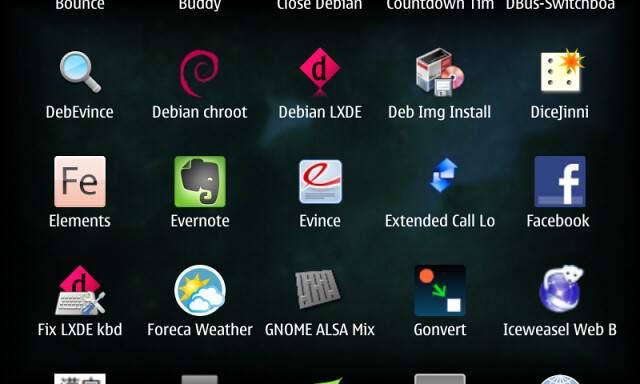
Turn your application menu from this


to this

with three easy to follow steps!

Based on the concepts described in the Making folders and managing icons thread, ApMeFo is trying to automate the process that makes it possible to organise the application menu in custom made folders.

Disclaimer Pt 1: To activate the Application Menu Folder functionality an integral system file has to be modified (hildon.menu). Corruption of this file will lead to hildon (the graphical framework of Maemo) no longer working. Though ApMeFo SHOULD be save to use, you're trying this at your own risk.

In the unlikely event that hildon gets messed up, please refer to this post: http://talk.maemo.org/showpost.php?p...&postcount=108

Disclaimer Pt 2: None of the concepts behind this application were created by me - I only collected the information provided by the kind people of aforementioned thread, compiled them into a simple tutorial and then created ApMeFo to automate the process. Big thanks to all the people out there that helped demystify hildon and of course to those who helped me get this beta up and running.


Disclaimer Pt 3: Currently, ApMeFo is meant to be used with PR 1.2 on the N900, mainly because that's the device I'm working (and can thus test) with. I don't have any information on whether this works on other versions and other devices - but of course would be happy to hear about other people's experiences with them!


Another note on corrupted hildon.menu files:

Pressing the Deactivate button in the (De-)Activate tab will delete the hildon.menu file - which will then automatically be replaced by the default. It's a nifty failback system native to hildon already.

So to play it save, just don't close the application until you affirmed that your application menu is still working and after hitting Deactivate everything should be fine again.

(When I manually messed up my hildon.menu, all running applications where still fully functional - I could just not start any new.)

Right now this is just a beta version and lacking both user and code documentation, so here's a short explanation of how it works:
  • All the changes made to your system will be invisible as long as ApMeFo is deactivated (and, unless you already created a hildon.menu file according to my tutorial, this is the default).

    So before you start creating your folders, you might want to go to the last tab - (De-)Activate - and hit the Active button. If everything worked as it should, your applications menu should stay the same, as we didn't yet create any folders.
  • To create a new folder, go to the Create/Edit tab and enter the name of your folder. Please not that only letters, numbers, spaces and the following special characters are allowed: "-", "_", "/" and "\"

    Then select an icon to go with it. If you already know the name of the icon, simply enter it (without the trailing extension, so "filemanager_games_folder" instead of "filemanager_games_folder.png"), else you can select one from the popup list the button next to the input field opens. Note that because of the multitude of icons to load, this might take a couple of seconds to load.

    Hit Create/Edit and open your application menu to check for your newly created folder.
  • To edit the icon of an existing folder, simply enter it's name or select it from the popup list (similar to the icon list), then choose an icon and hit Create/Edit again. Opening the application menu should now display the new icon for your folder.
  •  To delete a folder (and move it's content back to the main menu), simply go to the Delete tab, select the name of the folder from the list and hit Delete Folder.
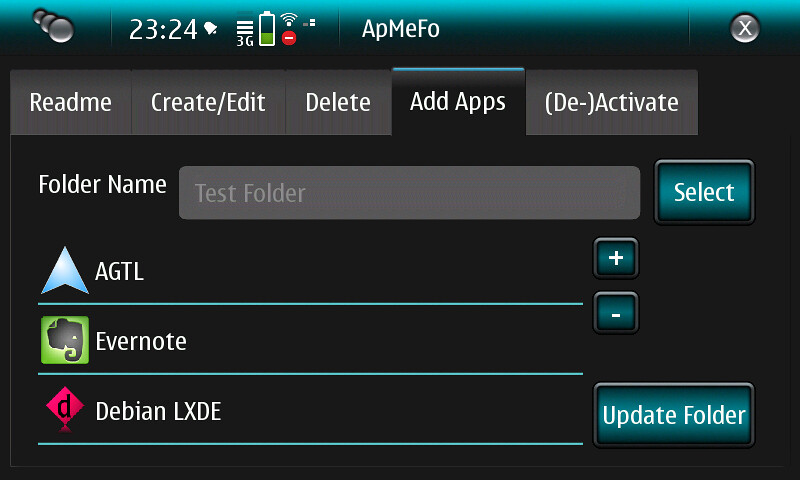
  •  The Add Apps tab will let you add any of the available applications to one of your folders - or remove them and put them back into the main menu.


    First, choose your folder and wait for it's current content to display in the list underneath it's name.

    To remove one of the applications, select it from this list and hit the "-" button. To add one, hit the "+" button and select it from the popup list.

     Hit Update Folder in order to save your changes.
In case the application is not responding to one of your inputs, please open X Terminal, enter


Code:
python /opt/ApMeFo/Main.py
and try the operation in question again.

If there's any output in your X Terminal, please post it here so I can fix it.

Most probably most errors might be due to dependencies, since I don't know how to figure them out. So if you could hint me on what is missing, I would be really grateful!

Right now this application can be found at extra-devel under the name "apmefo".

More to read !

Handset version of MeeGo set for June 30 release !?

According to fiercedeveloper Nokia plans to release a preliminary version of its MeeGo platform for handsets including images of the user interface and an SDK for developers on June 30, according to Valtteri Halla, director of MeeGo software at Nokia.

"It's what we call Day One for the MeeGo handset release," Halla explained. "The productized release of the software is still (set for release in) October of this year, but this is a kind of pre-Alpha release."

Hmm wait and  see, in the meanwhile, watch this demo of Meego 1.1 running on a tablet ^^

Monday, June 21, 2010

QCPUFreq : save battery power by adjusting your maximum CPU speed

QCPUFreq is a GUI for the kernel's cpufreq interface. It allows you to adjust your CPU's maximum speed.
This prevents the CPU from working at full speed when you don't need it (e.g while browsing the web) which enables you to save more battery power.


It should work with vanilla and custom kernels so both normal users and overclockers could benefit from the application.

Note: changes are non-permanent. After a reboot your device is going to use the default maximum frequency set in /etc/pmconfig.

Requirements:
- N900 with PR 1.2
- no dependencies

Future plans:
- polishing UI
- upload to extras-devel/testing
- option for enabling SmartReflex
- changing scaling governor (only for power-kernel)
- use QDBus instead of sudo to set frequency
- l10n

Download the deb file if you want to test it : https://garage.maemo.org/frs/?group_id=1699&release_id=3801

Saturday, June 19, 2010

What to expect from Meego OS User Interface !

Some days ago i came across an interesting article from MeeGo Wiki page which describe the User Interface of the upcoming Meego Handset ! And guess what, the page has been deleted ! But hey, thanks to the magical google's webcache ;)

Anyway, some highlighted contents which i found interesting :

Lock Screen

- The lock screen is presented when the user presses the power key to wake the device from idle state.
- The screen presents the wallpaper (customizable by the user), date and time, and the lock action button. The device is unlocked by dragging the lock button into the wallpaper area.
- Notifications are also supported in the lock screen. They stack up in a similar way to the Notification Drawer.

Launcher

The launcher is a view that contains links to all applications installed in the device. In the launcher, the user can browse through the applications and add up to 4 links to the quick launch bar at the bottom of the screen. In editing mode, the user can also change the order of application links.

Applications are presented in a 4 x 4 grid. In the case where there are more than 16 applications, more pages of the same grid are added to the right. Paging through the different grids is done by swiping the current grid off screen, hence bringing the new one into view. When the user installs a new application, it goes to the end of the application grid.

The user opens the launcher by selecting an icon at the bottom of the Homescreen (placed together with Favorite Application links). To close, the same icon is used.

Order of Applications, Browsing, and Changing Modes

Tasks are shown in the order they were opened, from left to right. Every time a new task is opened, it pushes the previous task panels to the left and adds its thumbnail view to the far right.

The default view of the switcher presents the latest accessed task in focus, with the other, different tasks running to the right. Thumbnails are presented in chronological order, as they are opened.

It is possible to browse through the thumbnails, one by one, by slowly dragging them, or to use a quick swipe to rapidly pan from one side of the list to the other. During this quick swipe, a tap stops the transition at tapped point, but does not open the application. To open the application, the user needs to tap the desired thumbnail.

Users can use a pinch multi-touch motion to change the switcher into an overview mode. By pinching in, thumbnails move into a grid display. The grid can scale up to a 3x3 version, thereafter the switcher then starts to create new pages. Pinching out, while in the grid mode, changes the view back to larger stacked mode.

 Text Input

Extra keyboard line The framework offers the possibility of customizing the keyboard by adding an extra virtual line to the pad. This line may receive custom-made buttons, for example, a ‘.com’ button for the browser keyboard. When the hardware keyboard is opened, the extra virtual line still appears (it is possible to dismiss it by dragging it down).

In addition, the system uses this extra line for advance functions, such as Copy/Paste. If the user selects a section of the text (drag and hold gesture), the extra line appears with the copy function available. Once the user actions copy, the same button reverts to paste. More on Copy & Paste section of this document.

Portrait vs. Landscape

Device orientation will suite multiple Applications in different ways. While watching a video is best done on landscape – with the media taking up all the screen, scrolling long lists is more comfortable on portrait.

MeeGo common components are always provided for both orientations. In other words, by using them, there is not need for extra work. It is advice able, however, that anyone building an Application acknowledges such change, as it might impact the desired experience.

Applications can overwrite default changes. However, it is highly recommended that all Application provide both portrait and landscape mode. The main reason is the form factor of some available MeeGo devices. In a devices with a slide hardware Qwerty, the landscape experience becomes key, and somehow extended. Therefore, the user shouldn’t be forced to change orientation to complete a task. Playing a game is one of the few exceptions to this rules, as its experience flow does not require (in most cases) the use of any other application.

Changing views should not introduce new or different content or functionality. Assets can be subtlety resided and/or reshuffled to make better use of the screen real estate.

1 vs. 2 Columns

Lists are probably the most common UI layout, and have a particular behavior depending on the orientation.

Whereas portrait allows for more items to be presented, landscape presents the possibility to extend the content area of a particular item. This is specially useful for text strings, which in landscape get more character area. The title of a message, for example, has less chance of being truncated.

Some Applications may consider splitting lists in two columns when on landscape to optimize space usage. This may be used when there is no hierarchical order, usually in first level drill down pages. However, this should never be done when the list follows a specific order criteria (such as chronological, alphabetical, etc).

Buttons should always be centralized (specially important due to two column split) and, full width in both orientations.

i'm going to keep reading the rest of the page too !

Horizontal-Call : Call people in your contact list without HW keyboard, easily and fast !

Horizontal-Call allows you to call people in your contact list without HW keyboard, easily and fast !

Motivation :
- When the phone is mounted in the car, in landscape mode, there is no simple way of searching for a contact, and dialing it.
- Contacts on the hildon-desktop force you to pre-configure it, and are limited to a number of contacts, according to available space.

Description :
- The application loads the contacts into a a list.
- It then displays buttons with letters to reach the 1st char of each contact - This means that if no contacts start with the Letters "G, X and Z" those buttons won't appear, giving more room for the rest of the buttons.
- After 1 press, the buttons are recreated with the 2nd index letter, and so forth.
- The list is constantly filtered on the right, allowing the selection of the contact when found.


Features :
- Written with QtMobility/C++
- Big fonts
- Easy, fast searching.
- Uses Dbus to dial the numbers providing the usual phone interface.

Limitations :
- Due to QtMobility bugs, only English contacts will be displayed at the moment. (Help in this area is appreciated)
- Only "PhoneNumber" contacts will be displayed, this mean, no skype/gtalk contacts at the moment. (Don't know the dbus calls to dial skype calls).
- Loading contacts after the application starts takes about 3 seconds, this is a QtMoblity limitation which I will be able to solve soon by caching the contacts.
- The application is not in devel yet, I am waiting for Upload Request Approval on this.

TODOs :
- Solve the limitations (:
- Move the stylesheet out of the code, to external file, allowing people to edit it.

Bugs to solve :
- libqtm-contacts is not installed automatically.
- None matching numbers to contacts
- Odd numbers instead of phone numbers.

If you want to test it, download it : horizontal-call_0.1_armel.deb

Friday, June 18, 2010

Rotatedaemon : Rotate applications through all four directions !

Rotatedaemon forces all applications which are capable to rotate to all four possible directions: portrait, landscape, reverse portrait, reverse landscape.

I didn't tested it yet ;)

Thursday, June 17, 2010

Jenirok : Searches unknown callers' details automatically using Eniro person search or 1881.no !

Jenirok Searches unknown callers' details automatically using Eniro person search or 1881.no.


Screenshots from meego.de

Unknown callers' details are fetched automatically during call using Eniro person search or 1881.no (for Norwegian users). Person search can also be done by using a gui application. Jenirok is currently mainly usable for Finnish, Swedish, Danish and Norwegian users.

Demola Innovation Experience: Nokia Augmented Reality Concept

Jaako Keranen speaks to Rafe Blandford, editor of All About Symbian about an augmented reality concept shown at theTampere Innovation Experience @ Demola and guess what !? Yep it was demonstrated on a N900 !

It’s a mix of augmented reality and photo browser and works by using a device’s sensors to detect where the device is (GPS) and where it is pointing (magnetometer and accelerometer).

The notable difference to other’s attempts at this though, is that MAA can see through the earth; this means as well as pointing at the horizon (as with traditional augmented reality photo viewers) and the area around you, you can also point at the ground and see photos on the other side (e.g. if your in the UK, point at your feet, and you’ll see photos from Australia). MAA also includes ‘a birds eye view’, which lets you look down on the earth from above. Geo-tagged images can be drawn from the handset or (as seen in the demo) photo services such as Flickr.

The idea behind the research is to explore the ways in which photos browsing on a device can be better connected to the physical world. It also investigates how augmented reality-based viewing could make it easier to view large numbers of photos.


Via : thereallymobileproject

Wednesday, June 16, 2010

Classic Print : Retro style photo editor !

Classic Print is a photo editing application that allows you to give your photos a 'retro' look. It provides a number of settings that can be adjusted to produce the desired output.


Classic Print allows you to load any photo and tweak the following effects:

* Vignette effect with adjustable radius, darkness and edge defocus
* Dodge to highlight centre of image
* Colour temperature; green or red tint
* Add noise to photo
* Colour level adjustments (select from a number of presets and adjust amount of adjustment)
* Contrast
* Light leak simulation
* Adjustable photo frame border


The settings are grouped into "Lens", "Film" and "Processing" to simulate the photographic process of a cheap classic camera. You can save your favourite settings for each of these groups and give them a name or you can tweak them individually to see the effect.

When you're happy with the settings you can save the photo with effects applied at any resolution up to the size of the original photo.

When the application is started, tap where indicated to choose a photo to edit.

The three buttons at the top left allow you to adjust settings for "Lens", "Film" and "Processing" respectively. Clicking on any of these displays a popup allowing the settings to be altered.

Each of the settings popups allow you to tweak the individual parameters or to select a previously saved set of parameters. When you tweak any settings, the current set is marked as "Custom". These can be saved as a new preset by pressing the save button (looks like a diskette).

The save button on the bottom left of the main screen allows you to save your modified photo. When selected you are prompted for the resolution to save the photo as. The "Photo Resolution" button resets the size to the size of the source photo. When you select "Done" you are given the opportunity to select the filename to save as. Your original photo is not overwritten or modified unless you choose to save over the original.

PenPen SketchBook : Quick note taking / drawing !

PenPen StetchBook is a replacement of the built- in app "Sketch" in Nokia N900. It is a vector graphics drawing tool. The user interface is specialized for quick note taking.


Features :

- Vector graphics
- Unlimited size of sketch area
- Support to erase stroke by single click and drag. Word removal is easier
- Support auto-saving. No. of clicks are minimized.
- Multiple sketch viewer
- Support auto-orientation
- PNG export

Monday, June 14, 2010

FastSMS : SMS writer with Input type like T9

FastSMS is a Portrait and Landscape SMS writer. Input is like T9 system, but not the same.


Available at Extras-devel

Sunday, June 13, 2010

BlessN900 : Tweaks your pictures (non-blurry, low-noise, high quality zoom) !

BlessN900 gives you all you've been missing with the standard camera: non-blurry low-noise photos in low light, high quality zoom not available on any mobile device before, rich detail in highlights and shadows!


 Download and Install Now! or from Extras-Devel repository

You will need to reboot your phone after installing BlessN900, as the camera firmware is updated during installation.

Ansel-A : Powerful Image Editing has finally come to N900 !

Ansel-A Digital Darkroom for the N900. Supporting B&W Conversion, Color Correction, Precision Rotation, Photo Browsing, Level Adjustments and Simple Filters. Pronounced "Ansel, A"


Features:

- Filtered-Black-&-White-Conversion
- RGB-Color-Correction
- Brightness, Saturation, Contrast and Sharpening
- Pixel-level-Cropping (Portrait is still a little fishy)
- Tonal Shadows/Highlights
- Kinetic Photo Browser
- 360-Degree-Precision-Rotation
- EXIF-Browser-with-maps
- Unlimited-Visual-Undo
- Multi-Platform (Qt4.6, PyQt)
- a Gratuitous You Tube Video


- An active developer taking feature requests

And all this cool stuff is Fully Open Source.

if you have Extras-devel/Extras-Testing active go to AppManager->Graphics->Ansel-A and click install and enjoy !

More to read !

About Meego and the Nokia N9...Eldar about to strike again !

Maybe some of you have already read this post wich list some keyfeatures of the upcoming Nokia flagship, the Nokia N9 (Dali as codename) running on the Meego platform :

Hey, don't believe all what you see ;)


- Thickness 0.5 - 1 cm thinner than the N900 (with a hardware keyboard or...?)
- Meego-operating system
- ARM Cortex-A8 SoC (Same as iPhone 4 processor, hmm)
-64 GB internal memory
-4 Inch screen
-Capacitive touch screen with multi-touch (like the iPhone)
-12 MP camera - Dual LED  (Not a Xenon one?)
- 720p Recording

Well, another post transcript a Q&A with Nokia’s EVP, MeeGo Computers: Alberto Torres wich can be summarized as :

- MeeGo phone being announced this year
- MeeGo phone will push the boudaries of processing power
- MeeGo phone will be a very high end product
- MeeGo is an opportunity to create something well beyond what others are doing
- MeeGo phone is step 5 of 5 and intended for mass market
- MeeGo phone will be something everyone wants to own
- MeeGo phone will try to satisfy all needs into one plate
- MeeGo phone will be capacitive, more stylish and more beautiful with simpler UI that average users will find as equally compelling as tech leaders.
- MeeGo has potential to be something deeper than typical smartphone
- Maemo apps not directly backwards compatible with MeeGo
- Nokia N8 will be Nokia’s flagship in a few months
- All future flagships will be built on MeeGo
- MeeGo phone will be on Nseries (not rumoured Sseries)
- MeeGo will have higher experience level than Symbian
- Symbian^3 and MeeGo will have certain minimum base level specification to ensure apps created on one device works in another.
- N8 is first step in reclaiming momentum at high end.
- MeeGo is the next step.


Ok, this confirm this as we can read in the 7th page :

Nokia plans to launch a MeeGo-based device in 2010. For this device, Nokia is creating an iconic user experience with integrated Ovi services. It will have a multitasking-centric design with multi-touch interaction,
such as pinching. Furthermore, Nokia plans to scale MeeGo to higher volumes.


And the great news ! Eldar is preparing a preview about Meego and the N9-00 ! I know, not a very good idea as Meego is in very very early development stage, it's a MeeGo project release and when i read such comment :

meego is not mature os - you see N900, so you know what will w8 from meego, they imagine that this product is ready for market. They do not count other companies as competitors

I wonder why, how, and if it's a fair comment !? :) Reply after the break :

 Finally. I wouldnt be insist that MeeGo is bad. Is great for geeks. For people who like N900 today. But for regular users is nothing. No idea behind this story. No UI which will be outstanding. No design which will be overwhelming. At least on average level. Of course, someone could said that MeeGo have some unique features like Qt. Yes, yes and again yes. But how Qt connected with end customer experience? Someone in Nokia miss the point. Qt is great for developers. But for customers you need to produce cool UI, a lot of apps etc. Do you know a lot of apps for N900? Could you compare it with Bada from Samsung which just started on market. I will answer that Bada even today have 5 times more apps than N900. Android much more.

So mobile computer without software? LOL.

I could go on. But my point is really simple. MeeGo is not mature due to lack of normal, regular things

- ecosystem (it will be build in future, but now doesnt exists)
- a range of products (1 this yesr, 2-3 next)
- cool UI which will astonished us - average


In summary, prepare yourself to see some pics next week in the sphere !

Friday, June 11, 2010

eSpeakTime : Talking clock based on eSpeak

eSpeakTime is a simple talking clock daemon. Activate it by double-pressing the power button while the display is locked. This package provides the long-running daemon responsible for monitoring power button events.

Available at Extras-devel repository ;)

Auto-Complete Editor : Edits the user's auto-complete dictionary !

Auto-Complete Editor allows deletion and addition of terms from the custom auto-complete dictionary !

More info over here ;)

restinpeace (RIP) : alarm when the phone registers itself with a pre-defined CellID

restinpeace (RIP) is an application that sounds an alarm when the phone registers itself with a pre-defined GSM/WCDMA CellID, useful if you fall asleep in the tramway when going to the school or to the work :)

Available at Extras-devel repository ;)

Wednesday, June 9, 2010

Pelota : World Cup Widget !

Pelota is a real-time widget that shows status of world cup games's scores, every goal that happens, a beep and vibration indicates you about it !


Update : You can install it by grabbing the .deb file as following :

wget http://184.73.182.199/pelota-repo/dists/fremantle-1.2/pelota-widget_1.0.0-1_armel.deb

And installing it manually with

dpkg -i pelota-widget_1.0.0-1_armel.deb

Also doing this will work for others without having to download the file with wget.

dpkg -i http://184.73.182.199/pelota-repo/dists/fremantle-1.2/pelota-widget_1.0.0-1_armel.deb

Wi-Fi Signal Applet : Shows the Wi-Fi signal in the status area

Wi-Fi Signal Applet shows the Wi-Fi signal from 1 - 10 in the status area
, it checks the strength every two seconds. (FWIW, the standard wifi applet checks every 1 second when the status menu is open) It does not check when either the applet is not in view (fullscreen apps, display off, etc.) or if you aren't connected to a network.


Available at Extras-devel repository.

Saturday, June 5, 2010

Media IM Status Updater : Update IM presence message with song/artist information !

Media IM Status Updater update IM presence message with song/artist information, now all your friends can know exactly what song you're listening to on your Nokia N900 no matter where you are !


Available on Extra-Devel

Contacts-merger : Merge your duplicate contacts !

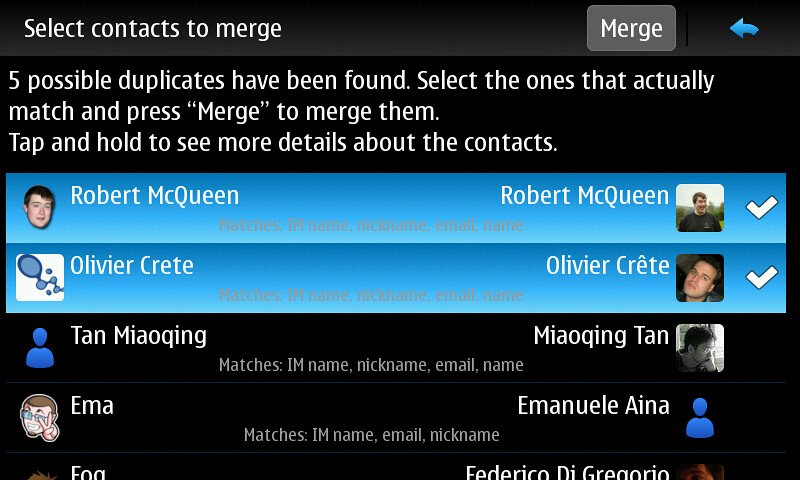
Contacts-merger finds probable duplicate contacts and allow the user to easily merge them.


After installing Contacts Merger you have to reboot your phone and then you will get a “Find duplicate contacts” button in the menu of the main address book window.

Available at Extras-devel repository.

Calendar Home Widget : replacement for the built-in calendar home widget !

Calendar Home Widget opens the calendar application with different views (agenda, week, month). Can change dynamically the widget size. Selectable fixed sizes. And you can select which calendar entries (color) should be visible and a time period.


It looks like the built-in widget but with some small ui changes and some setting options.

Features:

- Set visible rows:
Small - 2 Rows
Medium - 5 Rows
Larte - 9 Rows
- Auto - Adjusts the size automatically for upto 9 rows.
- Set the date range to use to show events on the widget (1 week, 2 weeks, 1 month, ..., 1 year)
- Select visible calendars .
- Select which calendar view to open, when tapping on the event list (agenda, week, month)
- You can always tap on the day icon to open the agenda view, the week day name always opens the week view and tapping on the month label, well opens the month view.

More to read.

Illumination Software Creator : create your software (even if you have no programming experience) !

Illumination Software Creator 1.0 (for Linux and Windows desktops) was released this week.

It is a 100% visual software development tool aimed at making the creation of software approachable to everyone (even those with no programming experience) through the use of visual "building blocks".

The resulting software that you create is Python/GTK, and there's even a "Maemo/Tablet" setting for making your UI custom tailored to the devices.

Take a look here: http://radicalbreeze.com/?page_id=102
And see a quick tutorial here: http://radicalbreeze.com/?page_id=168
The support forum (including the beta releases) are here: http://radicalbreeze.com/forum/

Via : talk.maemo.org

Friday, June 4, 2010

Shaded chat theme : possibility to customize IM theme conversation view !

Shaded chat theme is an example chat theme for Conversations, using this as example, you can make your own chat themes. After installing, you can change the chat theme from Conversations app's main menu -> Settings -> IM theme, so this theme only apply changes for IM view, not SMS conversations one.


Available at Extras-testing repository.

Thursday, June 3, 2010

Irreco Widget : Small widget to control your TV etc !

Irreco widget has basic controls to control IR controlled devices directly from your home screen. Main idea is to create a simpler and more easy-to-use version of the full (Qt)Irreco application...


Available at Extras-devel repository :)