Showing posts with label Freewares. Show all posts

Sunday, May 20, 2012

[MeeGo Harmattan] ESPNF1 : Official ESPN Formula 1 app lis live !

The official ESPNF1 app brings you the best Formula One coverage across the globe, delivered in both English and French. The app will provide news, features, live commentary during races, and detailed information about teams, drivers, and circuits.


The detailed ESPNF1 app feature list includes:

- Feature Stories - original features including Driver Profiles, Car Profiles, Q&A, and opinion-based articles from ESPNF1 writers;

- Race updates - upcoming race calendars and exclusive news

[MeeGo Harmattan] RSS To Events

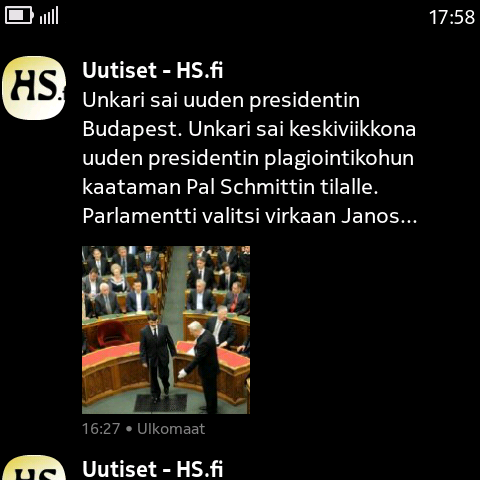
RSS To Events is an application which publishes RSS feed items in the home screen's events feed and links the items directly to the URLs pointed to by the items. Atom feeds are not supported at this time.


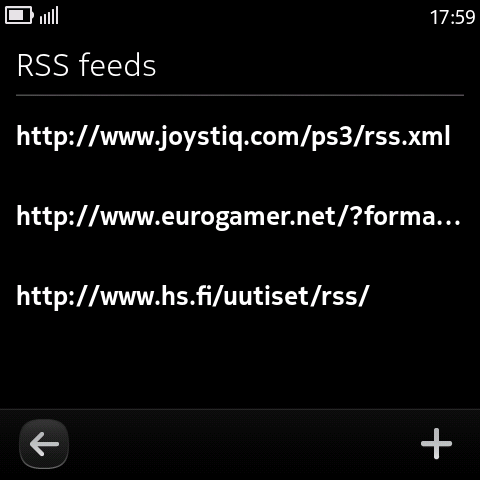
The RSS feed URLs can be chosen through Settings -> Notifications -> Feed on home screen -> RSS feeds. Press the + button to add a new RSS feed URL or long tap on an existing one and select Remove to remove one.


The feeds are updated on the interval defined in the Automatic updates settting on the Feed on home screen setting page.

Thursday, May 17, 2012

[MeeGo Harmattan] Wazapp Public Beta is live !

Wazapp (Whatsapp port for the N9) 0.1.6 for N9 is out as a public beta. Get it from http://www.wazapp.im

Enjoy testing and please report any bugs to tarek[at]wazapp[dot]im


Some FAQ:

How long do I have to wait if registration fails?
Registration failure error has a number like "fail-too-recent::X", X is the number of minutes you have to wait before trying again.

Will I still receive notifications when I close it?
-If you close wazapp by swipe down or from tasks window, it will remain running in background and you will receive notifications normally. If you close wazapp using the "Quit" button, it will totally exit and you won't be notified about new messages

Does it support media sending (images,sounds, location ..etc)?
-Not yet. If someone sends you media it will not show up on wazapp, and the sender will not receive a "delivered" receipt from you.

Does it support group conversations?
-It supports group conversations partially. If you already belonged to a group, you will be able to send and receive messages on it. Buy you cannot create a group and yoou can not join new groups. Oh and you won't be able to identify the message sender in a group as well :P

Does it create an internet connection by itself?
-It uses the current internet connection and does not issue a new one automatically. If you disconnect, reconnect, Wazapp will restore its connection automatically.

Does it support emoji?
-No. And if someone sends you an emoji (smiley face), it would appear most probably as boxes. You might have seen similar behavior if you used Whatsapp on Symbian before it supported emoji

How does whatsapp fee and account expiry work on wazapp?
-Currently if your account expired you won't be notified. Wazapp will not be able to connect without giving a reason.

Can I choose or change my password?
-No

How do I edit pushname ?
-From accounts settings in accounts manager

So here is a list of missing (and upcoming) whatsapp features:
Fully functional group conversations
Sending and receiving Media
Sending emoji
Blocking/unblocking

Known issues with this version:
Splash screen is not swipable
Auto registration code handling doesn't always work
Notifications won't go away until you click it
Chat item text max length is according to screen orientation where it was initially calculated
Received duplicate messages are not discarded
Chat bubbles don't scroll correctly on virtual keyboard open/close

Sunday, May 13, 2012

[MeeGo Harmattan] Easy Answer : Answer and end calls without touching the screen

Easy Answer lets you answer and end calls effortlessly without touching the screen.


easy answer

When you receive a call, just raise the phone to your ear and it will be answered automatically. When you're done, simply shake the phone to end the call.

Whether you're biking, wearing gloves or keeping your eye on the road, these gestures can come in handy. If you wish, double-pressing the power key can also be used to answer or end calls.

If the application isn't available for your region, get it here (add .deb extension to the file when saving it) !

Sunday, April 29, 2012

[MeeGo Harmattan] FasterN9 : Make your N9 running faster !

FasterN9 is a script to make N9 fast as it was in PR1.1. For those who had a N900, it's like swappoluble.

This is not a daemon, it is not a program that runs in background and makes your phone better. This script starts when your phone starts, changes the way the Linux kernel handles memory and exits. Yet, the effects continue. It's very simple, so it will probably work with almost any configuration you have in your phone.

It does run after reboot and it is not necessary to reboot after installation. If uninstalled, it will be like if it has never been there.

It will probably work better if you don't have dropcaches installed.

Code:
#!/bin/sh
#

#Author: Danilo Luvizotto <danilo.luvizotto@gmail.com>
#License: do whatever you want with it.

#This is mainly a memory MOD. The idea is to avoid swapping.
#Swapping will cause the process to freeze while waiting
#data to be available in RAM. In our case it will also waste
#battery because the swap is compressed in N9.
#
#I've read a lot of documentation to get to the conclusions
#and explanations detailed here, but I may be wrong. If you're
#an expert and something is wrong, please let me know.

#If you want to learn about about cgroups, this is the best
#documentation I've found:
#http://docs.redhat.com/docs/en-US/Re...ide/index.html
#Beware some parts are specific to Red Hat Enterprise Linux.

#Source: http://www.kernel.org/doc/Documentation/sysctl/vm.txt
#
#vfs_cache_pressure controls the tendency of the kernel to
#reclaim the memory which is used for caching of directory
#and inode objects.
#At the default value of vfs_cache_pressure=100 the kernel
#will attempt to reclaim dentries and inodes at a "fair" rate
#with respect to pagecache and swapcache reclaim.  Decreasing
#vfs_cache_pressure causes the kernel to prefer to retain dentry
#and inode caches.
#
#This is a mobile phone, we want applications to be available in
#RAM, so we prefer pagecache and swapcache, not directory and
#inode cache. We don't want applications to freeze while their
#code come back from swap!
echo 2097151 > /proc/sys/vm/vfs_cache_pressure

#This will make the system less proactive moving data to swap.
#The value '3' worked better in my tests.
echo 3 > /proc/sys/vm/swappiness

#This will limit memory used by background processes to 10MB.
#The default value is arround 70MB.
#In my phone only 3 processes are in this group:
#msyncd, obexd and the infamous smartsearch
while [[ `cat /syspart/system/background/memory.limit_in_bytes` != 10485760 ]]
do
 echo 10M > /syspart/system/background/memory.limit_in_bytes
 sleep 5
done
#This will make background processes to have less CPU priority.                             
echo 128 > /syspart/system/background/cpu.shares

#This will limit memory used by desktop processes to 100MB.
#The default value is 200MB.
#The most important process in this group is meegotouchhome,
#to wich the 3 home views belong.
#At fist I thought performance would be better if this group
#has a higher limit, but it makes no difference. High limits
#will cause processes to swap, so performance will decrease.
while [[ `cat /syspart/system/desktop/memory.limit_in_bytes` != 104857600 ]]
do
        echo 100M > /syspart/system/desktop/memory.limit_in_bytes
 sleep 5
done

[MeeGo Harmattan] QZeeControl : Control your N9 remotely with Zeemote !

QZeeControl lets you control your N9/N950 with a Zeemote(TM) Bluetooth remote control. and is completly written from scratch in Qt/QML

In order to use your Zeemote(TM) with your smartphone you have to follow three steps.

- First, you need to pair your Zeemote(TM) with your phone. In order to do this activate bluetooth via the settings menu and turn your Zeemote(TM) on by long-pressing the button at the top of your Zeemote(TM) that is marked red. Next go to the "Bluetooth devices" sub setting menu. There you should find an entry named "Zeemote(TM) JS1" select it and select to pair it. The code for pairing is 0000. At this stage the remote control is paired but not connected.

- Once you have paired your remote control with your smartphone you need to discover it using QZeeControl. To do this start up QZeeControl and press the "Scan" button. Note that this may take a while. If the scan was successfull you should see some address in xx:xx:xx:xx:xx:xx format be filled in the field that prior showed just a message and the "Connect" button should have become enabled. Note that these values will be stored and loaded once you open QZeeControl the next time so you usually should not need to scan again except you want to use a different remote control.


- Finally, in order to start controlling your smartphone you need to actually connect your remote control to the phone. To do so just press the "Connect" button. After a short moment you should see that the connection has been established. At this stage you can test if the remote control actually works by using the built-in test functionality. Try to move your joystick and press some buttons. You should see the red rectangle moving and the letters representing the buttons light-up in red respectively.

 From there on you can use your Zeemote(TM) remote control to control your phone. Next time you want to use it just enable bluetooth at your phone, enable the Zeemote(TM) remote control, and finally start QZeeControl and connect to the remote control.


Download it !

Saturday, April 21, 2012

[MeeGo Harmattan] Helium is here ! browse and control UPnP/DLNA media servers from your N9 !

Helium is a so-called UPnP A/V ControlPoint (or as DLNA puts it, a M-DMC). It allows you to browse UPnP/DLNA media servers from your N9 and show or play its contents on a rendering device as well as offering basic playback controls on those devices.

Currently version 0.4 is available as a “beta preview”, later it will also be available for installation through the Nokia Store.

After launching Helium you will see a list of available media servers on your current network. Helium has two views, a “Server view” which you are currently in and a “Player view” which can be reached by clicking on the “Play” button in the bottom tool bar.

If you need to refresh the list of available devices because a device you believe is available but isn’t shown you can use the refresh button in the top bar to force a scan for available devices.

You can simply start browsing the server by tapping on it.


The browse view looks similar to the initial server view. You go deeper into the hierarchy by tapping on the item if it indicates that there’s more to come. You can navigate up the hierarchy by using the tool bar’s back button.

You can refresh the current listing by clicking on the refresh button in the header.

To play back an item on the selected renderer, use a long press. Unfortunately there is no haptic feed-back available yet.


The player view does not look very different from the initial server view. You can refresh the list of available devices and switch back to the server view. To select a player tap on it. Helium will then show you extended playback controls as seen in the image.

You can start and stop a playback as well as see its current progress.

If the player supports it (some may not as those actions are optional), you can also pause a playback and seek in the media by tapping on the progress bar.

You can close the extended player view by tapping on the “up arrow” right to the device’s name.


[MeeGo Harmattan] N9 media pushing : Display images and videos on your DLNA-capable TV directly from the gallery !

Ever since the announcement of the N9′s DLNA support people were looking for a feature called DLNA +PU+ which allows you to send media files to e.g. DLNA-capable TVs without enabling content sharing on your device, giving you a really fine-grained control about what and where to share to.

PushUp is a small utility that hooks into the N9′s sharing framework and allows to you push an image or a video to your TV just like you would with Bluetooth or NFC. Get it on this site (or later through the Nokia Store).


It is an offspring of Korva project, a D-Bus specification and its implementation for media pushing. While still work-in-progress, it’s already fully functional.

Tuesday, March 27, 2012

[MeeGo Harmattan] Mode Switcher : Another advanced profile manager !

Like we've seen on proximus and profilematic, Mode Switcher allows switch Power Save Mode (PSM), profiles, bluetooth, 2G-3G-Dual cellular network mode at selected time and weekday.

Also allows to switch profiles when charger is connected (disconnected).

Supports four volume levels in General profile. If needed, you can temporarily disable service.


Sunday, March 18, 2012

[MeeGo Harmattan] Black Box : Add empty spaces to menu !

As simple as that, Black Box enables you to add empty spaces to menu !


[MeeGo Harmattan] TweakUp your media sharing experience !

As you know, due to the aim of getting the N9 DLNA-certified, developers had to introduce some restrictions.

One of the most annoying limitation from an end user point of view is that you can’t share arbitrary videos or music which you may have put on your device.

Another, though minor, issue is that it’s not possible to change the name shown in UPnP or DLNA clients on the network.

If your phone is on PR1.2, TweakUp enables you to tweak some of the N9's media sharing options, such as


- Enabling/disabling audio transcoding
- Setting the name of the device on the network
- Sharing of all media files, even those without DLNA profiles
- Enabling/disabling uploading
- Setting a home access point


Wednesday, March 7, 2012

[MeeGo Harmattan] Inception : Deeper acces to your Nokia N9 !

INCEPTION allows you to assume direct control and liberate your Nokia N9's full potential !

INCEPTION is:

Easy : It allows you to open up your N9 in less than five minutes, with no need for a PC.

Safe : It makes no major changes to your N9 on its own - it merely unlocks the door so that you can use your own discretion. INCEPTION can be uninstalled at any time with no side effects.

Effective : The only limits on what you can do with your N9 are your own. INCEPTION turns the N9 into what could be the most powerful and open handheld device on the market.

INCEPTION makes the following possible:

- Direct customization of N9 system packages, many of which are open-source but couldn't be replaced previously

- Installation of new kernel modules that add advanced functionality to the system, paving the way for applications such as VPN clients, USB host mode, or a more sophisticated Wi‑Fi hotspot program

- Mounting any filesystem, including those built with FUSE - such as sshfs or TrueCrypt

- Complete disablement of Aegis, for users that want the N9 to function more like a traditional Linux desktop
Community-provided upgrades to the operating system, much like the Nokia N900's Community SSU project

Want to know how to incept your N9? Head over the original post !

Tuesday, March 6, 2012

[MeeGo Harmattan] Flashplayer : FULL web to your N9 !

They did it ! Bring the FULL web to your device with Flash Player- videos, games, apps & more.

Adobe Flash Player enables a complete web browsing experience by enabling access to your favorite interactive content.

Please note that Flashplayer only works with Firefox browser.

Monday, March 5, 2012

[MeeGo - Harmattan] YouTube Video Feed : YouTube Feeds on event screen !

YouTube Video Feed. YouTube Video Feed allows you to have your chosen video feed publish to the event feed. You can choose from
  • Latest subscription videos (requires sign in)
  • Search query
  • Standard categories


Currently, tapping on one of the feed entries will take you to the mobile web page, from where you can play the video as per the usual method. I may add an option to play the video directly in the stock player.


As soon as you installed this add-on you find a new entry in Settings/Notifications/Feeds/YouTube Video Feed.The first thing you should to do, is sign in to your account - if you have one. Use the option "YouTube account" to sign in and allow the application to use your account informations. Afterwards select "Feed Settings" to choose preferences. The choice is pretty big - there are different categories of videos like Cars & Vehicles, Comedy etc,videos by search or subscription videos (requires account)


Try it !

Thursday, March 1, 2012

[MeeGo Harmattan] Gtalk Video Call !

Gtalk Video Call enables video calling with Google Talk contacts. The feature is integrated to Contacts and Phone applications. Device will automatically reboot after the installation of the package.


Please note: Nokia N9 v1.2 (or later) software is required to install this package. Additionally, your friends must have a capable device and an accurately configured Google account in order to make a video call.

Wednesday, February 29, 2012

[MeeGo Harmattan] MediaKeys : use the volume keys to control music player !

MediaKeys allows you to use the volume keys to to pause/resume a song, and to skip to the previous or the next one (only with the default Music app).


You can switch between volume keys and media keys by pressing both VolumeUp and VolumeDown at the same time or from the GUI. From the GUI you can also set the multimedia function for both keys.

With version 0.2.0 was added the long press recognition, so you can use a short press to change the volume and a long press for multimedia actions.

[MeeGo Harmattan] 2G3G : switch quickly between 2G, 3G or Dual mode !

2G3G is an application to switch quickly between 2G, 3G or Dual mode

By default, the application switches between 2G only and 3G only, so if the current mode is Dual the application will do nothing.


If you want to switch between 2G and Dual mode you have to set the GConf key '/apps/2g3g/mode2' to "dual" with this command

gconftool-2 -s /apps/2g3g/mode2 -t string "dual"

The GConf keys are '/apps/2g3g/mode1' and '/apps/2g3g/mode2', and the possible values are "2g", "3g" and "dual"

Sunday, February 5, 2012

[MeeGo Harmattan] Toggle PSM (Power Saving Mode) for N9 !

Activating and deactivating PSM in MeeGo is a pain for me, having to start the Settings application, select Device and then Battery and finally click on the PSM button and select On. It’s a 4 steps procedure that at least consume me 1-2 seconds. Smartphone is meant for simplicity as well as quickness in operation.

Hence, a Toggle PSM button on the laucher home page which triggers the PSM on a single click on the home page. It’s just as easy as it looks.


[MeeGo Harmattan] Track@Way : Track Your Way !

Track@Way is the successor to FreeTrack. Whatever reference you have for FreeTrack, you arrived in the right place now!


Track@Way is an Open-Source (released under GPLv3 license) application for mobile phones which lets you track your way using the embedded GPS in your mobile phone (or, where supported by the phone, an external GPS antenna).

Many use Track@Way (spelled "track-a-way") during their sport activities, some uses it during their travel to geoference their photos, some use Track@Way just for fun! Myself, i use Track@Way for my sport activities and leisure vacation.

Suppose, for example, that you go out for trekking in the mountains: Track@Way in its most basic usage can record where you have been so that you can review later your path, project it on a map (check gpsvisualizer.com for a free converter tool for Google Maps and Google Earth) or even reuse it as a guide for your next trekking in the same area!

If you have some more time to set up Track@Way, you can add a map to it (check the map section of the forums for some maps aready available, or just use the maps that you already own) and check your position on the map in real time...

Track@Way uses your phone internal GPS receiver or an external Bluetooth GPS antenna, if you have one, to find your position. It can use A-GPS or simple GPS devices, it can also use network-based localization if it is available on your mobile.

[MeeGo Harmattan] btinput : use a Bluetooth keyboard with your N9 !

btinput allows you to connect a bluetooth keyboard to your phone.