Showing posts with label N9 Tips and Tricks. Show all posts

Sunday, January 8, 2012

[MeeGo Harmattan] [How to] retrieve the forgotten security code?!

Didn't you activate trusted person settings? And now you've a headache to remember the security code you've set up ! You can retrieve the forgotten security code using Nemesis Software Suite.

How?

- Download and install NSS

- Connect the N9 in "Sync and connect" mode (you may need to wait for the driver to install)

- Run Nemesis Service Suite (NSS)

- Click on "Scan for new devices" (top right hand button)

- Click on "Phone info" button

- Click on "Scan" button.

- Switch to the "Permanent Memory" tab.

- Click on "Read" button and let the program read memory contents. When it finishes, in the last line in the status window it will inform you about the location of the log file containing memory contents.

- Go to that location and open the file, e.g. with Windows Notepad.

- Find [308]

- Scroll down a little bit until you see a line starting with 5= followed by a numerical string, e.g. 5=31323334350000000000

- When you remove the "3" digits on ODD locations in that string, you'll get the security code. E.g :

31323334350000000000 = 12345 i.e. your forgotten security code (of course this is just the example showing the unchanged factory code).
Tuesday, December 27, 2011

[MeeGo Harmattan] [How to] Sync your N9 with ovi suite !

Simple ! Ovi Suite 3.0.0.290 will recognise and sync with the N9. It works.

You can then upgrade to the current Ovi Suite and it will continue to work – but only if you have created the sync under the 3.0.0.290 version.

Steps:

- When you are installing 3.0.0.290, turn off internet connections otherwise Ovi Suite will automatically upgrade before installing

- Once installed, turn off auto-update software (for now) and plug your handset in. It will be recognised, install drivers, and say it is ready

- Confirm your sync settings, and press sync.

- You can then go back online and agree to update your Ovi Suite to the current release.

If you have questions, drop them in the comments section below ! Enjoy !

Original topic ;)

Saturday, December 24, 2011

[MeeGo Harmattan] [How to] Bring back your dead N9 to life !

If you bricked your N9 as i did the past week, and want it back to life from the dead Nokia Logo then you can use the following method for restoring system after some dangerous experiments with applications.

My guide is based on ubuntu live cd (the best and safest method yet) as i have Win 7 64bits and i just can't run properly the tools needed to flash the N9 (if you want steps to do it on windows OS, be sure to look into maemotalk forums)...so :

In few steps :

1- Get (not really necessary) the latest ubuntu build (i did it with ubuntu 9 and it worked just fine), Once you've finished downloading your file, you'll need to create a CD or USB drive (the advantage of running a live cd is that you won't need to install anything on your PC) and then run it (see step 3 from this page).

2- Get the maemo flasher released for Harmattan (in my case i did choose the flasher_3.12.1_i386.deb version of it as i'll use ubuntu live cd) and install it !

3- Get the firmware image for your device, I used NaviFirm from http://www.symbian-toys.com/navifirm.aspx to get the appropriate firmware for my N9 (you can search your Firmware with the help of the product code of your N9 which you can find on the back of the micro SIM holder) you're not forced to download all files but ones checked by default, the most important file is the Mcu LEGACY one (something like : DFL61_HARMATTAN_2X.2011.44-2_PR_LEGACY_XXX.bin)

Ps : It'll be convenient to rename it to something easy like your name for example : saad.bin

You want to do a warm-flash ( I have not tried a cold-flash, so do that at your own risk ) of your device.

There are detailed instructions at the maemo wiki, http://wiki.maemo.org/Flasher but you won't probably need them as only what's left to you to do is to place files you've just downloaded to Desktop.

5- Place downloaded files to desktop.

6- Run Xterm, then type :

cd Desktop

Then sudo flasher -F FIRMWAREIMAGE.bin -f -R

Where  FIRMWAREIMAGE.bin is the name you gave to your firmware image... in my case the command will be :

sudo flasher -F saad.bin -f -R

Plug your N9 (it must be switched off already) and wait the magic till your device reboot ;)

It worked fine, but still, do at your own risk !

Additional type : Do a hard reset after that as you could have some old nasty files staying on the system ;)

If you have questions drop them in comments section :)

Saturday, December 17, 2011

[MeeGo Harmattan] [How to] Enable zoom in video recording On your N9 !

In 4 steps you'll be able to zoom during video recording with your lovely N9, I also tested it, it works fine :


 Enable developer mode (Settings> Security> Developer Mode) if not already done.  

1- Download the file camera.conf

2- Open Terminal and enable root acces :

devel-su

password : rootme

3- Copy the downloaded file in the etc directory:

 cp /home/user/MyDocs/camera.conf /etc/camera.conf

4- Restart the device.

It 'can zoom both with the top bar like the pictures, both with the volume buttons.

To remove this tweak just delete the file by repeating the procedure from step 2 to step 5 and just type this command:

 rm /etc/camera.conf


Via : nokia.hdblog

Sunday, December 11, 2011

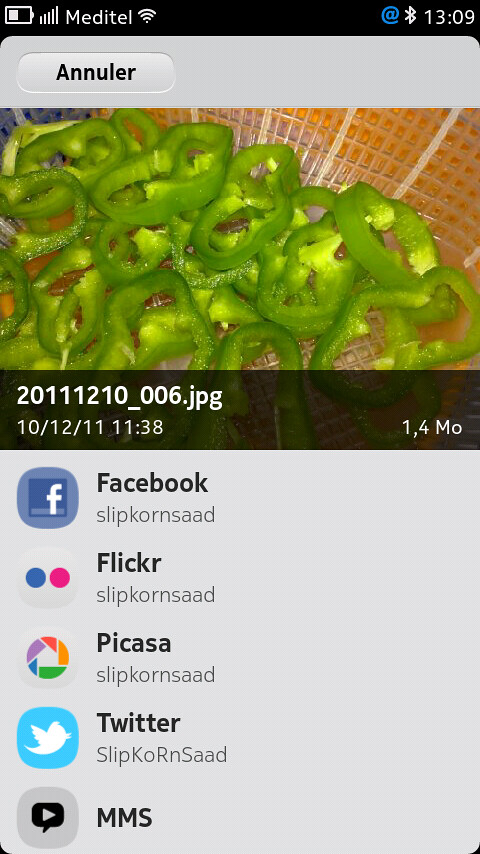
[MeeGo Harmattan] [How to] Share Pictures & Videos to Twitter From N9 Default Gallery Panel !

A simple hack (Found by ukhamitov it seems) which enables twitpic from N9 (N950) gallery !

So you can share your pictures directly from default Harmattan gallery panel manager (just like facebook, picassa etc) :

Make sure you have nano installed (Goto Settings->Security-Developer Mode-> Click Install button near utilities)


1- Open Terminal and enable root acces :
devel-su
password : rootme
2- Then type nano /usr/share/accounts/services/twitter-share.service


- The content of the twitter-share.service file will be displayed :

3- Scroll (with the help of the arrows keys) till you find something like below :

<!– <mime>image/*</mime> –>


<!– <mime>video/*</mime> –>


4- Remove comments from this code (with the help of the arrows keys) and press ctrl on the on-screen keyboard and press X and then press Y and click enter to save the modified file !

Tadaaaaa !

Ps : you can also configure max number of files to share etc.


Sunday, November 20, 2011

[Did You Know?] N9 includes Lower Power Consumption feature on screensaver?

Yes, Low power consumption meaning N9 turns screen off when it is covered, for example in a bag or your pocket ;)