Showing posts with label Meego-Harmattan. Show all posts

Tuesday, July 3, 2012

[MeeGo Harmattan] PR 1.3 v40.2012.21-3.001.19 update is now rolling-out

It seems that the PR1.3 update is now rolling-out - v40.2012.21-3.001.19 it's around 204.8 MB check yours, I can't do it because I dont have the N9 anymore (will get one again if this update is valuable)

Thursday, June 21, 2012

[MeeGo - Harmattan] Nokia Suite 3.5 Beta now supports the Nokia N9 !

Oh yeah, that's right ! Nokia Beta Labs has released Nokia Suite 3.5 Beta for Windows (v3.5.14), which now supports the Nokia N9. It allows Nokia N9 (and N950) owners to copy content between the phone and computer (including contacts and SMS backup / sync) and Internet tethering. It can be downloaded from here.

Saturday, March 31, 2012

[MeeGo Harmattan] [How to] Overclock your N9 !

- Install inception, and everything on the original site including opensh and aegisctl

- Download modules and copy them to to MyDocs


- Run these commands:

opensh
cd MyDocs
cp *.ko /lib/modules/2.6.32.48-dfl61-20115101/
/usr/sbin/aegisctl -k
/sbin/insmod/ /lib/modules/2.6.32.48-dfl61-20115101/symsearch.ko
/sbin/insmod/ /lib/modules/2.6.32.48-dfl61-20115101/opptimizer.ko
echo 1100000000 > /proc/opptimizer


 - Done ! That will give you 1.1Ghz. Be care !

Credits !

Thursday, March 29, 2012

[MeeGo Harmattan] Do you miss an application or Feature on the N9? Look at this !

Are you missing an app in your Nokia N9? Or a functionality that an installable app could cover? two threads (here and here) have been opened by qgil as an attempt to highlight applications that are missing in the Nokia Store, in order to bring the attention of developers of those apps or alternatives.

Template

Use the following example to add apps or comments:
App linked to store - Shortest description.
Why you miss this app. Is it for a feature that other apps could provide? Is it a specific brand or service you are after?
Other people is encouraged to add more arguments.

If the app is not available in the Nokia Store you can link it to another catalog e.g. Windows Phone marketplace.

Hope my prayers for Nokia play to, shazam and whatsapp may be answered :)

Thursday, March 8, 2012

[MeeGo Harmattan] The beginning of the end for the N9 : Harmattan Bugzilla Closed for New Bugs !

N9 Developer states the following :

In November 2011, we opened a public Bugzilla to interact with the N9 user community and receive end user bug reports and enhancement requests. To this date, we have received over 1100 bug reports. We thank you for the active contribution.

At this point of the product lifecycle, we have identified the major issues to be addressed in the upcoming software updates beyond the PR1.2 release. While we will continue to address issues already reported, we are unable to accept any new requests in Bugzilla.

The Harmattan Bugzilla will remain as read only for some time. However, we will continue to process the bug reports already in Bugzilla.

We kindly request you to continue further Harmattan developer discussions, bugs and other topics under developer.nokia.com. We hope to receive your continued support and help us further improve the quality of N9 software.

In a word ! DAMN !

Sunday, February 5, 2012

[MeeGo Harmattan] [How to] Enable extra Swype settings !

Yep, you can access hidden setting for the swype feature/application on the N9 ;)

All you have to do is to change in /usr/share/swype/data/SwypeConfig.ini "0" to "1"

settings.show.extra = 1
settings.show.gesture = 1
settings.show.tracepath = 1


Seen at talkmaemo

Friday, December 30, 2011

[MeeGo Harmattan] Incoming Call UI MOD !

Incoming Call UI MOD (mainly) make the Incoming Call Avatar much larger !


Installation:

1. Download and using PC, extract zip into root directory of device via USB Mass Storage

2. Open Terminal app and type:

Code:

devel-su
rootme  [root password, default is shown]
sh /home/user/MyDocs/phoneuiMOD-install.sh
3. Device will automatically reboot.


Removal:

1. Open Terminal app and type:


Code:
devel-su
rootme  [root password, default is shown]
sh /home/user/MyDocs/phoneuiMOD-remove.sh
2. Device will automatically reboot.


Changelog:

Version 1.1 (30/12/11)

- Enlarged Answer & Reject buttons

- Adjusted position of avatar, buttons and labels


Version 1.0 (30/12/11)

- Avatar is now 470 x 470 pixels, up from default size of 64 x 64 pixels

- Rearranged buttons to accommodate larger avatar


Download Current Version

V 1.1 (30/12/11)


Please, Support Development

[MeeGo Harmattan] [How to] Transfer SMS and IM conversations from the N900 to the N9 !

Having a headache in migrating the SMS and IM conversations?

Do you remember The basic tool that import sms conversation from the N900 to the N9? Ok, now, there is an enhanced script to import all Conversations to N9.

All you have to do is to :

1- Download the *.deb file and install it (by clicking on it)
2- Copy the database (located at /home/user/.rtcom-eventlogger/el-v1.db) from the N900 to the N9
3- Open the terminal and run the following command:

n900-comhist-import /path/to/el-v1.db

And wait for the magic to happen !

If you want only import SMS messages, use this version instead ;)

Read this before !

Saturday, December 24, 2011

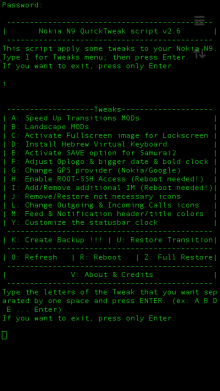
[MeeGo Harmattan] N9 QuickTweak : Different set of tweaks for your N9 !

Like N9Tweak, this small application that work via terminal also and will give you some different tweaks to your N9 file system.


I tried this app a few times and it’s work perfectly and quickly, but still I'm not responsible for the damage if will cause to your phone :-)

Tweaks Menu:

A. Speed Up Transitions MODs (Refresh needed) – You have a three different options (this have automatic refresh):

1. Full Speed Up Transition MOD - include landscape mod for Home & Lockscreen.
2. Speed Up Transitions with ONLY landscape Homescreen.
3. Only Speed Up Transitions - without landscape mod for Home & Lockscreen.


B. Landscape MODs (Refresh needed) - You have a four different options (this have automatic refresh):

1. Full Landscape MOD (Home & Lockscreen)
2. Full Landscape MOD (Home & Lockscreen) from your orig. files.
3. Only Homescreen Landscape MOD.
4. Only Homescreen Landscape MOD from your orig. files.


C. Activate Fullscreen image for Lockscreen – it’s activate a big-fullscreen image for LockScreen Landscape MOD, but before you apply this, you need to do something.. (thanks to jflatt)

Explanation:
1. Create picture named “mywall”with an 854x854 px dimension and with .png extension (mywall.png).
2. Put this image from your PC to: /home/user/MyDocs/.wallpapers/
3. Go to Setting ->Wallpaper-> choice your wallpaper and press Done.
4. Open N9 QTweak app (password of devel-su, default: rootme), choice i [hit Enter] then choice c [hit Enter]. No need to reboot !!!

D. Install Hebrew Virtual Keyboard – Add Hebrew virtual keyboard (Thanks to mohammad7410).

G. Change GPS provider (Nokia/Google) - This will give you ability to change the GPS provider (Thanks to Almehdin’s script).

H. Enable ROOT-SSH Access (Reboot needed!) – activate SSH access for ROOT user. This have automatic reboot. (Thanks to F2thaK & Almehdin).

I. Add/Remove additional IM (Reboot needed!) - This will install 3 additional packages: im-providers-additional telepathy-haze libpurple0. And you can use additional IM's - ICQ/MSN/Yahoo/AOL/Jabber/VK… This have automatic reboot for both options: Add/Remove (Thanks to Niwakame and his packages).

J. Remove/Restore not necessary icons - You can Remove or Restore the not necessary icons from your homescreen. It's not uninstall, it's only remove icons like facebook, twiter, User guide... You can choose a few numbers separated by one space and press ENTER. (ex: 2 4 6 ... Enter)

L. Change Outgoing & Incoming Calls icons – This will change you Outgoing & Incoming Calls history icons. Reboot needed! (Thanks to superjunior)

M. Feed & Notification header/title colors - This will change your Feed & Notification header and title colors to Orange and Blue (Thanks to oSCho)

Y. Customize the statusbar clock – Change your statusbar clock (ex. 08:08 | Sun 13 Okt or 08:08 AM | Sun 13 Okt), it have automatic refresh.

K. Create Backup !!! – Creating Backup from your system files. This will create folder named “.N9QTweakBackup” in your: /home/user/MyDocs

U. Restore Transition – Restore all changed files of Speed Up Transition with your BackUp files. (Refresh needed).

R. Reboot – Reboot your phone.

Z. Full Restore – This will restore ALL your tweaks, can uninstall new IM’s and restart or refresh your phone. Uninstall have two options Yes & No and also you will notice twice about uninstall new IM’s, you can choose Yes or No inside the restore process.

O. Refresh – Refresh your Homescreen and Lockscreen without reboot. All your applications will be closed anyway, but it's still faster way than a full reboot. See here.

V. About & Credits - it is clear

Before installation, make sure you have "allow other sources" set in settings and developer-mode activated.

Installation:
* Download and transfer the .deb file (thanks to Ammyt & hxka) to your phone.
* Install the .deb file by the usual way (double tap on file).
* Go to application Homescreen. You will see a new icon (Thanks to 3llipsis) at the end of the list and you can see the PDF instruction inside the: /home/user/MyDocs/Documents
* Tap on it and it will ask you for password of devel-su (default: rootme)
* Choose letter you want and press enter (you can write big or small character).

NOTE:
* Run “Create Backup !!!” on your first use of this script, mainly because of Speed Up Transition and Landscape MOD.
* You can choose more of one tweaks separated by one space and press ENTER. (ex: A B D E ... Enter)
* If you choose O or R, choose it at the end
* A and B have automatic refresh and H and I have automatic reboot and if you want to use more tweaks in the same session, just put this letters at the end. Don't use A , B , H and I together.. For example, you want to install A , C , F and D - just put the A at the end: C F D A [hit Enter]

Uninstall:
* To uninstall my application, do this by usual way, go to: Settings -> Applications -> Manage applications. Choose N9-QTweak and uninstall it. Another way – long press on N9 QTweak icon on the app homescreen.

  • If you uninstall this app it will leave the Backup files in MyDocs (/home/user/MyDocs/.N9QTweakBackup) and if for some reason you forgotten to restore your tweaks before uninstalling, you can do this manually or only one time by running the one simple command as ROOT: sh /home/user/MyDocs/.N9QTweakBackup/RESTORE . This command:

    1. restore your tweaks to default (except the new IM’s)
    2. Delete this folder (.N9QTweakBackup) from your phone
    3. Refresh your home and lockscreens
  • To update to new version, just install new .deb file.
Enjoy :D

Discussion and bug reports:

Maemo.org

[MeeGo Harmattan] [How to] Get rid of the "click" sound of the N9 camera !?

Hey folks,

If you, like me need to take some silent shots, removal of the snd_camera_shutter.wav file from /usr/share/sounds/ui-tones works perfectly.

NB : Don't forget to restart your N9.

Monday, December 19, 2011

[MeeGo Harmattan] Home screen settings : Configure the orientation locking of the home screen !

Home screen settings is a settings plugin for configuring the home screen. It allows the orientation locking of the home screen to be configured. Harmattan PR1.1 or later is required.


Note that this unlocks Harmattan functionality not supported in any way by Nokia. Do not file bugs to Nokia or to the author if you change the default home screen behavior.

Sunday, December 18, 2011

[MeeGo Harmattan] FlowPlayer : Music Player with albums coverflow !

FlowPlayer is a music Player with albums coverflow


Just scroll the album list, select one and start playing it. It has a lyrics fetching function.

It's very simple, but it's nice.

[MeeGo Harmattan] MeeFolders : Another Folder Application for the N9

Like Folders here's MeeFolders, an application that allows you to sort your applications into folders.


Features:

* Automatic creation of desktop files when applications are added to a folder.

* Automatic removal of desktop files when the folder becomes empty.

* Clicking on the folder desktop file launches the folder. The folder automatically closes when an application is launched. This may be user-configurable in later releases, i.e. option to minimise.

* Applications can be added to multiple folders.

Icons for the folders are stored at

/opt/meefolders/desktop/icons/

You can change these to anything you like (just keep the same names).


Download it !

Follow this topic !

Saturday, December 17, 2011

[MeeGo Harmattan] Christmas eCards !

Christmas eCards allows you to create beautiful e-cards containing professional backgrounds and cliparts all with Christmas theme. You can also add any text or photos with colorful frame decoration.


The eCards is very easy to use as it uses multi-touch for moving, rotating and scaling items on the phone screen.

[MeeGo Harmattan] [How to] Enable zoom in video recording On your N9 !

In 4 steps you'll be able to zoom during video recording with your lovely N9, I also tested it, it works fine :


 Enable developer mode (Settings> Security> Developer Mode) if not already done.  

1- Download the file camera.conf

2- Open Terminal and enable root acces :

devel-su

password : rootme

3- Copy the downloaded file in the etc directory:

 cp /home/user/MyDocs/camera.conf /etc/camera.conf

4- Restart the device.

It 'can zoom both with the top bar like the pictures, both with the volume buttons.

To remove this tweak just delete the file by repeating the procedure from step 2 to step 5 and just type this command:

 rm /etc/camera.conf


Via : nokia.hdblog

Friday, December 16, 2011

[MeeGo Harmattan] Music Shelf : simple, easy, and good-looking music player !

Music Shelf is a MeeGo music player that aims to be simple, easy, and good-looking. It is the proud winner of the 1st WeTab Qt App Challenge in category Entertainment with 67% of votes.


PS : There are bad news for N900 users, though. Maemo5 PR1.3 is not capable of running the app smoothly, don't expect it then, The N900 MeeGo Community Edition, however, runs the app just fine.

By the way, Music Shelf is powered by the Qt incarnation of MediaBox technology. You can expect first releases for N900CE and Harmattan soon. And on the WeTab you can already download Music Shelf version 1.0 in the WeTab Market for free.

[MeeGo Harmattan] Boxee Remote for N9 !

Boxee is a home-theater PC software that you can connect to your TV and stream videos/music from other computers and play them from a single entry. Furthermore it is a social network powered home theater application, you can post what you are watching on Twitter or Facebook and watch videos your friends posted on Twitter or Facebook.

You have two options to use Boxee, you can either buy a Boxee Box or make your own Boxee as presented in Boxee’s website (http://boxee.tv) and by downloading Boxee application. For the first choice you need this application because of its powerful NFC and proximity features, otherwise Boxee Box comes with its own remote, for the second choice, you need to have this application if you posses one of the coolest phones ever, the Nokia N9.


Boxee Remote is a remote controller interface for Boxee, you can use this remote to navigate, search, play/pause/stop videos or music and adjust the volume of Boxee.


You can download Boxee for N9 on Ovi now, try it, it’s free!

[MeeGo Harmattan] eBuddy XMS : Whatsapp alternative goes live !

Current beta release of the eBuddy XMS is a basic messaging application that will allow you to:


- find your address book and Facebook friends who also have eBuddy XMS installed;
- exchange messages with XMS contacts;
- receive notifications about incoming messages.

In short :  free real-time messaging for smartphones, with text, pictures, video and more like whatsapp ;)

Thursday, December 15, 2011

[MeeGo Harmattan] cuteWiki : read articles hosted on Wikipedia !

cuteWiki lets you read articles hosted on Wikipedia website


Key Features are:

- Live Search (Search while typing)
- Support for 15 most popular languages
- Share articles via email

Wednesday, December 14, 2011

[MeeGo Harmattan] Nokia Live View : Augmenting Reality Everywhere !

A new way to easily find information and services on the go

Have you ever wished you could spot the closest restaurant or ATM?

Nokia Live View is a fun and easy way to discover what is around you. Simply launch the app on your phone and Live View will display the points of interests in the Camera viewfinder view/ List view.

Nokia Live View connects you to what you’re looking for – and more – exactly when and where you want it.

With Live View you can :

Select your interests in many different categories – Live View will filter the points of interests and present your choices

Know your options – get details, read reviews of restaurants and hotels

Enjoy the place – with one tap you can make a reservation, or navigate to the location via turn by turn walking map

Download Instructions :

If you are first time installing the application from non-Store sources, you must go to Settings → Applications → Installations and enable the option "Allow installations from non-Store sources”.

When installing, if you are asked to verify whether you wish to install software from an uncertified source. Select "I agree".

Make sure on your N9 device that you have selected "Allow background connections" (Settings → Internet connection and enable the option "Allow background connections").

(.deb, 1.5 MB)

Option 1: The easiest way to install this app is to browse this page on your Nokia N9 web browser. Then download the Live View app file (*.deb) and after the file transfer is complete successfully, click the file to install the app on your device. Once the app is successfully installed, you can open it from Applications Screen.

Option 2: Setup the Bluetooth connection with your PC (Nokia N9 Product Support available here: http://europe.nokia.com/support/product-support/n9). Download Live View client (*.deb) to PC and transfer the file to N9 device over Bluetooth connection (works only in “without authentication” mode). After the file transfer is complete successfully, click the file to install the app on your device. Once the app is successfully installed, you can open it from Applications Screen.