Showing posts with label Hacking. Show all posts

Saturday, March 31, 2012

[MeeGo Harmattan] [How to] Overclock your N9 !

- Install inception, and everything on the original site including opensh and aegisctl

- Download modules and copy them to to MyDocs


- Run these commands:

opensh
cd MyDocs
cp *.ko /lib/modules/2.6.32.48-dfl61-20115101/
/usr/sbin/aegisctl -k
/sbin/insmod/ /lib/modules/2.6.32.48-dfl61-20115101/symsearch.ko
/sbin/insmod/ /lib/modules/2.6.32.48-dfl61-20115101/opptimizer.ko
echo 1100000000 > /proc/opptimizer


 - Done ! That will give you 1.1Ghz. Be care !

Credits !

Wednesday, March 7, 2012

[MeeGo Harmattan] Inception : Deeper acces to your Nokia N9 !

INCEPTION allows you to assume direct control and liberate your Nokia N9's full potential !

INCEPTION is:

Easy : It allows you to open up your N9 in less than five minutes, with no need for a PC.

Safe : It makes no major changes to your N9 on its own - it merely unlocks the door so that you can use your own discretion. INCEPTION can be uninstalled at any time with no side effects.

Effective : The only limits on what you can do with your N9 are your own. INCEPTION turns the N9 into what could be the most powerful and open handheld device on the market.

INCEPTION makes the following possible:

- Direct customization of N9 system packages, many of which are open-source but couldn't be replaced previously

- Installation of new kernel modules that add advanced functionality to the system, paving the way for applications such as VPN clients, USB host mode, or a more sophisticated Wi‑Fi hotspot program

- Mounting any filesystem, including those built with FUSE - such as sshfs or TrueCrypt

- Complete disablement of Aegis, for users that want the N9 to function more like a traditional Linux desktop
Community-provided upgrades to the operating system, much like the Nokia N900's Community SSU project

Want to know how to incept your N9? Head over the original post !

Wednesday, February 29, 2012

[MeeGo Harmattan] MediaKeys : use the volume keys to control music player !

MediaKeys allows you to use the volume keys to to pause/resume a song, and to skip to the previous or the next one (only with the default Music app).


You can switch between volume keys and media keys by pressing both VolumeUp and VolumeDown at the same time or from the GUI. From the GUI you can also set the multimedia function for both keys.

With version 0.2.0 was added the long press recognition, so you can use a short press to change the volume and a long press for multimedia actions.

Sunday, January 29, 2012

[MeeGo Harmattan] Camerra Hack : Use "Volume +" as Camera Shutter button !

A new hack by : Use "Volume +" as Camera Shutter button When this application is running, it will monitor the state of your "Volume +" hardware key and (when the camera application is running in the foreground) on press click on the on-screen shutter button. Cool for self-portraits


Download it !

Friday, December 30, 2011

[MeeGo Harmattan] Incoming Call UI MOD !

Incoming Call UI MOD (mainly) make the Incoming Call Avatar much larger !


Installation:

1. Download and using PC, extract zip into root directory of device via USB Mass Storage

2. Open Terminal app and type:

Code:

devel-su
rootme  [root password, default is shown]
sh /home/user/MyDocs/phoneuiMOD-install.sh
3. Device will automatically reboot.


Removal:

1. Open Terminal app and type:


Code:
devel-su
rootme  [root password, default is shown]
sh /home/user/MyDocs/phoneuiMOD-remove.sh
2. Device will automatically reboot.


Changelog:

Version 1.1 (30/12/11)

- Enlarged Answer & Reject buttons

- Adjusted position of avatar, buttons and labels


Version 1.0 (30/12/11)

- Avatar is now 470 x 470 pixels, up from default size of 64 x 64 pixels

- Rearranged buttons to accommodate larger avatar


Download Current Version

V 1.1 (30/12/11)


Please, Support Development

Saturday, December 24, 2011

[MeeGo Harmattan] N9 QuickTweak : Different set of tweaks for your N9 !

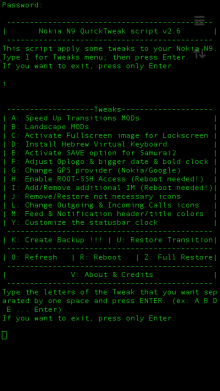
Like N9Tweak, this small application that work via terminal also and will give you some different tweaks to your N9 file system.


I tried this app a few times and it’s work perfectly and quickly, but still I'm not responsible for the damage if will cause to your phone :-)

Tweaks Menu:

A. Speed Up Transitions MODs (Refresh needed) – You have a three different options (this have automatic refresh):

1. Full Speed Up Transition MOD - include landscape mod for Home & Lockscreen.
2. Speed Up Transitions with ONLY landscape Homescreen.
3. Only Speed Up Transitions - without landscape mod for Home & Lockscreen.


B. Landscape MODs (Refresh needed) - You have a four different options (this have automatic refresh):

1. Full Landscape MOD (Home & Lockscreen)
2. Full Landscape MOD (Home & Lockscreen) from your orig. files.
3. Only Homescreen Landscape MOD.
4. Only Homescreen Landscape MOD from your orig. files.


C. Activate Fullscreen image for Lockscreen – it’s activate a big-fullscreen image for LockScreen Landscape MOD, but before you apply this, you need to do something.. (thanks to jflatt)

Explanation:
1. Create picture named “mywall”with an 854x854 px dimension and with .png extension (mywall.png).
2. Put this image from your PC to: /home/user/MyDocs/.wallpapers/
3. Go to Setting ->Wallpaper-> choice your wallpaper and press Done.
4. Open N9 QTweak app (password of devel-su, default: rootme), choice i [hit Enter] then choice c [hit Enter]. No need to reboot !!!

D. Install Hebrew Virtual Keyboard – Add Hebrew virtual keyboard (Thanks to mohammad7410).

G. Change GPS provider (Nokia/Google) - This will give you ability to change the GPS provider (Thanks to Almehdin’s script).

H. Enable ROOT-SSH Access (Reboot needed!) – activate SSH access for ROOT user. This have automatic reboot. (Thanks to F2thaK & Almehdin).

I. Add/Remove additional IM (Reboot needed!) - This will install 3 additional packages: im-providers-additional telepathy-haze libpurple0. And you can use additional IM's - ICQ/MSN/Yahoo/AOL/Jabber/VK… This have automatic reboot for both options: Add/Remove (Thanks to Niwakame and his packages).

J. Remove/Restore not necessary icons - You can Remove or Restore the not necessary icons from your homescreen. It's not uninstall, it's only remove icons like facebook, twiter, User guide... You can choose a few numbers separated by one space and press ENTER. (ex: 2 4 6 ... Enter)

L. Change Outgoing & Incoming Calls icons – This will change you Outgoing & Incoming Calls history icons. Reboot needed! (Thanks to superjunior)

M. Feed & Notification header/title colors - This will change your Feed & Notification header and title colors to Orange and Blue (Thanks to oSCho)

Y. Customize the statusbar clock – Change your statusbar clock (ex. 08:08 | Sun 13 Okt or 08:08 AM | Sun 13 Okt), it have automatic refresh.

K. Create Backup !!! – Creating Backup from your system files. This will create folder named “.N9QTweakBackup” in your: /home/user/MyDocs

U. Restore Transition – Restore all changed files of Speed Up Transition with your BackUp files. (Refresh needed).

R. Reboot – Reboot your phone.

Z. Full Restore – This will restore ALL your tweaks, can uninstall new IM’s and restart or refresh your phone. Uninstall have two options Yes & No and also you will notice twice about uninstall new IM’s, you can choose Yes or No inside the restore process.

O. Refresh – Refresh your Homescreen and Lockscreen without reboot. All your applications will be closed anyway, but it's still faster way than a full reboot. See here.

V. About & Credits - it is clear

Before installation, make sure you have "allow other sources" set in settings and developer-mode activated.

Installation:
* Download and transfer the .deb file (thanks to Ammyt & hxka) to your phone.
* Install the .deb file by the usual way (double tap on file).
* Go to application Homescreen. You will see a new icon (Thanks to 3llipsis) at the end of the list and you can see the PDF instruction inside the: /home/user/MyDocs/Documents
* Tap on it and it will ask you for password of devel-su (default: rootme)
* Choose letter you want and press enter (you can write big or small character).

NOTE:
* Run “Create Backup !!!” on your first use of this script, mainly because of Speed Up Transition and Landscape MOD.
* You can choose more of one tweaks separated by one space and press ENTER. (ex: A B D E ... Enter)
* If you choose O or R, choose it at the end
* A and B have automatic refresh and H and I have automatic reboot and if you want to use more tweaks in the same session, just put this letters at the end. Don't use A , B , H and I together.. For example, you want to install A , C , F and D - just put the A at the end: C F D A [hit Enter]

Uninstall:
* To uninstall my application, do this by usual way, go to: Settings -> Applications -> Manage applications. Choose N9-QTweak and uninstall it. Another way – long press on N9 QTweak icon on the app homescreen.

  • If you uninstall this app it will leave the Backup files in MyDocs (/home/user/MyDocs/.N9QTweakBackup) and if for some reason you forgotten to restore your tweaks before uninstalling, you can do this manually or only one time by running the one simple command as ROOT: sh /home/user/MyDocs/.N9QTweakBackup/RESTORE . This command:

    1. restore your tweaks to default (except the new IM’s)
    2. Delete this folder (.N9QTweakBackup) from your phone
    3. Refresh your home and lockscreens
  • To update to new version, just install new .deb file.
Enjoy :D

Discussion and bug reports:

Maemo.org

[MeeGo Harmattan] [How to] Get rid of the "click" sound of the N9 camera !?

Hey folks,

If you, like me need to take some silent shots, removal of the snd_camera_shutter.wav file from /usr/share/sounds/ui-tones works perfectly.

NB : Don't forget to restart your N9.

Saturday, December 17, 2011

[MeeGo Harmattan] [How to] Enable zoom in video recording On your N9 !

In 4 steps you'll be able to zoom during video recording with your lovely N9, I also tested it, it works fine :


 Enable developer mode (Settings> Security> Developer Mode) if not already done.  

1- Download the file camera.conf

2- Open Terminal and enable root acces :

devel-su

password : rootme

3- Copy the downloaded file in the etc directory:

 cp /home/user/MyDocs/camera.conf /etc/camera.conf

4- Restart the device.

It 'can zoom both with the top bar like the pictures, both with the volume buttons.

To remove this tweak just delete the file by repeating the procedure from step 2 to step 5 and just type this command:

 rm /etc/camera.conf


Via : nokia.hdblog

Tuesday, December 13, 2011

[MeeGo Harmattan] N9Tweak : user friendly app for some hacks available on N9 !

N9Tweak is a litte user friendly app for some hacks available on N9 !

Example of date and time format tweaking ;)


Install it through the browser and make sure you have "allow other sources" set in settings and developer-mode activated.

Current features:

* Add adhoc at start up
* Boost the playback volume
* Change the statusbar clock
* Tweaks the clock, date and bounce of the lock-screen
* Activate/Deactivate landscape support
* Tweak screen rotation sensitivity
* Change GPS provider
* Change behaviour of PowerKey
* Enable/Disable auto-brightness setting
* Add local key to N950 fn+arrow hw-keys
* Edit the options in display settings
* Swap screen sleep mode on or off
* Add/Remove extra repositories
* Enable ssh to root user
* Enlarge virtual keyboard
* Enable/Disable Skype on N950

Changelog:


0.2-3 

* Improved landscape a bit
* Q for quit app
* Added XL vkb
* Colored GUI
* Screen rotation sensitivity
* A couple of bug fixes

0.2-2

* Added rezisable virtual keyboard
* Added root ssh enabler
* Added zsh installer (hidden)
* Fixed 12h/24h issue for status clock
* A bunch of small fixes

0.2-1

* Change GPS provider
* Change PowerKey behaviour
* Added PreDriv to startup
* Added Screenlapse (hidden)

0.2-0

* A bunch of bug fixes

0.1-8

* A bunch of bug fixes

0.1-7

* Added bounce to lock-screen
* Added volume boost
* Added startup adhoc
* Added german hw-keys
* possibilty to revert hw-keys
* added /usr/bin/n9tweak
* A bunch of bug fixes

0.1-6

* Made a deb for easy install
* Made a desktop launch icon
* Added ability to reset all options

0.0-7

* initial release

You can follow updates here or here ;)

Sunday, December 11, 2011

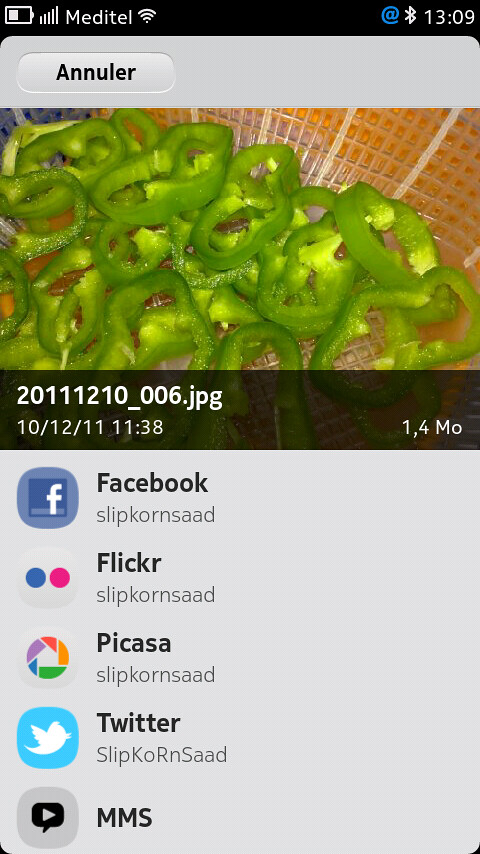
[MeeGo Harmattan] [How to] Share Pictures & Videos to Twitter From N9 Default Gallery Panel !

A simple hack (Found by ukhamitov it seems) which enables twitpic from N9 (N950) gallery !

So you can share your pictures directly from default Harmattan gallery panel manager (just like facebook, picassa etc) :

Make sure you have nano installed (Goto Settings->Security-Developer Mode-> Click Install button near utilities)


1- Open Terminal and enable root acces :
devel-su
password : rootme
2- Then type nano /usr/share/accounts/services/twitter-share.service


- The content of the twitter-share.service file will be displayed :

3- Scroll (with the help of the arrows keys) till you find something like below :

<!– <mime>image/*</mime> –>


<!– <mime>video/*</mime> –>


4- Remove comments from this code (with the help of the arrows keys) and press ctrl on the on-screen keyboard and press X and then press Y and click enter to save the modified file !

Tadaaaaa !

Ps : you can also configure max number of files to share etc.


[MeeGo Harmattan] [How to] Get MSN, ICQ, Jabber, AOL and Yahoo! In 1 or 4 steps in your N9 !

Hey hey ! What about getting all IM's : MSN, ICQ, Yahoo, AIM, IRC, Gadu-Gadu, QQ, Jabber, AOL, QIP, Vkontakte, etc on our lovely N9 (like on the N900)?

Well it's here finally !


1) Download these three files straight on the device :

LibPurple

Telepathy-Haze

IM-Providers-Additional

2 Open terminal, and gain root access using devel-su with rootme as password (unless changed).


3 Enter cd /home/user/MyDocs/Downloads


4 Then (in respective order) dpkg -i libpurple0_*.deb


(5) Then dpkg -i telepathy-haze_*.deb


(6) Then dpkg -i im-providers-additional-0.4.deb

Update :

2) You can use the Transfers view that pop-ups and single click (in respective order, otherwise installation will fail) to install (Yes, it works now) but if you're in ease with previous steps with xterm, just use it ;)

What then? Simply Restart the device you should have the various IM providers in the Accounts app.

Upgrading from a previous version :

- Download file number #3
- Use filemanager or transfer-view on your phone to find the .deb file
- click on the file, it will be upgraded automatically

If you wish to deinstall these later, simply go to  :

Programs -> Manage Programs -> im-providers-additional and select Deinstall.

You can follow this topic, this one and mainly this one for more informations and detailed guide ;)

Wednesday, December 7, 2011

[MeeGo Harmattan] IP Address Widget !

Based on experiments with the Calendar Icon Hack, IP Address Widget takes the concept one step further and provides a "Widget" for your Harmattan (N950/N9) application screen that shows your current IP address(es). If you click on it, it will automatically update itself (it takes about two seconds), but that's still easier than firing up the Terminal and typing /sbin/ifconfig or playing with SDK icon on developer mode...


Download it !

If you have problems installing the .deb, please install the packages python and python-imaging (both are in the Nokia Repos) using:

$ devel-su
(enter the root password, usually "rootme")
# apt-get update
# apt-get install python python-imaging

If you are installing from the command line (with dpkg -i), you can use apt-get -f install after it to fulfill missing dependencies.

More infos and support also over here !

Tuesday, December 6, 2011

[MeeGo Harmattan] Calenderr : Daily updated Calendar app icon !

Calenderr is a simple hack to make the Calendar app icon always show today's date (day-of-month). The existence of calendar icons for each day (1-31) in the theme on the device lets suspect that this feature was either planned and then abandoned or that it will come built-in in some future firmware.


put calendarhack.conf in /etc/init/apps directory (see the comment inside)

put calenderr.sh in /home/user folder  (see the comment inside)

Or simply try this (verified) *deb  file !

More to read (support) over here !

Sunday, November 6, 2011

[MeeGo Harmattan] [How to] Explore, Edit, Replace System Files And So On

Well, it's not much different from what you did with your N900, but here's how :


  1. You need an SSH client on your computer as on the earlier tutorial. A free SSH client WinSCP is one of the popular softwares for Windows. WinSCP provides both the Remote Terminal access to the N9 as well as the File Transfer GUI. You can download WinSCP from here.
  2. Turn on the “Developer Mode” in your Nokia N9 by going through - “Settings > Security > Developer mode” - and turn on the “Developer mode”. You don't have to install other items in Developer Mode and just leave the interface. After turning the Developer mode on you should see two new icons on your home screen “Terminal” and “SDK Connection”.
  3. Open “SDK Connection” on home screen and tap “WLAN” to see what’s the IP address, N9 has been assigned on the network. Note this IP address. You don’t need to note any thing else in SDK Connection other than the IP address.
  4. On your Computer, run WinSCP. Give the IP address of N9 in “Host name”. User name is “root” and Password is “rootme”
  5. That’s it. Click Login to initiate the SSH connection with Nokia N9. – Accept any private key notifications on first time connection.

If the step 4 didn't work, do the following :

- On N9 open terminal and run:

Code:
devel-su (password is rootme)
passwd user (and enter some password)
Then on WinSCP ssh in as 'user' (Instead of "root") using the password you just set (instead of "rootme").

[MeeGo Harmattan] lpmcustomizer : Customise your Lock Screen !

lpmcustomizer is small application so you can customize your beautiful N9 even more!


So how does it work? Basically, there is room on the lock screen allocated for operator customization (which some of you might have noticed). What my small application does is allow you to set your own image there instead. From a technical point of view it’s as simple as changing a gconf value (/desktop/meego/screen_lock/low_power_mode/operator_logo) to point to your own PNG-file (120×120, preferably black and white only).

Original post.

Thursday, March 17, 2011

omvoiceserver : A voice server for Ovi Maps to allow spoken directions

omvoiceserver is a voice server for Ovi Maps to allow spoken directions as well as enable future features and functionality

Saturday, January 15, 2011

Ovi Maps Extra Features : Voice guidance, Real turn-by-turn, 3D buildings And more !

Thanks to the community to bring us all the features we've always missed in the Ovi Maps for the N900 ! Yeah you hear it right !

The community goes ahead to provide us a true turn-by-turn navigation and voice guidance! The tweaks are currently a work-in-progress but already usable !

You can see how it goes over this thread, i'll try it ASAP !

Saturday, January 8, 2011

MaeModder : all the best mods for N900 !

MaeModder : an application, written all in shell and with a simple python GUI that allow you to do the most important mods for Maemo:

- Swappiness set to 30

- Custom Icons

- Custom transitions made from the black plastic ones, but with some changes

- Power button menu mod (reboot and icons)

- Customized modest (http://talk.maemo.org/showthread.php?t=56634)

- Customized photo settings (etc/gdigicam)

- Customized hildon-desktop, Matan one (up to 9 desktop and a lot of keyboard shortcuts)

- Customized leds (Blue=calls White=SMS Yellow=IM GreenWater=eMails)

- MLV profile added to the default titan's ones ...this is half way between lv and ulv .. and is for the n900 that have problems with the too hight undervolt of the ULV profile.. :

- Wifi-Switcher popup mod: the popup of the program doesn't need the tap to disappear anymore.
After less seconds it disappears automatically.

- Wi-fi modules autoloading (called autostart in the script): this mod disables the autoloading of the wi-fi modules on maemo sturtup, just like Wi-fi switcher does.
WARNING: don't install this mod if you don't have Wifi-Switcher installed or you won't be able to connect to the network anymore.

- Update Notifications Off : this mod disables the update notifications... very useful if you use only FasterApplicationManager.


Via : talk.maemo.org

Monday, June 21, 2010

QCPUFreq : save battery power by adjusting your maximum CPU speed

QCPUFreq is a GUI for the kernel's cpufreq interface. It allows you to adjust your CPU's maximum speed.
This prevents the CPU from working at full speed when you don't need it (e.g while browsing the web) which enables you to save more battery power.


It should work with vanilla and custom kernels so both normal users and overclockers could benefit from the application.

Note: changes are non-permanent. After a reboot your device is going to use the default maximum frequency set in /etc/pmconfig.

Requirements:
- N900 with PR 1.2
- no dependencies

Future plans:
- polishing UI
- upload to extras-devel/testing
- option for enabling SmartReflex
- changing scaling governor (only for power-kernel)
- use QDBus instead of sudo to set frequency
- l10n

Download the deb file if you want to test it : https://garage.maemo.org/frs/?group_id=1699&release_id=3801

Wednesday, April 14, 2010

CpufreqUI : graphical application for frequency scaling !

CpufreqUI is a graphical application for frequency scaling !


Available at Extras-devel repository !