Showing posts with label MeeGo. Show all posts

Saturday, July 7, 2012

[MeeGo Harmattan] Jolla will deliver MeeGo devices!

As seen on opensmartpad Ltd. Jolla. a Finnish phone manufacturer who will continue the sensational work by Nokia and thus provides new MeeGo devices. The team was founded Jolla from employees of Nokia N9 Meego's team, and some brilliant minds out of the MeeGo community. Are not sensational news? This operating system has just deserves to be circulated. I'm looking forward to the future with the best operating system ever.

Twitter

Jolla continues Nokia's excellent work on # MeeGo based smartphones together with the # N9 -core professionals and # MeeGo alumni community. Tweets by @ jukkaeklund

Finland · http://www.linkedin.com/company/jolla

Saturday, December 24, 2011

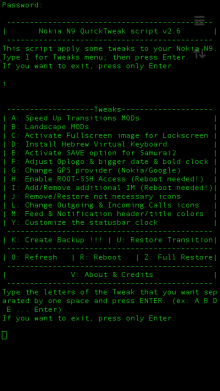
[MeeGo Harmattan] N9 QuickTweak : Different set of tweaks for your N9 !

Like N9Tweak, this small application that work via terminal also and will give you some different tweaks to your N9 file system.


I tried this app a few times and it’s work perfectly and quickly, but still I'm not responsible for the damage if will cause to your phone :-)

Tweaks Menu:

A. Speed Up Transitions MODs (Refresh needed) – You have a three different options (this have automatic refresh):

1. Full Speed Up Transition MOD - include landscape mod for Home & Lockscreen.
2. Speed Up Transitions with ONLY landscape Homescreen.
3. Only Speed Up Transitions - without landscape mod for Home & Lockscreen.


B. Landscape MODs (Refresh needed) - You have a four different options (this have automatic refresh):

1. Full Landscape MOD (Home & Lockscreen)
2. Full Landscape MOD (Home & Lockscreen) from your orig. files.
3. Only Homescreen Landscape MOD.
4. Only Homescreen Landscape MOD from your orig. files.


C. Activate Fullscreen image for Lockscreen – it’s activate a big-fullscreen image for LockScreen Landscape MOD, but before you apply this, you need to do something.. (thanks to jflatt)

Explanation:
1. Create picture named “mywall”with an 854x854 px dimension and with .png extension (mywall.png).
2. Put this image from your PC to: /home/user/MyDocs/.wallpapers/
3. Go to Setting ->Wallpaper-> choice your wallpaper and press Done.
4. Open N9 QTweak app (password of devel-su, default: rootme), choice i [hit Enter] then choice c [hit Enter]. No need to reboot !!!

D. Install Hebrew Virtual Keyboard – Add Hebrew virtual keyboard (Thanks to mohammad7410).

G. Change GPS provider (Nokia/Google) - This will give you ability to change the GPS provider (Thanks to Almehdin’s script).

H. Enable ROOT-SSH Access (Reboot needed!) – activate SSH access for ROOT user. This have automatic reboot. (Thanks to F2thaK & Almehdin).

I. Add/Remove additional IM (Reboot needed!) - This will install 3 additional packages: im-providers-additional telepathy-haze libpurple0. And you can use additional IM's - ICQ/MSN/Yahoo/AOL/Jabber/VK… This have automatic reboot for both options: Add/Remove (Thanks to Niwakame and his packages).

J. Remove/Restore not necessary icons - You can Remove or Restore the not necessary icons from your homescreen. It's not uninstall, it's only remove icons like facebook, twiter, User guide... You can choose a few numbers separated by one space and press ENTER. (ex: 2 4 6 ... Enter)

L. Change Outgoing & Incoming Calls icons – This will change you Outgoing & Incoming Calls history icons. Reboot needed! (Thanks to superjunior)

M. Feed & Notification header/title colors - This will change your Feed & Notification header and title colors to Orange and Blue (Thanks to oSCho)

Y. Customize the statusbar clock – Change your statusbar clock (ex. 08:08 | Sun 13 Okt or 08:08 AM | Sun 13 Okt), it have automatic refresh.

K. Create Backup !!! – Creating Backup from your system files. This will create folder named “.N9QTweakBackup” in your: /home/user/MyDocs

U. Restore Transition – Restore all changed files of Speed Up Transition with your BackUp files. (Refresh needed).

R. Reboot – Reboot your phone.

Z. Full Restore – This will restore ALL your tweaks, can uninstall new IM’s and restart or refresh your phone. Uninstall have two options Yes & No and also you will notice twice about uninstall new IM’s, you can choose Yes or No inside the restore process.

O. Refresh – Refresh your Homescreen and Lockscreen without reboot. All your applications will be closed anyway, but it's still faster way than a full reboot. See here.

V. About & Credits - it is clear

Before installation, make sure you have "allow other sources" set in settings and developer-mode activated.

Installation:
* Download and transfer the .deb file (thanks to Ammyt & hxka) to your phone.
* Install the .deb file by the usual way (double tap on file).
* Go to application Homescreen. You will see a new icon (Thanks to 3llipsis) at the end of the list and you can see the PDF instruction inside the: /home/user/MyDocs/Documents
* Tap on it and it will ask you for password of devel-su (default: rootme)
* Choose letter you want and press enter (you can write big or small character).

NOTE:
* Run “Create Backup !!!” on your first use of this script, mainly because of Speed Up Transition and Landscape MOD.
* You can choose more of one tweaks separated by one space and press ENTER. (ex: A B D E ... Enter)
* If you choose O or R, choose it at the end
* A and B have automatic refresh and H and I have automatic reboot and if you want to use more tweaks in the same session, just put this letters at the end. Don't use A , B , H and I together.. For example, you want to install A , C , F and D - just put the A at the end: C F D A [hit Enter]

Uninstall:
* To uninstall my application, do this by usual way, go to: Settings -> Applications -> Manage applications. Choose N9-QTweak and uninstall it. Another way – long press on N9 QTweak icon on the app homescreen.

  • If you uninstall this app it will leave the Backup files in MyDocs (/home/user/MyDocs/.N9QTweakBackup) and if for some reason you forgotten to restore your tweaks before uninstalling, you can do this manually or only one time by running the one simple command as ROOT: sh /home/user/MyDocs/.N9QTweakBackup/RESTORE . This command:

    1. restore your tweaks to default (except the new IM’s)
    2. Delete this folder (.N9QTweakBackup) from your phone
    3. Refresh your home and lockscreens
  • To update to new version, just install new .deb file.
Enjoy :D

Discussion and bug reports:

Maemo.org
Sunday, December 18, 2011

[MeeGo Harmattan] FlowPlayer : Music Player with albums coverflow !

FlowPlayer is a music Player with albums coverflow


Just scroll the album list, select one and start playing it. It has a lyrics fetching function.

It's very simple, but it's nice.

[MeeGo Harmattan] MeeFolders : Another Folder Application for the N9

Like Folders here's MeeFolders, an application that allows you to sort your applications into folders.


Features:

* Automatic creation of desktop files when applications are added to a folder.

* Automatic removal of desktop files when the folder becomes empty.

* Clicking on the folder desktop file launches the folder. The folder automatically closes when an application is launched. This may be user-configurable in later releases, i.e. option to minimise.

* Applications can be added to multiple folders.

Icons for the folders are stored at

/opt/meefolders/desktop/icons/

You can change these to anything you like (just keep the same names).


Download it !

Follow this topic !

Saturday, December 17, 2011

[MeeGo Harmattan] Christmas eCards !

Christmas eCards allows you to create beautiful e-cards containing professional backgrounds and cliparts all with Christmas theme. You can also add any text or photos with colorful frame decoration.


The eCards is very easy to use as it uses multi-touch for moving, rotating and scaling items on the phone screen.

[MeeGo Harmattan] [How to] Enable zoom in video recording On your N9 !

In 4 steps you'll be able to zoom during video recording with your lovely N9, I also tested it, it works fine :


 Enable developer mode (Settings> Security> Developer Mode) if not already done.  

1- Download the file camera.conf

2- Open Terminal and enable root acces :

devel-su

password : rootme

3- Copy the downloaded file in the etc directory:

 cp /home/user/MyDocs/camera.conf /etc/camera.conf

4- Restart the device.

It 'can zoom both with the top bar like the pictures, both with the volume buttons.

To remove this tweak just delete the file by repeating the procedure from step 2 to step 5 and just type this command:

 rm /etc/camera.conf


Via : nokia.hdblog

Friday, December 16, 2011

[MeeGo Harmattan] Music Shelf : simple, easy, and good-looking music player !

Music Shelf is a MeeGo music player that aims to be simple, easy, and good-looking. It is the proud winner of the 1st WeTab Qt App Challenge in category Entertainment with 67% of votes.


PS : There are bad news for N900 users, though. Maemo5 PR1.3 is not capable of running the app smoothly, don't expect it then, The N900 MeeGo Community Edition, however, runs the app just fine.

By the way, Music Shelf is powered by the Qt incarnation of MediaBox technology. You can expect first releases for N900CE and Harmattan soon. And on the WeTab you can already download Music Shelf version 1.0 in the WeTab Market for free.

[MeeGo Harmattan] eBuddy XMS : Whatsapp alternative goes live !

Current beta release of the eBuddy XMS is a basic messaging application that will allow you to:


- find your address book and Facebook friends who also have eBuddy XMS installed;
- exchange messages with XMS contacts;
- receive notifications about incoming messages.

In short :  free real-time messaging for smartphones, with text, pictures, video and more like whatsapp ;)

Thursday, December 15, 2011

[MeeGo Harmattan] cuteWiki : read articles hosted on Wikipedia !

cuteWiki lets you read articles hosted on Wikipedia website


Key Features are:

- Live Search (Search while typing)
- Support for 15 most popular languages
- Share articles via email

Wednesday, December 14, 2011

[MeeGo Harmattan] Nokia Live View : Augmenting Reality Everywhere !

A new way to easily find information and services on the go

Have you ever wished you could spot the closest restaurant or ATM?

Nokia Live View is a fun and easy way to discover what is around you. Simply launch the app on your phone and Live View will display the points of interests in the Camera viewfinder view/ List view.

Nokia Live View connects you to what you’re looking for – and more – exactly when and where you want it.

With Live View you can :

Select your interests in many different categories – Live View will filter the points of interests and present your choices

Know your options – get details, read reviews of restaurants and hotels

Enjoy the place – with one tap you can make a reservation, or navigate to the location via turn by turn walking map

Download Instructions :

If you are first time installing the application from non-Store sources, you must go to Settings → Applications → Installations and enable the option "Allow installations from non-Store sources”.

When installing, if you are asked to verify whether you wish to install software from an uncertified source. Select "I agree".

Make sure on your N9 device that you have selected "Allow background connections" (Settings → Internet connection and enable the option "Allow background connections").

(.deb, 1.5 MB)

Option 1: The easiest way to install this app is to browse this page on your Nokia N9 web browser. Then download the Live View app file (*.deb) and after the file transfer is complete successfully, click the file to install the app on your device. Once the app is successfully installed, you can open it from Applications Screen.

Option 2: Setup the Bluetooth connection with your PC (Nokia N9 Product Support available here: http://europe.nokia.com/support/product-support/n9). Download Live View client (*.deb) to PC and transfer the file to N9 device over Bluetooth connection (works only in “without authentication” mode). After the file transfer is complete successfully, click the file to install the app on your device. Once the app is successfully installed, you can open it from Applications Screen.

Tuesday, December 13, 2011

[MeeGo Harmattan] N9Tweak : user friendly app for some hacks available on N9 !

N9Tweak is a litte user friendly app for some hacks available on N9 !

Example of date and time format tweaking ;)


Install it through the browser and make sure you have "allow other sources" set in settings and developer-mode activated.

Current features:

* Add adhoc at start up
* Boost the playback volume
* Change the statusbar clock
* Tweaks the clock, date and bounce of the lock-screen
* Activate/Deactivate landscape support
* Tweak screen rotation sensitivity
* Change GPS provider
* Change behaviour of PowerKey
* Enable/Disable auto-brightness setting
* Add local key to N950 fn+arrow hw-keys
* Edit the options in display settings
* Swap screen sleep mode on or off
* Add/Remove extra repositories
* Enable ssh to root user
* Enlarge virtual keyboard
* Enable/Disable Skype on N950

Changelog:


0.2-3 

* Improved landscape a bit
* Q for quit app
* Added XL vkb
* Colored GUI
* Screen rotation sensitivity
* A couple of bug fixes

0.2-2

* Added rezisable virtual keyboard
* Added root ssh enabler
* Added zsh installer (hidden)
* Fixed 12h/24h issue for status clock
* A bunch of small fixes

0.2-1

* Change GPS provider
* Change PowerKey behaviour
* Added PreDriv to startup
* Added Screenlapse (hidden)

0.2-0

* A bunch of bug fixes

0.1-8

* A bunch of bug fixes

0.1-7

* Added bounce to lock-screen
* Added volume boost
* Added startup adhoc
* Added german hw-keys
* possibilty to revert hw-keys
* added /usr/bin/n9tweak
* A bunch of bug fixes

0.1-6

* Made a deb for easy install
* Made a desktop launch icon
* Added ability to reset all options

0.0-7

* initial release

You can follow updates here or here ;)

[MeeGo Harmattan] MeeCall : fake caller app !

MeeCall is a fake caller app that allows you to trigger a call from your contacts or a private call. The caller's interface mimics the incoming call's interface in N9.


If you need any assistance or support, it's over here !

Sunday, December 11, 2011

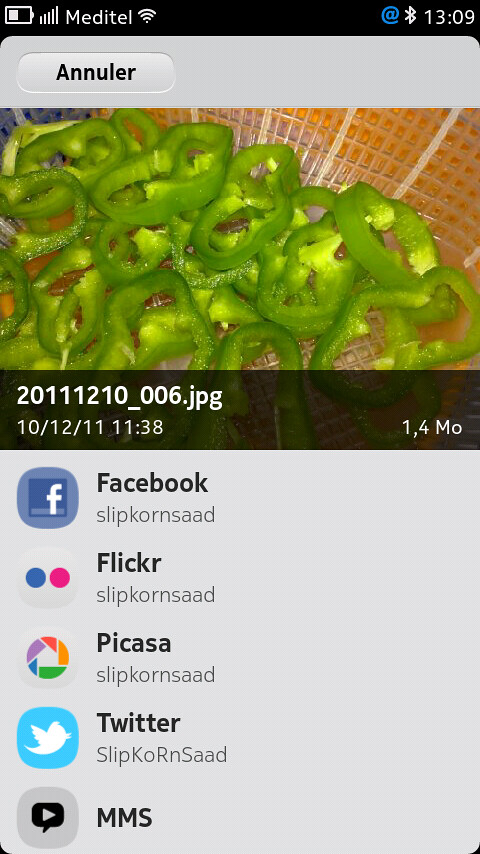
[MeeGo Harmattan] [How to] Share Pictures & Videos to Twitter From N9 Default Gallery Panel !

A simple hack (Found by ukhamitov it seems) which enables twitpic from N9 (N950) gallery !

So you can share your pictures directly from default Harmattan gallery panel manager (just like facebook, picassa etc) :

Make sure you have nano installed (Goto Settings->Security-Developer Mode-> Click Install button near utilities)


1- Open Terminal and enable root acces :
devel-su
password : rootme
2- Then type nano /usr/share/accounts/services/twitter-share.service


- The content of the twitter-share.service file will be displayed :

3- Scroll (with the help of the arrows keys) till you find something like below :

<!– <mime>image/*</mime> –>


<!– <mime>video/*</mime> –>


4- Remove comments from this code (with the help of the arrows keys) and press ctrl on the on-screen keyboard and press X and then press Y and click enter to save the modified file !

Tadaaaaa !

Ps : you can also configure max number of files to share etc.


[MeeGo Harmattan] [How to] Get MSN, ICQ, Jabber, AOL and Yahoo! In 1 or 4 steps in your N9 !

Hey hey ! What about getting all IM's : MSN, ICQ, Yahoo, AIM, IRC, Gadu-Gadu, QQ, Jabber, AOL, QIP, Vkontakte, etc on our lovely N9 (like on the N900)?

Well it's here finally !


1) Download these three files straight on the device :

LibPurple

Telepathy-Haze

IM-Providers-Additional

2 Open terminal, and gain root access using devel-su with rootme as password (unless changed).


3 Enter cd /home/user/MyDocs/Downloads


4 Then (in respective order) dpkg -i libpurple0_*.deb


(5) Then dpkg -i telepathy-haze_*.deb


(6) Then dpkg -i im-providers-additional-0.4.deb

Update :

2) You can use the Transfers view that pop-ups and single click (in respective order, otherwise installation will fail) to install (Yes, it works now) but if you're in ease with previous steps with xterm, just use it ;)

What then? Simply Restart the device you should have the various IM providers in the Accounts app.

Upgrading from a previous version :

- Download file number #3
- Use filemanager or transfer-view on your phone to find the .deb file
- click on the file, it will be upgraded automatically

If you wish to deinstall these later, simply go to  :

Programs -> Manage Programs -> im-providers-additional and select Deinstall.

You can follow this topic, this one and mainly this one for more informations and detailed guide ;)

Saturday, December 10, 2011

[MeeGo Harmattan] Photo Deformer For you N9

Photo Deformer - A cool application to make hilarious things with any photo.


You can easily make the cheerful animation turn your friend to funny character. All movies are stored on the device and you'll be in the center of attention, showing caricatures to your friends anytime.

[MeeGo Harmattan] MyTopSites : Top Site Editor for N9 Web Browser !

MyTopSites is a Top Sites editor for the built-in web browser of the Nokia N9.

Using it, you can freely modify the top sites list that's shown when you launch the browser.


You can change the title, URL, font and color background, counter, and also add new sites.

The access count is responsible for the position on the top site list in the browser. A higher value gives a more relevant position.

Note: It's recommended to close all browser windows when using this application (and vice versa) to prevent possible mess due to concurrent access of the same database by two apps.

[MeeGo Harmattan] Piggy : Your Personal Finance Management Tool !

Piggy (read about it here) a personal finance manager built with Qt Quick for N9/N950 :

It has the following features :

- add/edit/remove income
- add/edit/remove expenses
- add/edit/remove categories
- add/edit/remove accounts


Todo List:

- Report section where user can keep track on their income, expenses and balance history

For support, don't forget to watch this space :)

Tuesday, December 6, 2011

[MeeGo Harmattan] Calenderr : Daily updated Calendar app icon !

Calenderr is a simple hack to make the Calendar app icon always show today's date (day-of-month). The existence of calendar icons for each day (1-31) in the theme on the device lets suspect that this feature was either planned and then abandoned or that it will come built-in in some future firmware.


put calendarhack.conf in /etc/init/apps directory (see the comment inside)

put calenderr.sh in /home/user folder  (see the comment inside)

Or simply try this (verified) *deb  file !

More to read (support) over here !

Sunday, December 4, 2011

[Did You Know?] how Calendar Feed for N9 is developed !?

Calendar Feed  (Similar to Organiser Feed) pushes your calendar entries directly onto the event feed of your home screen, it's entirely integrated into the OS and a great example of how an application should be !

But the most interesting thing to learn, is how the application (plugin) was written ;)

Enjoy the read !

(You can translate the page with the help of an online translator)

Friday, December 2, 2011

[MeeGo Harmattan] Drive Logger : track your mileage !

Drive Logger is a driving log for enthusiastic/professional drivers. Use your mobile's GPS to track your mileage. Automatic address search and easy to use interface.

The distance measured by GPS can vary greatly depending on weather conditions, satellite positions and numerous other random things that can't be 100% taken into account. Always use the odometer of your vehicle to verify distance readings.


The application starts up in the 'New log' view and starts to locate your position right away. 'Location' shows your current location in text form. If you have started logging, the next three fields show information about the current trip. A new log can be started by pushing the button in the lower part of the screen. The text in the button changes from 'Wait for position' to 'Start logging' after position is deemed to be accurate enough. When the logging is not running, you can turn off the GPS with 'GPS off'.

Diary View:


Diary view shows the logs stored in the database. Click a log to display detailed information. To delete a log, press and hold on one log and from the opening menu, choose 'Remove'.

Details View:


Detail view shows detailed information about the log. You can edit start location, end location and odometer distance to your liking. Also log specific notes can be added in the field 'Notes'. Save your changes by clicking 'Save'

Utilities View :

Utilities view contains basic settings. You can set whether the GPS distances are shown in kilometers or in miles by flicking the switch 'Use imperial units'. If you want the application to show address of your location instead of coordinates, switch 'Automatic address search' on. This feature requires active internet connection to operate.

UPCOMING UPDATES

- Statistics view
- UI improvements

 Please send feedback, bug reports, feature requests, etc to : twoeufeedback@pp.inet.fi