Showing posts with label Scripts. Show all posts

Sunday, April 29, 2012

[MeeGo Harmattan] FasterN9 : Make your N9 running faster !

FasterN9 is a script to make N9 fast as it was in PR1.1. For those who had a N900, it's like swappoluble.

This is not a daemon, it is not a program that runs in background and makes your phone better. This script starts when your phone starts, changes the way the Linux kernel handles memory and exits. Yet, the effects continue. It's very simple, so it will probably work with almost any configuration you have in your phone.

It does run after reboot and it is not necessary to reboot after installation. If uninstalled, it will be like if it has never been there.

It will probably work better if you don't have dropcaches installed.

Code:
#!/bin/sh
#

#Author: Danilo Luvizotto <danilo.luvizotto@gmail.com>
#License: do whatever you want with it.

#This is mainly a memory MOD. The idea is to avoid swapping.
#Swapping will cause the process to freeze while waiting
#data to be available in RAM. In our case it will also waste
#battery because the swap is compressed in N9.
#
#I've read a lot of documentation to get to the conclusions
#and explanations detailed here, but I may be wrong. If you're
#an expert and something is wrong, please let me know.

#If you want to learn about about cgroups, this is the best
#documentation I've found:
#http://docs.redhat.com/docs/en-US/Re...ide/index.html
#Beware some parts are specific to Red Hat Enterprise Linux.

#Source: http://www.kernel.org/doc/Documentation/sysctl/vm.txt
#
#vfs_cache_pressure controls the tendency of the kernel to
#reclaim the memory which is used for caching of directory
#and inode objects.
#At the default value of vfs_cache_pressure=100 the kernel
#will attempt to reclaim dentries and inodes at a "fair" rate
#with respect to pagecache and swapcache reclaim.  Decreasing
#vfs_cache_pressure causes the kernel to prefer to retain dentry
#and inode caches.
#
#This is a mobile phone, we want applications to be available in
#RAM, so we prefer pagecache and swapcache, not directory and
#inode cache. We don't want applications to freeze while their
#code come back from swap!
echo 2097151 > /proc/sys/vm/vfs_cache_pressure

#This will make the system less proactive moving data to swap.
#The value '3' worked better in my tests.
echo 3 > /proc/sys/vm/swappiness

#This will limit memory used by background processes to 10MB.
#The default value is arround 70MB.
#In my phone only 3 processes are in this group:
#msyncd, obexd and the infamous smartsearch
while [[ `cat /syspart/system/background/memory.limit_in_bytes` != 10485760 ]]
do
 echo 10M > /syspart/system/background/memory.limit_in_bytes
 sleep 5
done
#This will make background processes to have less CPU priority.                             
echo 128 > /syspart/system/background/cpu.shares

#This will limit memory used by desktop processes to 100MB.
#The default value is 200MB.
#The most important process in this group is meegotouchhome,
#to wich the 3 home views belong.
#At fist I thought performance would be better if this group
#has a higher limit, but it makes no difference. High limits
#will cause processes to swap, so performance will decrease.
while [[ `cat /syspart/system/desktop/memory.limit_in_bytes` != 104857600 ]]
do
        echo 100M > /syspart/system/desktop/memory.limit_in_bytes
 sleep 5
done
Sunday, January 29, 2012

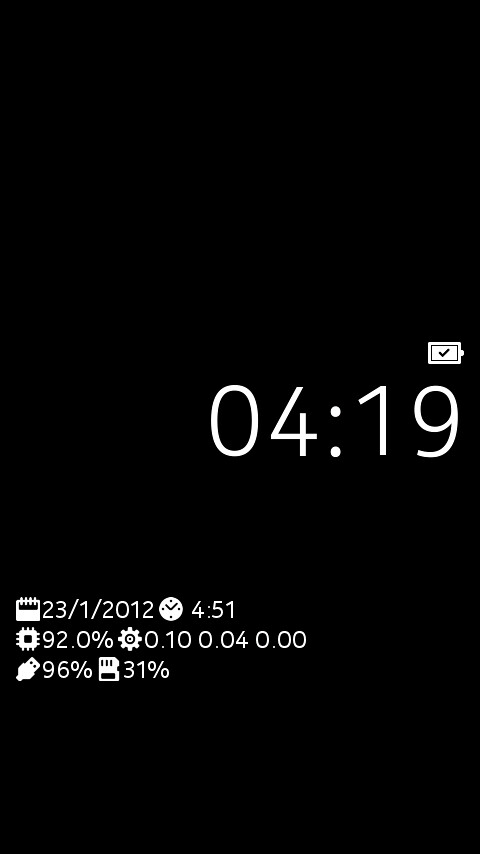
[MeeGo Harmattan] lpsmagic : Add useful info to low power screen !

lpsmagic basically shows info on lp mode instead of the operator logo

On your standby screen, which was kind of empty until now, the following things will be shown below the clock:


- current date
- uptime of the device
- amount of used RAM
- system load (1, 5, 15 minutes)
- battery state
- amount of used space on user data partition

of course everything comes with a corresponding icon. The battery icon will change depending on charging state (not connected, usb connection, wall charger connection) and loading percentage.

You can download it from here:
http://dl.dropbox.com/u/5225087/ls-magic_1.1_armel.deb

To have it running:
Install deb
Reboot

Saturday, December 24, 2011

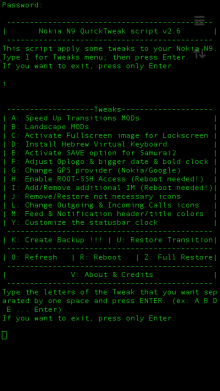
[MeeGo Harmattan] N9 QuickTweak : Different set of tweaks for your N9 !

Like N9Tweak, this small application that work via terminal also and will give you some different tweaks to your N9 file system.


I tried this app a few times and it’s work perfectly and quickly, but still I'm not responsible for the damage if will cause to your phone :-)

Tweaks Menu:

A. Speed Up Transitions MODs (Refresh needed) – You have a three different options (this have automatic refresh):

1. Full Speed Up Transition MOD - include landscape mod for Home & Lockscreen.
2. Speed Up Transitions with ONLY landscape Homescreen.
3. Only Speed Up Transitions - without landscape mod for Home & Lockscreen.


B. Landscape MODs (Refresh needed) - You have a four different options (this have automatic refresh):

1. Full Landscape MOD (Home & Lockscreen)
2. Full Landscape MOD (Home & Lockscreen) from your orig. files.
3. Only Homescreen Landscape MOD.
4. Only Homescreen Landscape MOD from your orig. files.


C. Activate Fullscreen image for Lockscreen – it’s activate a big-fullscreen image for LockScreen Landscape MOD, but before you apply this, you need to do something.. (thanks to jflatt)

Explanation:
1. Create picture named “mywall”with an 854x854 px dimension and with .png extension (mywall.png).
2. Put this image from your PC to: /home/user/MyDocs/.wallpapers/
3. Go to Setting ->Wallpaper-> choice your wallpaper and press Done.
4. Open N9 QTweak app (password of devel-su, default: rootme), choice i [hit Enter] then choice c [hit Enter]. No need to reboot !!!

D. Install Hebrew Virtual Keyboard – Add Hebrew virtual keyboard (Thanks to mohammad7410).

G. Change GPS provider (Nokia/Google) - This will give you ability to change the GPS provider (Thanks to Almehdin’s script).

H. Enable ROOT-SSH Access (Reboot needed!) – activate SSH access for ROOT user. This have automatic reboot. (Thanks to F2thaK & Almehdin).

I. Add/Remove additional IM (Reboot needed!) - This will install 3 additional packages: im-providers-additional telepathy-haze libpurple0. And you can use additional IM's - ICQ/MSN/Yahoo/AOL/Jabber/VK… This have automatic reboot for both options: Add/Remove (Thanks to Niwakame and his packages).

J. Remove/Restore not necessary icons - You can Remove or Restore the not necessary icons from your homescreen. It's not uninstall, it's only remove icons like facebook, twiter, User guide... You can choose a few numbers separated by one space and press ENTER. (ex: 2 4 6 ... Enter)

L. Change Outgoing & Incoming Calls icons – This will change you Outgoing & Incoming Calls history icons. Reboot needed! (Thanks to superjunior)

M. Feed & Notification header/title colors - This will change your Feed & Notification header and title colors to Orange and Blue (Thanks to oSCho)

Y. Customize the statusbar clock – Change your statusbar clock (ex. 08:08 | Sun 13 Okt or 08:08 AM | Sun 13 Okt), it have automatic refresh.

K. Create Backup !!! – Creating Backup from your system files. This will create folder named “.N9QTweakBackup” in your: /home/user/MyDocs

U. Restore Transition – Restore all changed files of Speed Up Transition with your BackUp files. (Refresh needed).

R. Reboot – Reboot your phone.

Z. Full Restore – This will restore ALL your tweaks, can uninstall new IM’s and restart or refresh your phone. Uninstall have two options Yes & No and also you will notice twice about uninstall new IM’s, you can choose Yes or No inside the restore process.

O. Refresh – Refresh your Homescreen and Lockscreen without reboot. All your applications will be closed anyway, but it's still faster way than a full reboot. See here.

V. About & Credits - it is clear

Before installation, make sure you have "allow other sources" set in settings and developer-mode activated.

Installation:
* Download and transfer the .deb file (thanks to Ammyt & hxka) to your phone.
* Install the .deb file by the usual way (double tap on file).
* Go to application Homescreen. You will see a new icon (Thanks to 3llipsis) at the end of the list and you can see the PDF instruction inside the: /home/user/MyDocs/Documents
* Tap on it and it will ask you for password of devel-su (default: rootme)
* Choose letter you want and press enter (you can write big or small character).

NOTE:
* Run “Create Backup !!!” on your first use of this script, mainly because of Speed Up Transition and Landscape MOD.
* You can choose more of one tweaks separated by one space and press ENTER. (ex: A B D E ... Enter)
* If you choose O or R, choose it at the end
* A and B have automatic refresh and H and I have automatic reboot and if you want to use more tweaks in the same session, just put this letters at the end. Don't use A , B , H and I together.. For example, you want to install A , C , F and D - just put the A at the end: C F D A [hit Enter]

Uninstall:
* To uninstall my application, do this by usual way, go to: Settings -> Applications -> Manage applications. Choose N9-QTweak and uninstall it. Another way – long press on N9 QTweak icon on the app homescreen.

  • If you uninstall this app it will leave the Backup files in MyDocs (/home/user/MyDocs/.N9QTweakBackup) and if for some reason you forgotten to restore your tweaks before uninstalling, you can do this manually or only one time by running the one simple command as ROOT: sh /home/user/MyDocs/.N9QTweakBackup/RESTORE . This command:

    1. restore your tweaks to default (except the new IM’s)
    2. Delete this folder (.N9QTweakBackup) from your phone
    3. Refresh your home and lockscreens
  • To update to new version, just install new .deb file.
Enjoy :D

Discussion and bug reports:

Maemo.org

Tuesday, December 13, 2011

[MeeGo Harmattan] N9Tweak : user friendly app for some hacks available on N9 !

N9Tweak is a litte user friendly app for some hacks available on N9 !

Example of date and time format tweaking ;)


Install it through the browser and make sure you have "allow other sources" set in settings and developer-mode activated.

Current features:

* Add adhoc at start up
* Boost the playback volume
* Change the statusbar clock
* Tweaks the clock, date and bounce of the lock-screen
* Activate/Deactivate landscape support
* Tweak screen rotation sensitivity
* Change GPS provider
* Change behaviour of PowerKey
* Enable/Disable auto-brightness setting
* Add local key to N950 fn+arrow hw-keys
* Edit the options in display settings
* Swap screen sleep mode on or off
* Add/Remove extra repositories
* Enable ssh to root user
* Enlarge virtual keyboard
* Enable/Disable Skype on N950

Changelog:


0.2-3 

* Improved landscape a bit
* Q for quit app
* Added XL vkb
* Colored GUI
* Screen rotation sensitivity
* A couple of bug fixes

0.2-2

* Added rezisable virtual keyboard
* Added root ssh enabler
* Added zsh installer (hidden)
* Fixed 12h/24h issue for status clock
* A bunch of small fixes

0.2-1

* Change GPS provider
* Change PowerKey behaviour
* Added PreDriv to startup
* Added Screenlapse (hidden)

0.2-0

* A bunch of bug fixes

0.1-8

* A bunch of bug fixes

0.1-7

* Added bounce to lock-screen
* Added volume boost
* Added startup adhoc
* Added german hw-keys
* possibilty to revert hw-keys
* added /usr/bin/n9tweak
* A bunch of bug fixes

0.1-6

* Made a deb for easy install
* Made a desktop launch icon
* Added ability to reset all options

0.0-7

* initial release

You can follow updates here or here ;)

Tuesday, December 6, 2011

[MeeGo Harmattan] Calenderr : Daily updated Calendar app icon !

Calenderr is a simple hack to make the Calendar app icon always show today's date (day-of-month). The existence of calendar icons for each day (1-31) in the theme on the device lets suspect that this feature was either planned and then abandoned or that it will come built-in in some future firmware.


put calendarhack.conf in /etc/init/apps directory (see the comment inside)

put calenderr.sh in /home/user folder  (see the comment inside)

Or simply try this (verified) *deb  file !

More to read (support) over here !

Sunday, April 4, 2010

Scripts that increase your N900's user experience !

As you already know, Desktop Command Execution widget is one of the most useful widgets on your Maemo desktop. It can be used to show certain information (for example battery level in percentage) or as a button which can be used for example to disconnect active internet connection (you need to tap 3 times and also wait for menus to appear without this widget). Therefore it can replace many other applications/widgets/applets and you can also make something new.

Also, with the help of Alarmed or Fcron you can set a command to be executed at specific intervals (every minute, hourly, on specific weekdays, on last day of month etc...)

Here you'll find a collection of scripts that work in these applets :

http://wiki.maemo.org/Fcron#Scripts


http://wiki.maemo.org/Phone_control

http://wiki.maemo.org/Desktop_Command_Execution_Widget_scripts#Scripts

Saturday, March 6, 2010

lfocus : Change focus and turn on/off the led while filming a video !

How about a python script using v4l2-ctl that will enable you to change focus and turn on/off the led while filming a video?

Well, m2cm2c over talk.maemo.org has maked the script works while filming video!

It does the following with the N900 keyboard :

q-w led on/off
e-r recording red light on/off
a-s change focus
z turn off the zoom and enable the focus through the zoom buttons
c turn on the zoom and disable the focus through the zoom buttons
d fixes the sudden focus that happens sometimes after pressing the camera button,so press d first then adjust the focus with a and s so you don't get a different focus than the one you got with the camera button.
x terminate script

* remember to always press X on the keyboard when you're done with the script 

Here's a demo video of the script working :


Once you've installed the deb file, you can run the script by clicking on its icon from the applications menu and then start filming !

You can this space for upcoming updates !

Download it !

Sunday, February 28, 2010

Shake to wake : Shake your N900 to open up the screen !

Shake to wake for Nokia N900. Idea from http://maemo.org/community/brainstorm/view/shake_to_wake/

Python script uses acceleration sensors to detect shake, then dbus command to open up the screen. It wont open the screen if proximity sensor says it’s closed. This is to prevent unwanted openings. For example if you have your N900 in your pocket 

You can watch the demo below (i can't embed it, i have no access to youtube, damn google...): http://www.youtube.com/watch?v=RYmJ95rSj-A

Python script is available here

To install, copy script to your phone, /home/user/shake/shake.py and start it by running command :

python shake.py


The author is on a deb-file.

Please note that script is very very resource hungry so it will drain your battery !

Via : iskuri